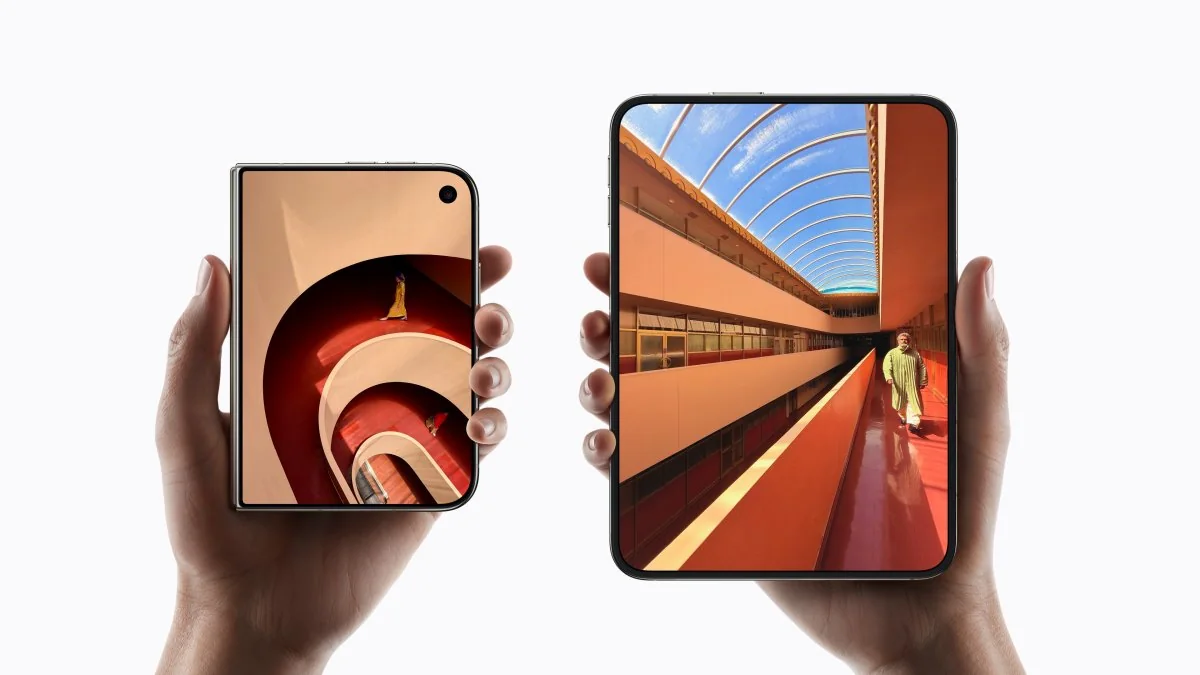
Apple’s foldable device, the iPhone Duo, has proven popular enough that initial stock remains limited. While the Duo introduces a new form factor for iOS users, getting the most out of the hardware requires adjusting a few settings to improve everyday tasks like authentication, navigation, and photography.
After evaluating the device, several key adjustments are recommended to make the hardware easier to handle, particularly regarding the side-mounted biometric sensor.
Touch ID Optimization
Unlike modern standard iPhones, the Duo relies on Touch ID rather than Face ID. Users must press a finger against the side of the chassis to authenticate applications, unlock the system, and authorize payments. Several configurations can ease the transition back to fingerprint authentication.
Register extra fingerprints to account for different holding orientations. Because the device can be flipped and rotated vertically or horizontally, various fingers and thumbs will naturally reach the sensor. Users should register multiple prints from both hands after testing how they grip the device. This is configured via Settings > Touch ID & Passcode > Add a Fingerprint.
Owners of compatible accessories can use an Apple Watch to automatically unlock the phone without touching the sensor. The watch must be passcode-protected and worn nearby. Enable this under Settings > Touch ID & Passcode > Unlock with Apple Watch.
An optional accessibility setting allows users to rest a finger lightly on the sensor to unlock the device instead of physically pressing down. This preference can be toggled via Settings > Touch ID & Passcode > Rest Finger to Open.
Usability Improvements
Additional software adjustments can streamline daily interactions, such as capturing screenshots and managing interface layouts.
By default, volume buttons remain fixed regardless of device orientation. Disabling fixed controls allows the volume buttons to rotate dynamically with the hardware layout. This can be changed under Settings > Sounds & Haptics > Fixed Position Volume Controls.
Taking screenshots via button combinations can be cumbersome on a foldable. Users can configure a back-tap gesture in accessibility settings to trigger a screenshot via a double or triple tap on the rear chassis. Setup is located under Settings > Accessibility > Touch > Back Tap.
Reachability on the Duo adapts to the wider, passport-like form factor by allowing users to swipe the left or right edge of the display to bring the far side within thumb reach. The feature is enabled by default and can be managed under Settings > Accessibility > Touch > Reachability.
Users who prefer automatic screen locking when snapping the device closed can build a custom automation inside the Shortcuts app by selecting the "Opened or Closed" display trigger and pairing it with the "Lock Screen" action.
Camera Adjustments
The camera application includes specific layout options tailored for the foldable hardware.
iOS updates allow users to customize the on-screen camera controls layout. By opening the Camera app and accessing the six-dot menu, operators can add, remove, and reorder primary tools such as flash, Live Photos, and Night Mode around the framing interface.
The hands-free Smart Take feature automatically captures photos when motion or stable poses are detected. By default, the camera flash blinks as a visual confirmation upon capture. This behavior can be disabled by navigating to Settings > Camera > Flash During Capture.