Hardware and OS Overview
Chromebooks have often been seen as glorified web browsers designed only for schools. But with Googlebooks, Google is making a renewed push to show its laptops are designed to be full-on PCs, running a new operating system that feels more like Android than anything else.
Googlebook OS is also designed to merge your Android phone and your laptop in a way that has never been seen outside of Apple’s macOS and iOS devices.
And of course, Google has packed Googlebook OS full of AI features. Some of these are unique to the new laptops, while others, like Rambler, have been introduced on Android phones before.
The new undertaking currently has five hardware partners: Dell, Lenovo, HP, Acer, and Asus. The hardware that we tested is generally sound, though I wouldn't mind a bit more battery life. It's the OS itself that needs some more time in the oven. It largely feels like Android, with some features nailed on to fit a desktop OS. Despite the expansive Google Play Store, the platform is still limited and largely centered around the web browser.
In some ways, Googlebooks are more powerful than Chromebooks could ever be. In other ways, they feel like they haven't yet grown into a full PC operating system.
Googlebook Hardware
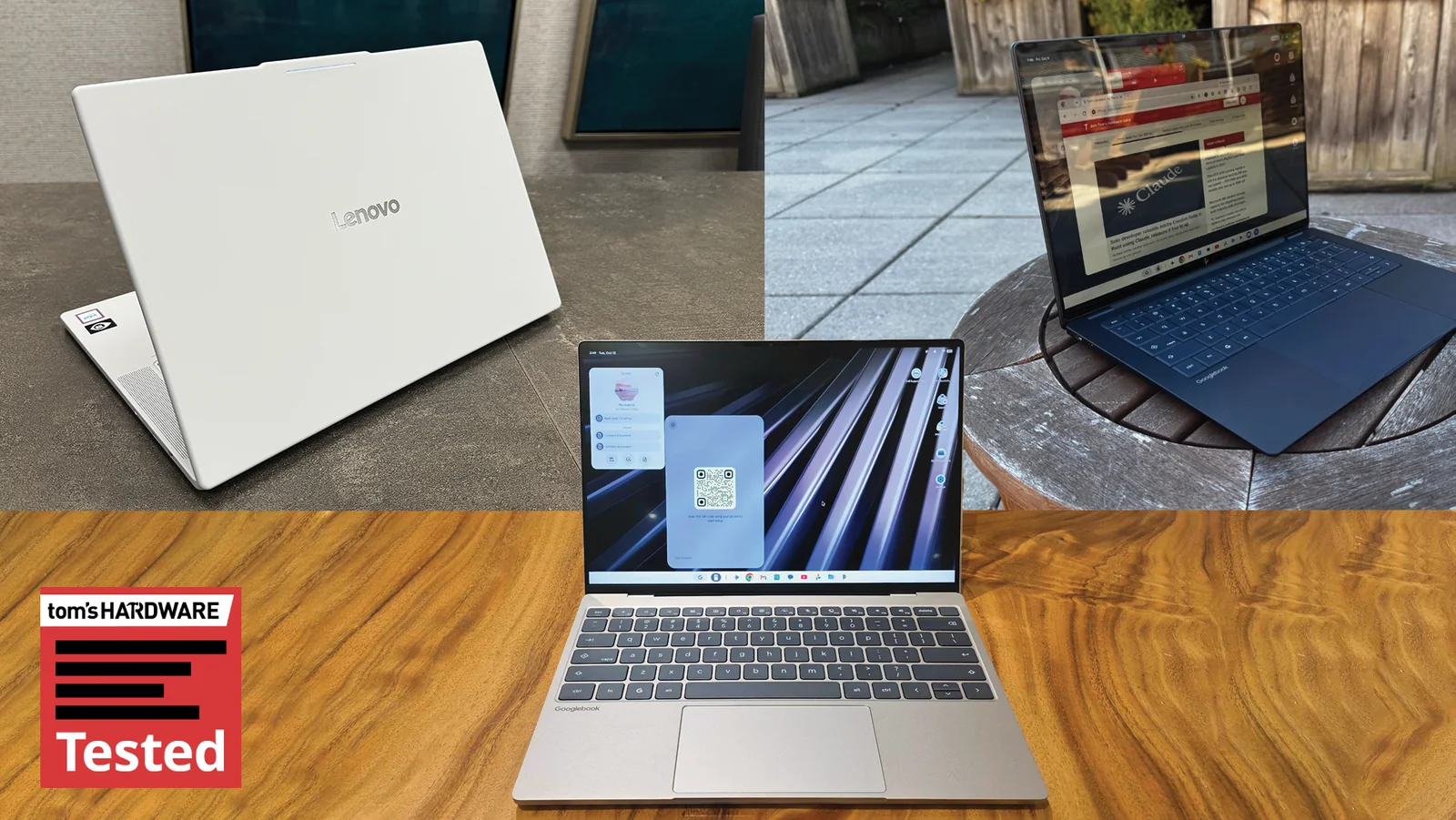
I've spent the last few days using the Lenovo Googlebook 15, HP Googlebook 14, and Dell’s XPS Googlebook. In general, if you've seen some recent Windows laptops, you've seen this hardware. The HP Googlebook 14 is clearly based around the HP OmniBook Ultra, while the Dell XPS Googlebook is a carbon copy of the Dell XPS 13, although there is a haptic touchpad in this version. I have few complaints there, as both of those are solid machines.
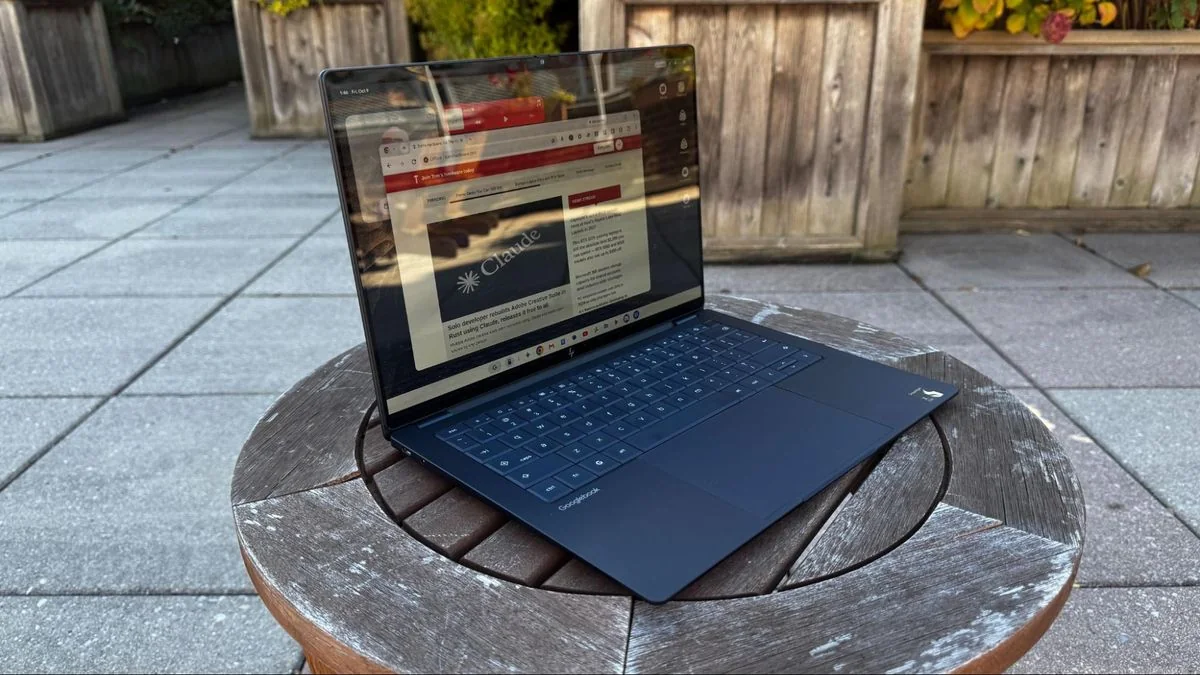
Of the systems, the HP feels the most premium, but I've come to appreciate Lenovo's airy design with the all-white Lenovo Googlebook 15. Despite the 15.3-inch OLED screen, the mix of carbon fiber with aluminum and magnesium doesn't feel as high-end, but is light at approximately 2.84 pounds.
HP and Lenovo both include beautiful 2880 x 1800 OLED screens, while Dell opted for a 2560 x 1600 LCD panel instead.
While ports, materials, and screens might differ, all of the Googlebooks share a few things in common. The first is the Glowbar, which originated on the Chromebook Pixel and Pixel C tablet. Here, it serves as the sole unifying element that tells anyone looking at you that yes, you're using a Googlebook. When you turn the system on or put it to sleep, it has a nice rainbow pattern, but otherwise it largely glows white. It dances around when you speak to Gemini, and when you plug or unplug the device, it indicates battery life with colors.
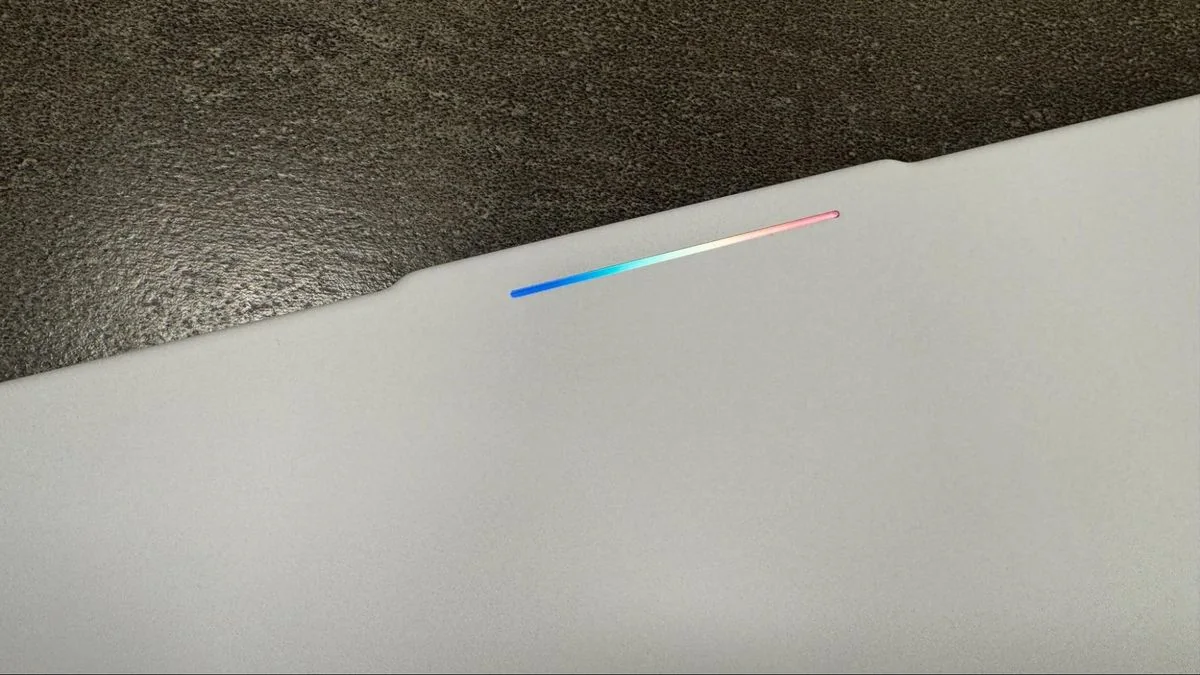
Other than turning the Glowbar off, there's not much customization unless you find the hidden Glowbar Disco app, which Google is positioning as an easter egg. Glowbar Disco lets you choose a custom color, preset gradient, or a series of animations, but effects aren't persistent when you close the app.
The other major similarity across all of the hardware is the keyboards. Google has a shared layout across all of the devices, including a G key that opens the app launcher and works with shortcuts, a Caps Lock key that doubles as Quick Insert, and function keys dedicated to navigation.
Performance Benchmarks
There are two chips in the first crop of Googlebooks. The HP Googlebook 14 and Dell XPS Googlebook are powered by the Qualcomm Snapdragon X Elite, while the rest are using Intel's Core Series 3 Panther Lake processors. Since launch, there have been questions about app compatibility on the Intel models, as most Android apps are designed to run on Arm chips.
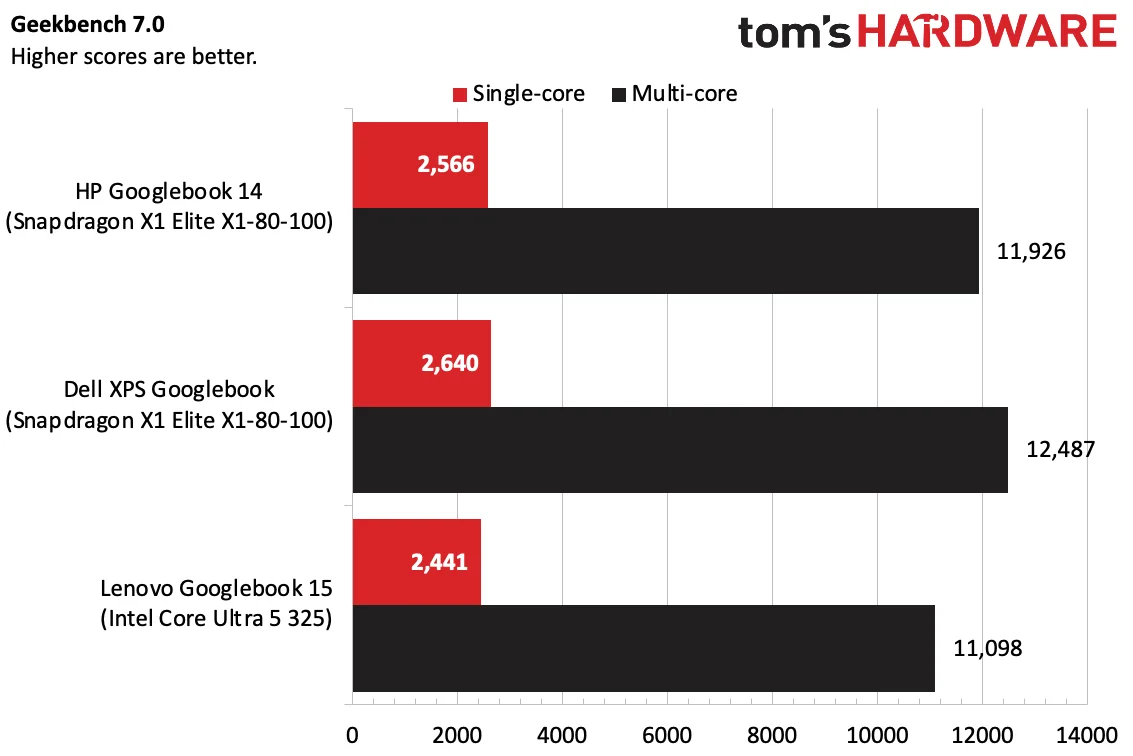
In benchmarks, we found that the Snapdragon X1 Elite models outperformed the singular Intel option we had to test. Notably, though, that's Qualcomm's high-end Oryon chip compared to an Intel Core Ultra 5.
In Geekbench 7, the Snapdragon-based systems edged out the Lenovo Googlebook with Intel, particularly in multi-core. But on WebXPRT4, the Lenovo system won.
On 3DMark's Steel Nomad Light, the Snapdragon systems won out again, though not by a wide margin, which is worth noting if you plan to do a lot of Android gaming.
On our battery test, the Intel-based Lenovo won out at 11 hours and 52 minutes, while the HP hit 10 hours and 25 minutes, and the XPS reached 10 hours and 4 minutes. None of these are amazing times for modern ultraportables.
It's also notable that while Googlebooks as a class have at least 16GB of RAM, they appear to always have at least 7-8GB in use, likely housing local AI models to be ready at any moment.
Software and App Ecosystem
If you use an Android phone, specifically one of Google's Pixels, you'll feel right at home with a Googlebook. For all the talk of merging ChromeOS and Android, Googlebook OS really feels like an Android phone scaled up to a laptop format.
There's a taskbar on the bottom, and the systems come with precreated folders for Google apps on the desktop. There's also a dedicated My Googlebook app to help users learn the ropes.
Along the very top, there's a status bar with the time, date, a button to turn on the Magic Cursor, and quick settings accessible by clicking the Wi-Fi and battery icons.
Apps are housed in the G Menu, and if you have a phone paired, it appears next to it with a separate drawer of apps you can cast directly to your phone.
It's quite simple if your primary app is Google Chrome. If you use the rest of Google's ecosystem, like Photos, Calendar, and Messages, you'll almost be set up out of the box.
But the simplicity and elasticity of Android only goes so far. While it's clearly flexible enough to become a desktop OS, there are some areas where you can tell the team needed more development time.
For starters, a lot of the interface spacing feels meant for touch. When right-clicking on the desktop for context menus, there is a significant amount of space, which feels more natural for a finger than a mouse cursor.
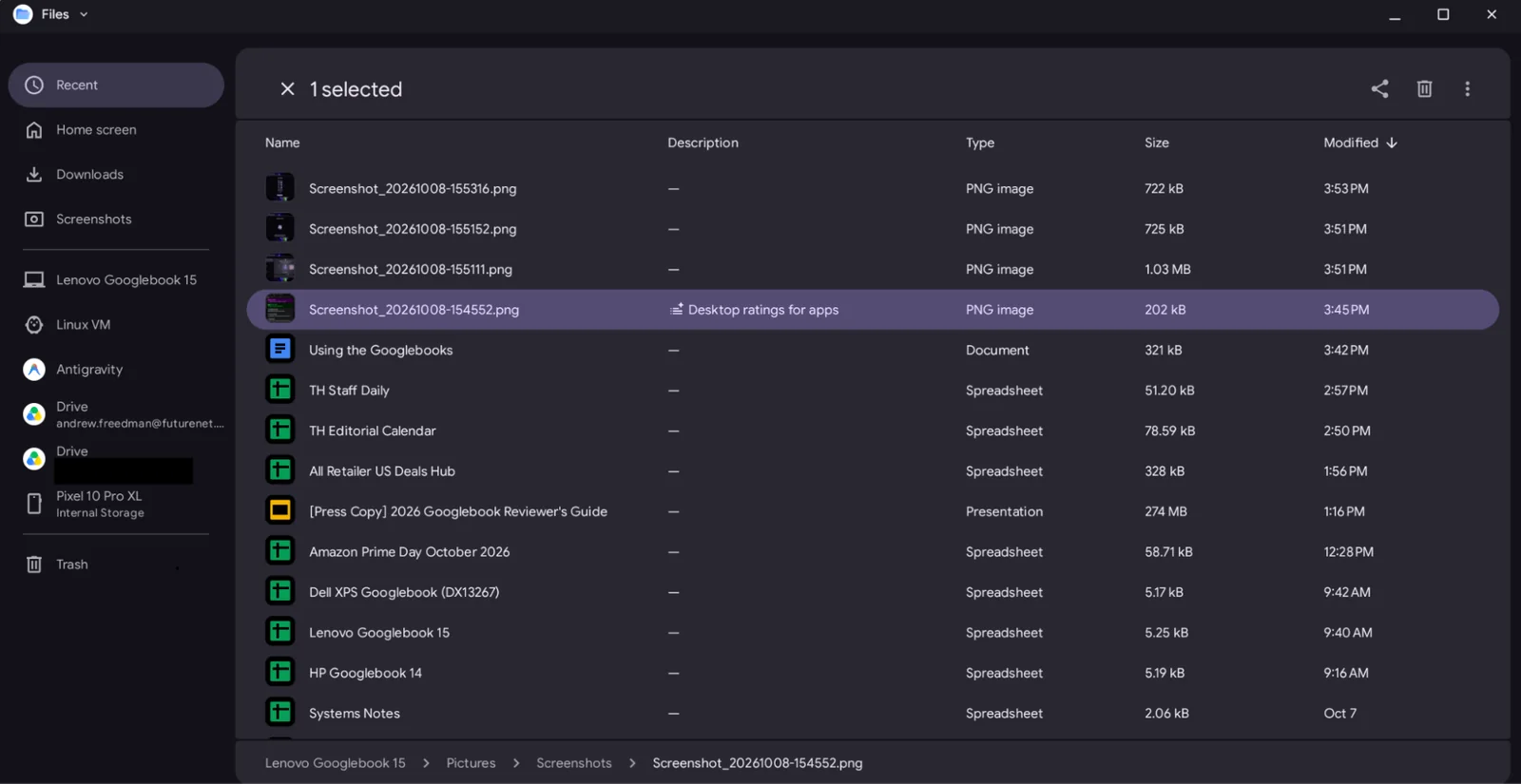
You see more of that in the Files app, which lacks features that make sense on a computer. For example, there are no forward and back buttons, and the app doesn't let you pin or reorder folders in the sidebar.
Perhaps most damning, given how flexible ChromeOS is with profiles, is that the version of Google Chrome on Googlebook OS does not currently support multiple profiles, breaking workflows for users with separate work and personal accounts.
The best thought-out desktop feature is Quick Insert. Having a key that serves as a go-to place for your clipboard history, suggested emojis, recent browsing, and tools is a real time saver.
App Availability and the Play Store
The only way to install apps on a Googlebook is through the Play Store. Unlike Windows, macOS, and Linux, you can't install software directly from the web browser.
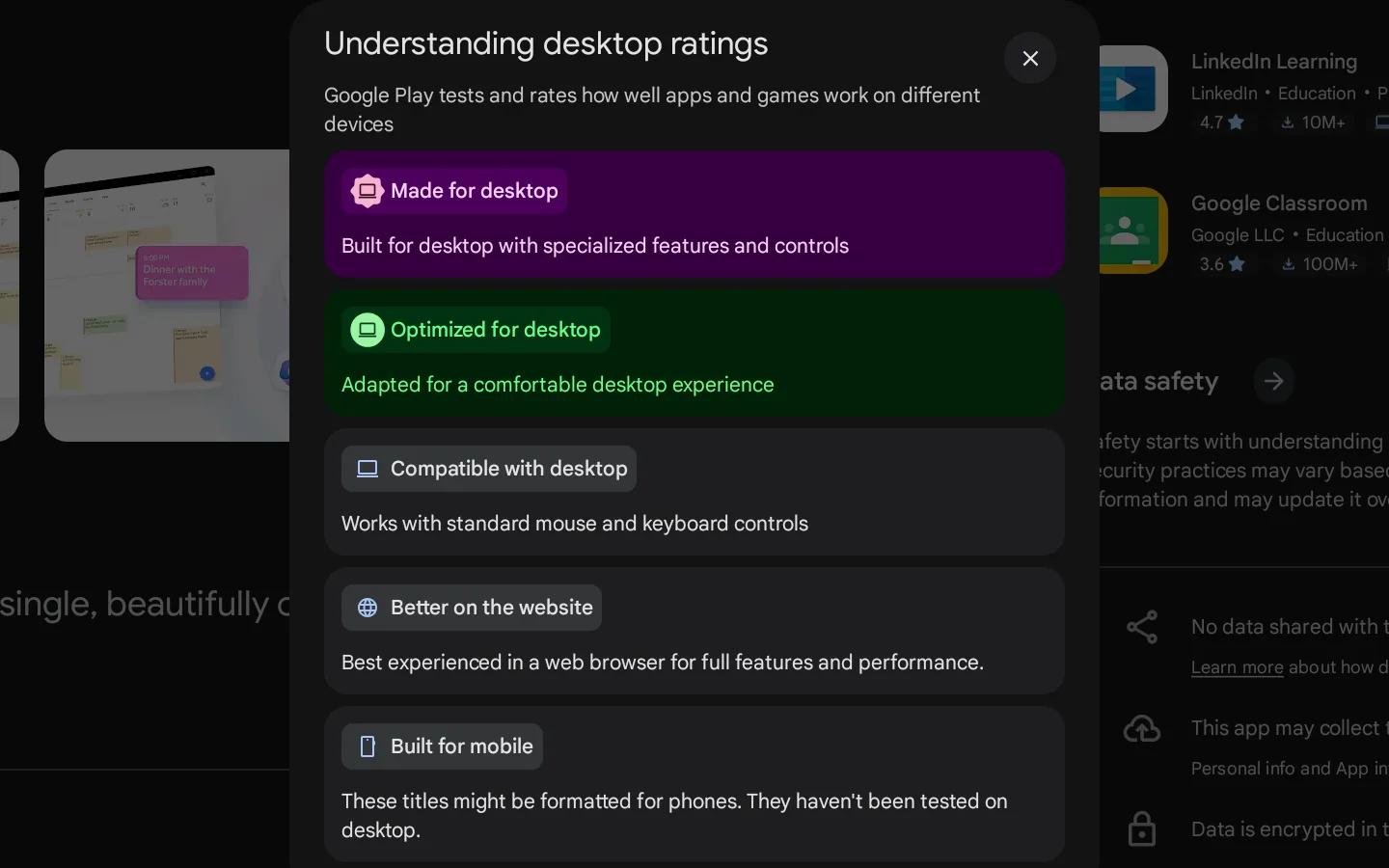
In the Play Store, Google has five desktop ratings. Made for Desktop is the gold standard for mouse and keyboard control, while Optimized for Desktop means an app has been adjusted for larger screens.
Other tiers include Compatible with Desktop, Better on the Website, and Built for Mobile, which simply delivers a smartphone-formatted app.
Compatible with Desktop doesn't always guarantee a great experience. Some games stretch out and leave black bars on the sides, highlighting the need for wider developer optimization.
Designed for Mobile apps should be a last resort. Mobile banking apps, for instance, are often far better accessed via the web browser instead.
Google's own apps are a mixed bag. Gmail and Calendar are just web apps in a wrapper, though Messages feels like a proper Android app.
During setup, app transfer offerings can be inconsistent, occasionally leaving off essential software without explaining the lack of desktop optimization.
While major applications like Photoshop, Netflix, Obsidian, and Microsoft Office are optimized for desktop use, the platform still needs stronger developer backing.
An alternative option involves installing apps through a Linux virtual machine, though it is not recommended for general users.
Cross-Device Integration
Googlebooks allow you to pair your laptop and phone closer than ever before, enabling shared notifications and wireless file dragging in the Files app.
Finding a compatible phone can be a hurdle, however, as advanced cross-device features like app casting require an Android 17 device, leaving out many current smartphone users.
Even popular devices like Samsung's Galaxy phones require specific software updates to work seamlessly with Googlebooks.
Setting up cross-device features often requires navigating multiple sub-menus and troubleshooting steps, though the resulting experience surpasses typical Windows phone links when functional.
Reliability can vary, with occasional notification drops and file transfer hiccups interrupting the workflow.
App casting is a standout feature when working properly, allowing users to run phone apps exclusively on the laptop while leaving the physical phone free for other tasks.
Continue On functionality is also welcome, letting users pick up web browsing sessions seamlessly between devices, though it is currently restricted mostly to Google apps and Chrome.
AI Integration and Gemini
Googlebooks are heavily integrated with AI. Features like the Magic Cursor allow users to click on screen elements and query Gemini immediately.
While faster than traditional copy-and-paste workflows, its utility depends heavily on individual user habits.
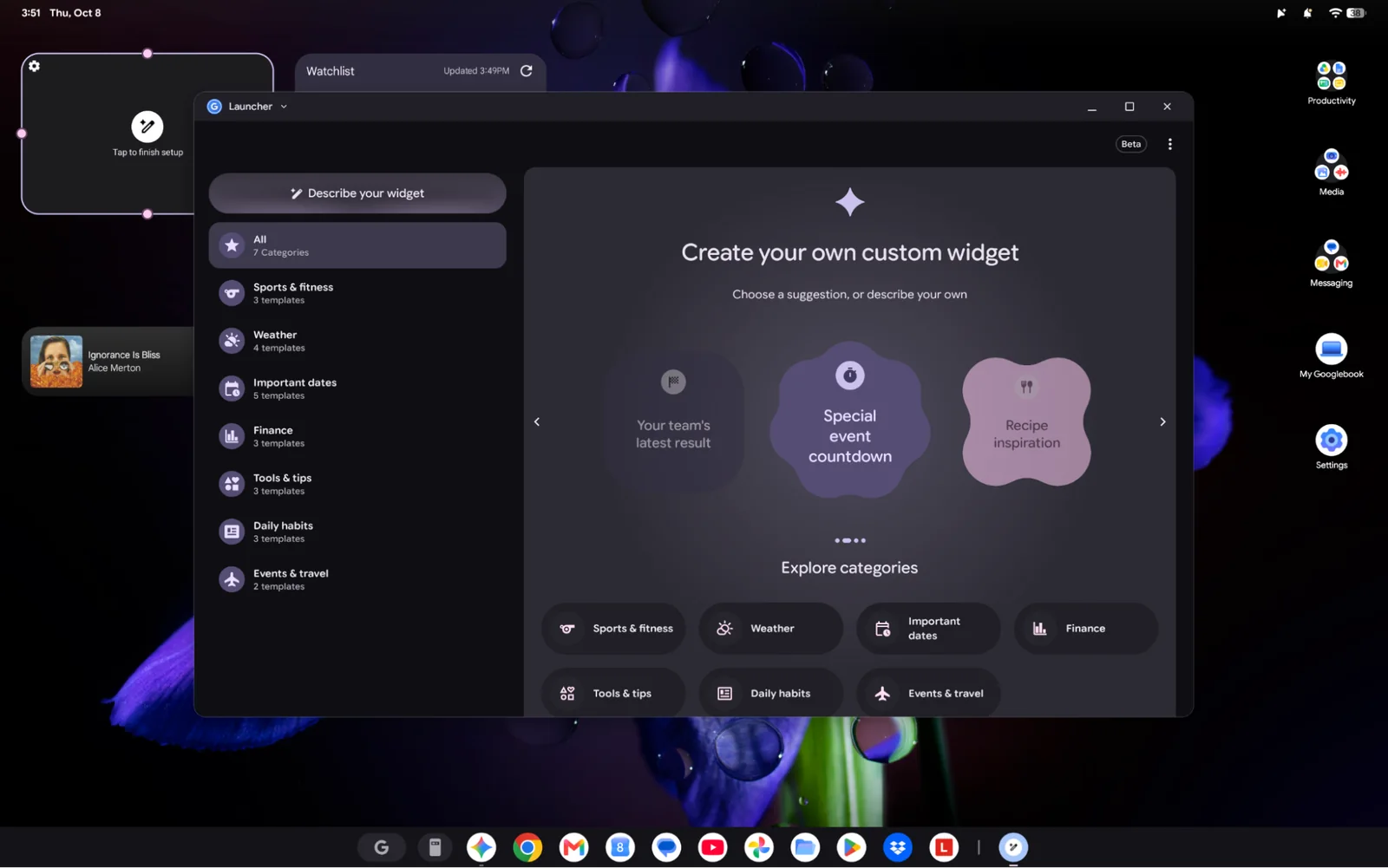
Custom widget creation powered by AI is neat, though flexibility is currently restricted, disallowing system telemetry widgets like CPU usage monitors.
Rambler is one of the most impressive inclusion features, allowing users to speak, make mistakes, and automatically correct spoken statements into intended text.
Preinstalled development tools like Antigravity let users generate apps via AI prompts, though executing shell commands requires caution from less-experienced users.
Gemini is deeply embedded across Google's application suite, offering the most value to dedicated ecosystem users.
The Debian Linux Terminal
Each Googlebook includes a preinstalled Debian Linux terminal and virtual machine, supporting applications like GIMP and Steam.
Virtual machine apps remain isolated within the environment and cannot easily be pinned to the primary app drawer for separate execution.
Performance inside the VM can be laggy, with lightweight games and audio outputs occasionally exhibiting technical glitches.
Window resizing and heavy tools in applications like GIMP suffer from noticeable input lag, making web apps and Play Store selections preferable.
Final Verdict
It is currently too early to judge the ultimate success of Googlebooks. Users who rely entirely on web apps and Android services can make the platform work today.
Google still has significant work to do to make the OS feel completely natural with a mouse and keyboard, and developers must optimize their apps for larger screens.
Prospective buyers should wait and see how the platform evolves. Early adopters will encounter software quirks, meaning most users should hold off on spending their money until the software matures.
Google must ensure seamless app compatibility across all silicon platforms and guarantee reliable phone pairing before the ecosystem can achieve mainstream readiness.