Googlebooks: A New Era
Chromebooks have often been perceived as basic web browsers primarily for educational use. With Googlebooks, Google is making a renewed effort to position its laptops as full-fledged PCs, powered by a new operating system that leans heavily into an Android-like experience.
Googlebook OS is also designed to integrate your Android phone and laptop more deeply than previously seen outside of Apple’s macOS and iOS ecosystems.
Naturally, Google has infused Googlebook OS with numerous AI features. Some are exclusive to these new laptops, while others, like Rambler, have already debuted on Android phones.
The current initiative involves five hardware partners: Dell, Lenovo, HP, Acer, and Asus. The hardware we tested is generally robust, though improved battery life would be welcome. It's the operating system itself that requires further refinement, feeling largely like Android with desktop features bolted on. Despite the extensive Google Play Store, the platform remains limited and heavily reliant on the web browser.
In some aspects, Googlebooks surpass Chromebooks in capability. In others, they still feel like they haven't fully matured into a complete PC operating system.
Hardware Design and Build
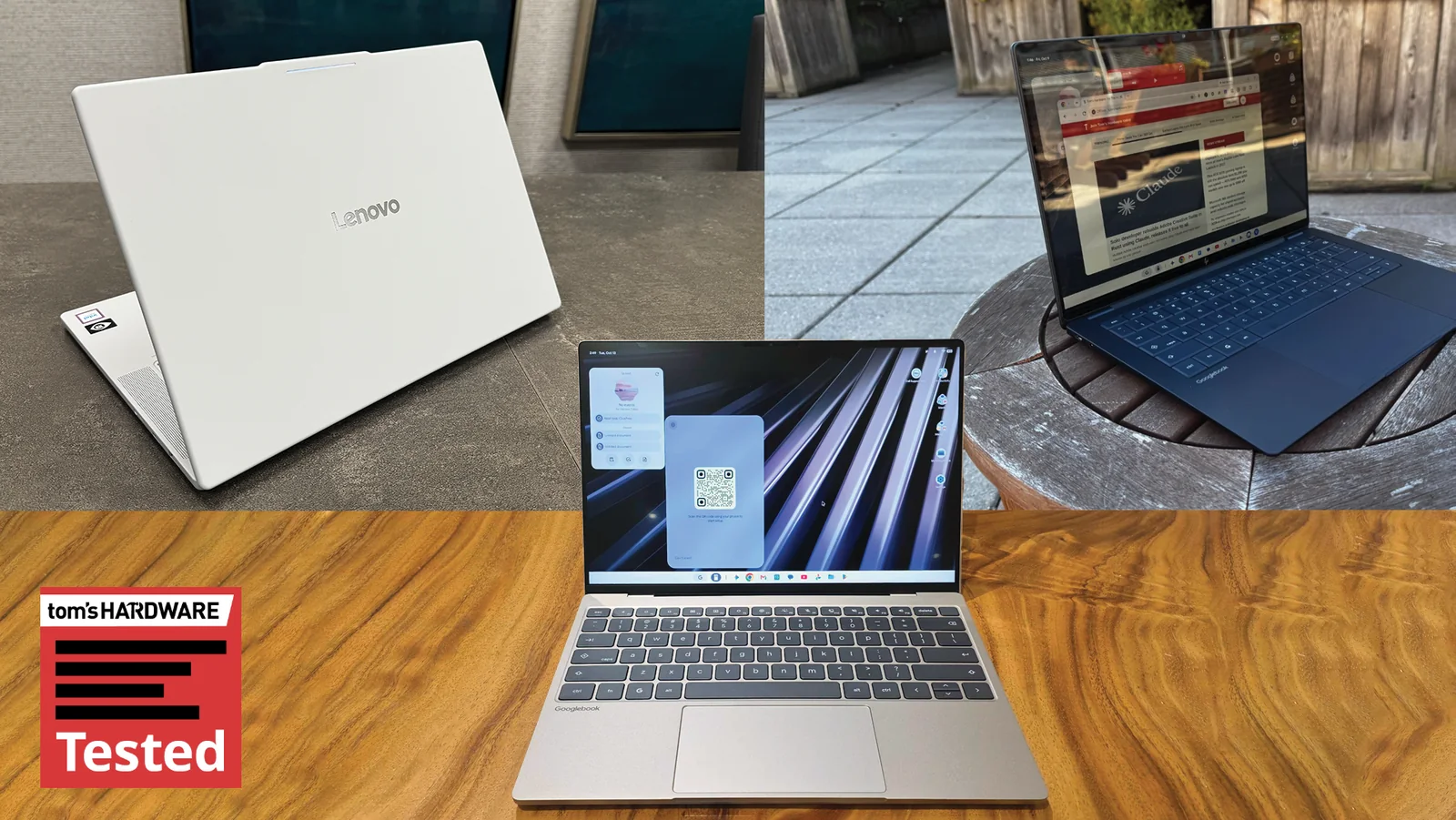
We evaluated the Lenovo Googlebook 15, HP Googlebook 14, and Dell’s XPS Googlebook. Generally, the hardware mirrors recent Windows laptops. The HP Googlebook 14 appears based on the HP OmniBook Ultra, and the Dell XPS Googlebook is a near replica of the Dell XPS 13, albeit with a haptic touchpad. These are solid machines, though HP's keyboard design with keys lacking spacing remains a minor concern.
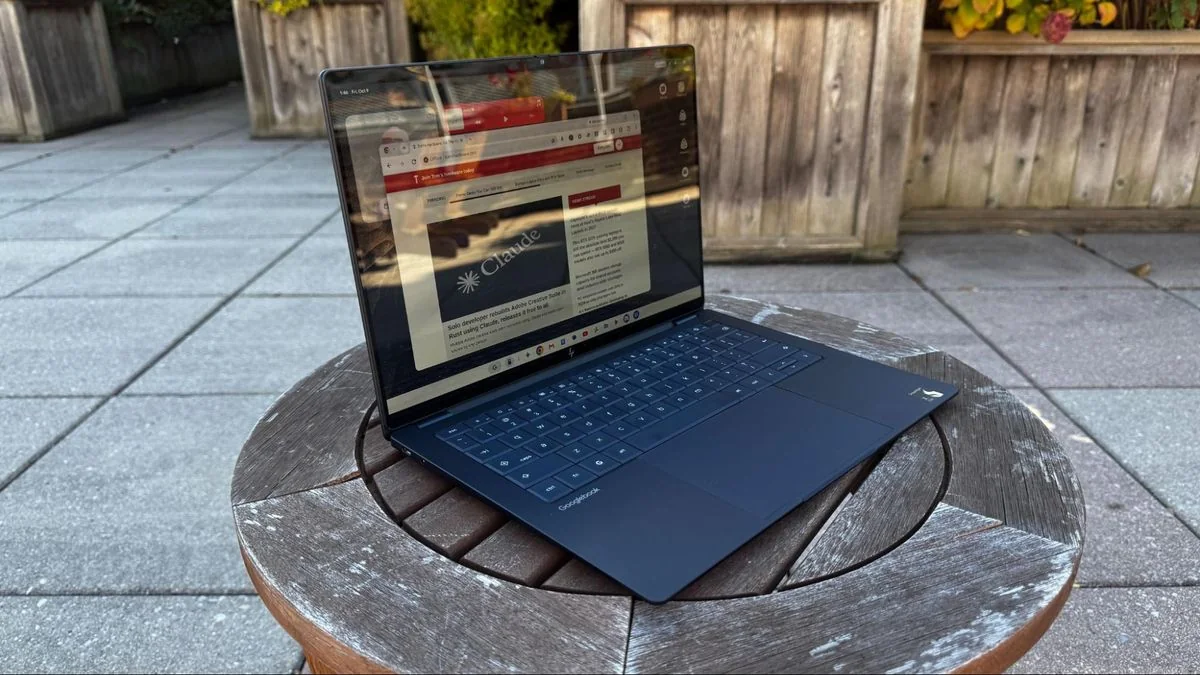
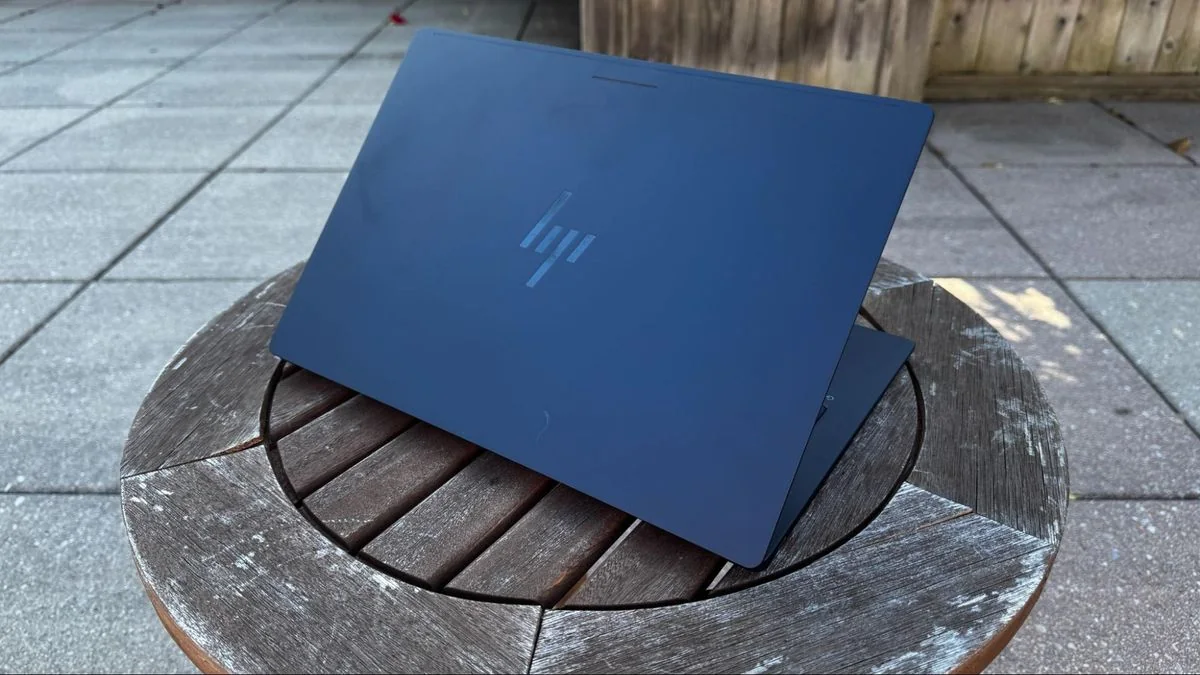
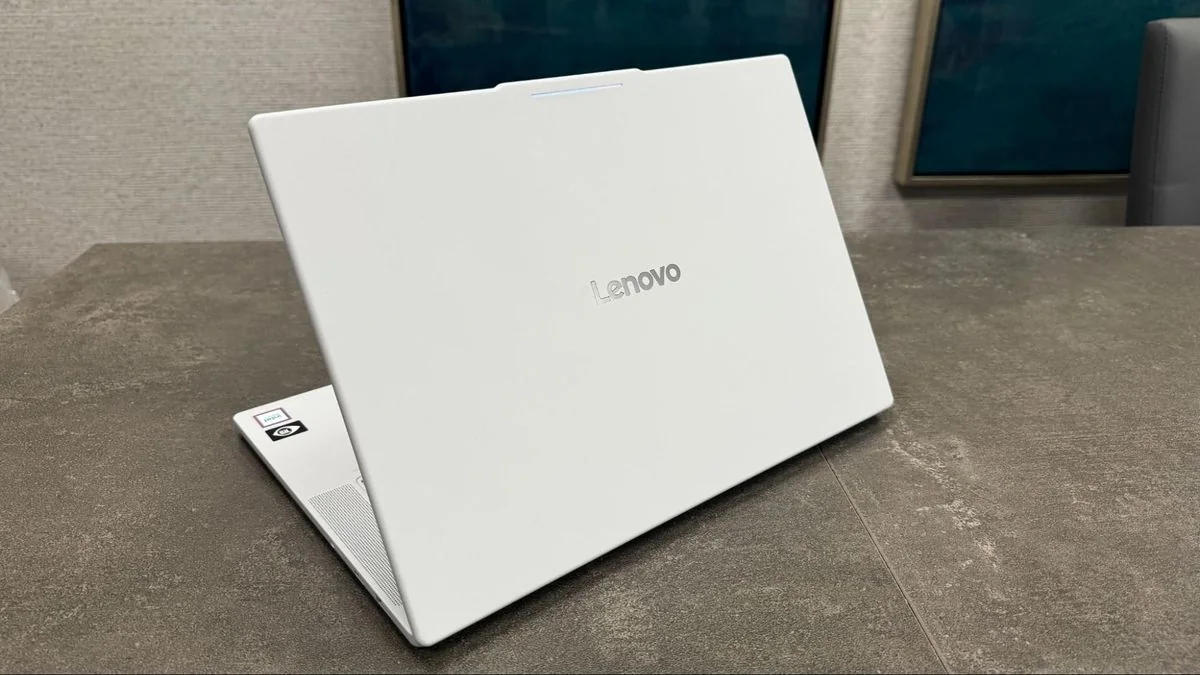
Among the tested systems, the HP feels the most premium. However, Lenovo's airy, all-white design on the Googlebook 15 is also appealing. Despite its 15.3-inch OLED screen, the blend of carbon fiber, aluminum, and magnesium doesn't feel as high-end but contributes to its light weight of approximately 2.84 pounds.
Both HP and Lenovo models feature impressive 2880 x 1800 OLED screens, while Dell chose a 2560 x 1600 LCD panel.
Unique Features: Glowbar and Keyboard
Despite variations in ports, materials, and screens, all Googlebooks share common elements. The most distinctive is the Glowbar, a feature originating from the Chromebook Pixel and Pixel C tablet. It acts as a unifying visual identifier for Googlebooks. It displays a rainbow pattern upon startup or sleep, otherwise glowing white. It animates when interacting with Gemini and indicates battery status (green, yellow, red) and charging issues.
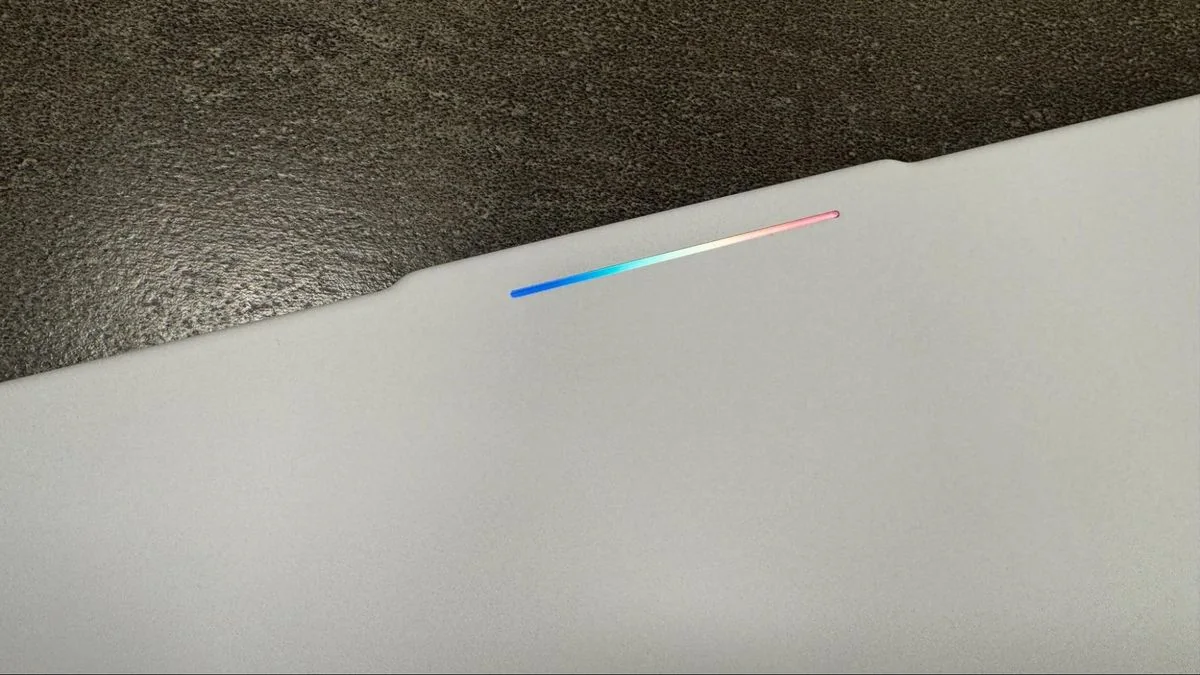
Beyond simply turning the Glowbar off, customization is limited unless users discover the hidden Glowbar Disco app, which Google presents as an easter egg. (To access: Settings > Apps > "See all [Number] apps" > three dots > "Show System" > "Glowbar Disco" > External arrow button.) Glowbar Disco allows selecting custom colors, preset gradients, or animations like a Knight Rider-style scanner, a rainbow, or a "vibe code" resembling falling Matrix letters. Music sync is an experimental option. Effects are not persistent after closing the app, and it cannot be pinned to the taskbar for easy access.
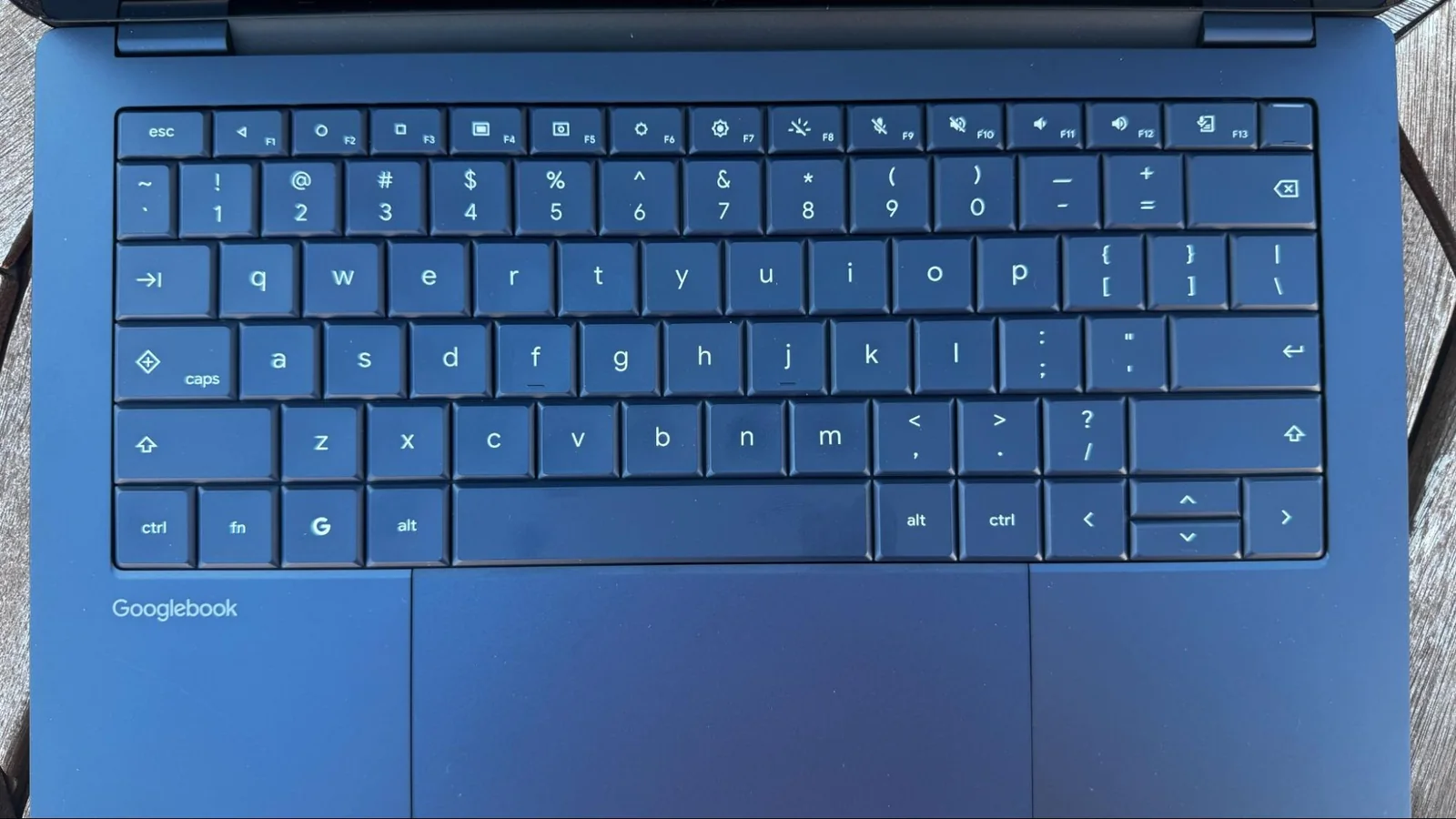
Another shared hardware feature is the keyboard layout. Google has standardized this across all devices, including a 'G' key for the app launcher and shortcuts, a Caps Lock key that doubles as Quick Insert, and F1-F3 keys for Back, Show Homescreen, and Overview (to display all open apps). These function keys evoke earlier Android phone interfaces, though similar settings can still be found on current Android phones.
Processor Architectures and App Compatibility
The initial Googlebook lineup features two primary chip options. The HP Googlebook 14 and Dell XPS Googlebook utilize the Qualcomm Snapdragon X Elite X1-80-100, while other models, such as the Lenovo Googlebook 15, employ Intel's Core Ultra 5 325 "Panther Lake" processors. Concerns have arisen regarding app compatibility on Intel models, as most Android apps are designed for Arm chips. Google and Intel have differing views on how many Android apps currently function seamlessly on Intel. We observed glitches in the Android-based Googlebook OS, including popping icons. Notably, Arm-based Googlebooks could run Microsoft Edge, while the Intel-based Lenovo encountered issues, despite Edge being marked "compatible with desktop" in the Play Store.
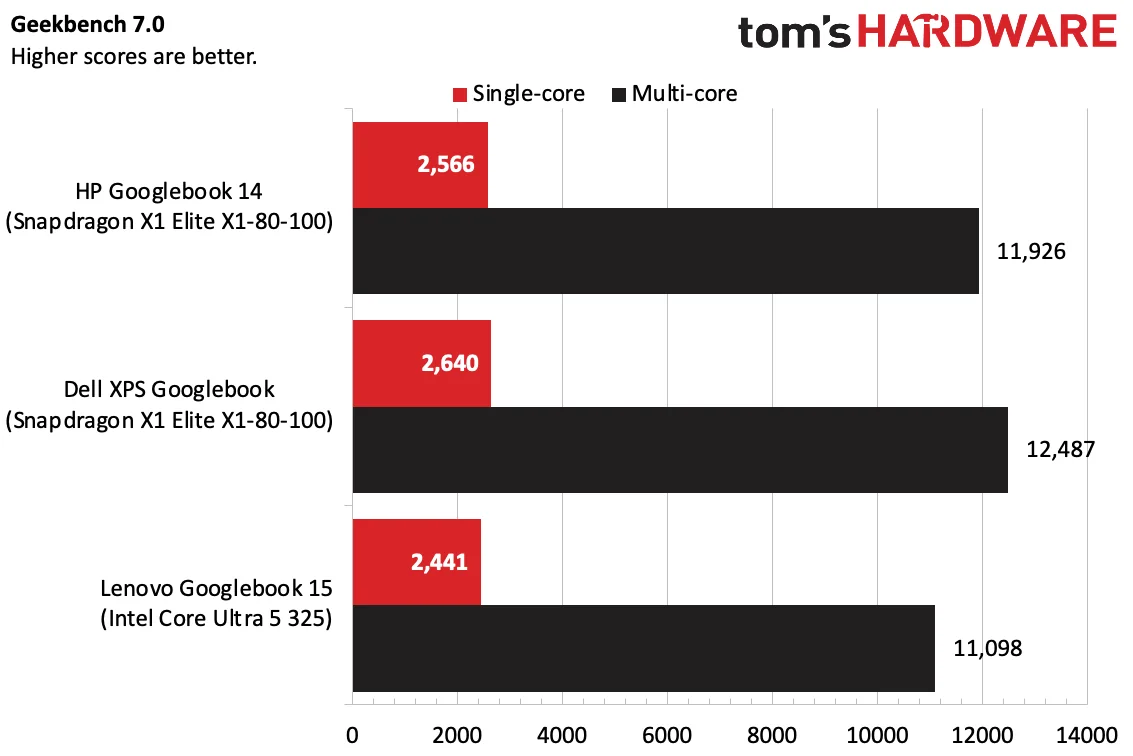
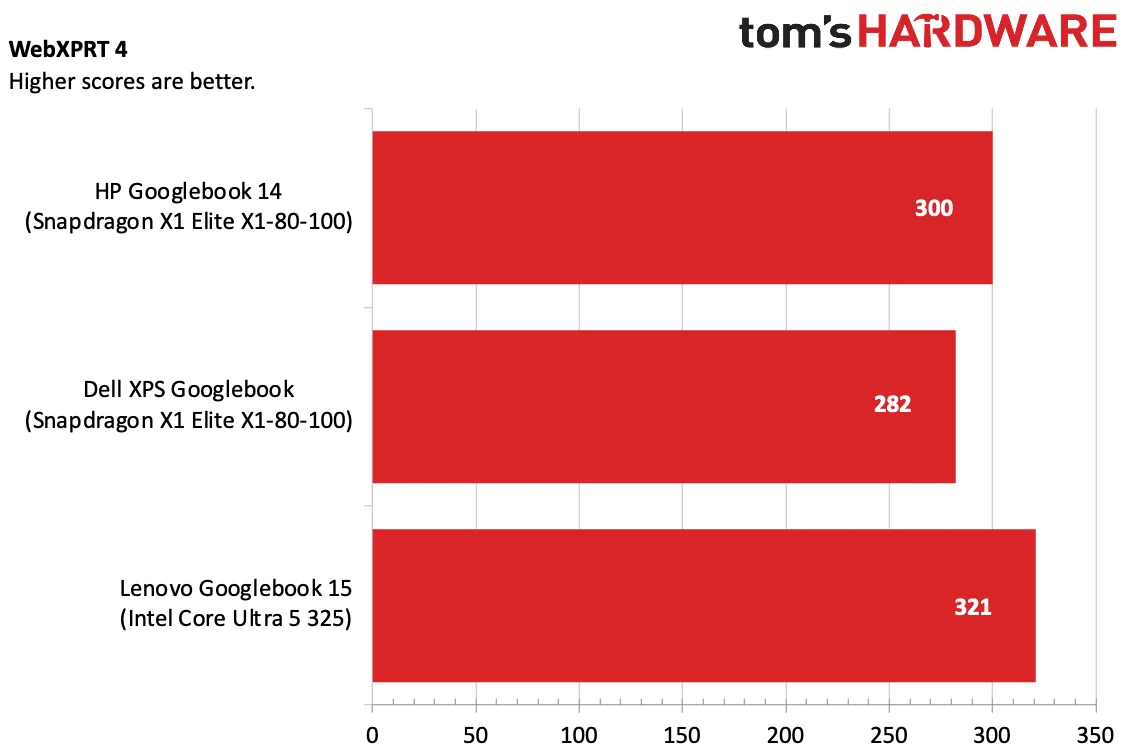
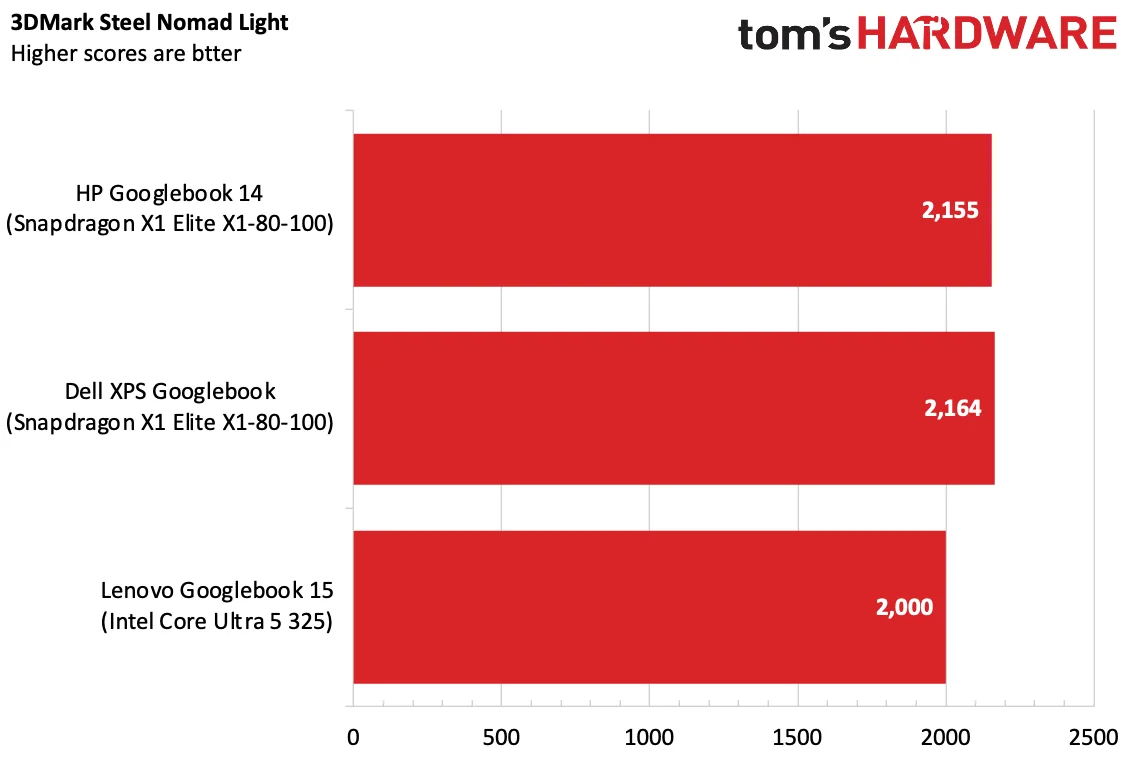
In our benchmarks, the Snapdragon X1 Elite models generally outperformed the single Intel option available for testing. It's important to note that this compares Qualcomm's high-end Oryon chip (first generation) against an Intel Core Ultra 5, as we did not have an Intel Core Ultra 7 system for comparison.
In Geekbench 7, the Snapdragon-based systems slightly surpassed the Intel-equipped Lenovo Googlebook, particularly in multi-core performance. However, the Lenovo system achieved a win in WebXPRT4, a benchmark relevant given Google's claim that users spend 70% of their time in the browser.
The Snapdragon systems also took the lead in 3DMark's Steel Nomad Light, though not by a substantial margin, which is a consideration for Android gaming enthusiasts.
Battery Life and RAM Usage
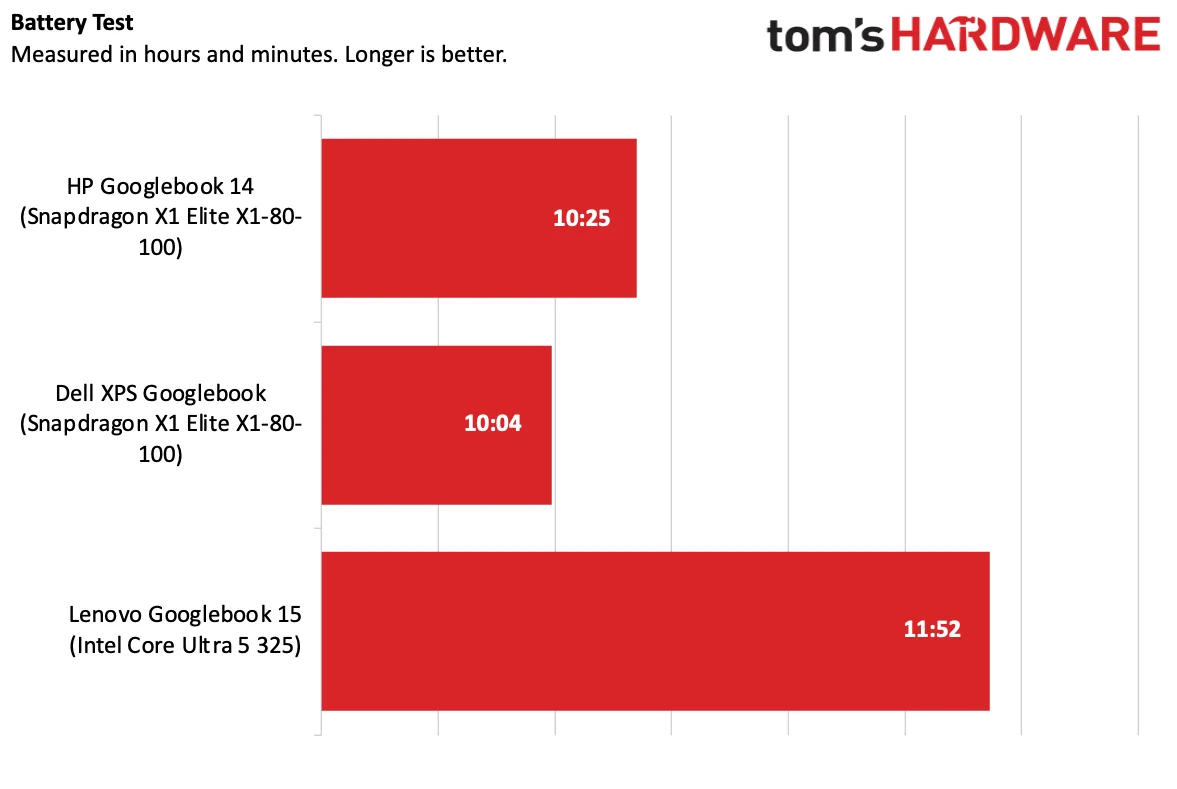
During our battery test, the Intel-based Lenovo lasted 11 hours and 52 minutes, while the HP achieved 10 hours and 25 minutes, and the XPS reached 10 hours and 4 minutes. None of these times are particularly impressive. Our Googlebook battery test involves continuously browsing 30 live websites at 150 nits of brightness.
It's also noteworthy that all Googlebooks come with at least 16GB of RAM, yet their task managers consistently show 7-8GB already in use, likely allocated for local AI models to ensure instant readiness.
Googlebook OS
Users familiar with Android phones, especially Google's Pixels, will find Googlebook OS immediately comfortable. Despite discussions about merging ChromeOS and Android, Googlebook OS predominantly feels like an Android phone adapted for a laptop.
The interface includes a taskbar at the bottom (currently immovable, reminiscent of Windows 11) and pre-created desktop folders for Google apps. A dedicated 'My Googlebook' app is also present to guide new users.
At the very top, a status bar displays the time, date, a button for the Magic Cursor, and quick settings accessible via the Wi-Fi and battery icons (similar to macOS' Control Center).
Apps are found in the G Menu, and if a phone is paired, a separate drawer of castable phone apps appears alongside it.
The system is quite straightforward, particularly for users whose primary application is Google Chrome. If you are deeply embedded in Google's ecosystem (Photos, Calendar, Messages), setup is nearly seamless, though confirming the Google account for each app can be repetitive. For those not utilizing these services extensively, the overall value proposition of a Googlebook becomes questionable.
However, the simplicity and adaptability of Android have their limits. While the OS is clearly flexible enough to function on a desktop, certain areas reveal that the development team needed more time.
For instance, much of the UI spacing feels designed for touch input. Right-clicking on the desktop for context menus resulted in excessive space, which felt natural for a finger touch but cumbersome with a mouse.
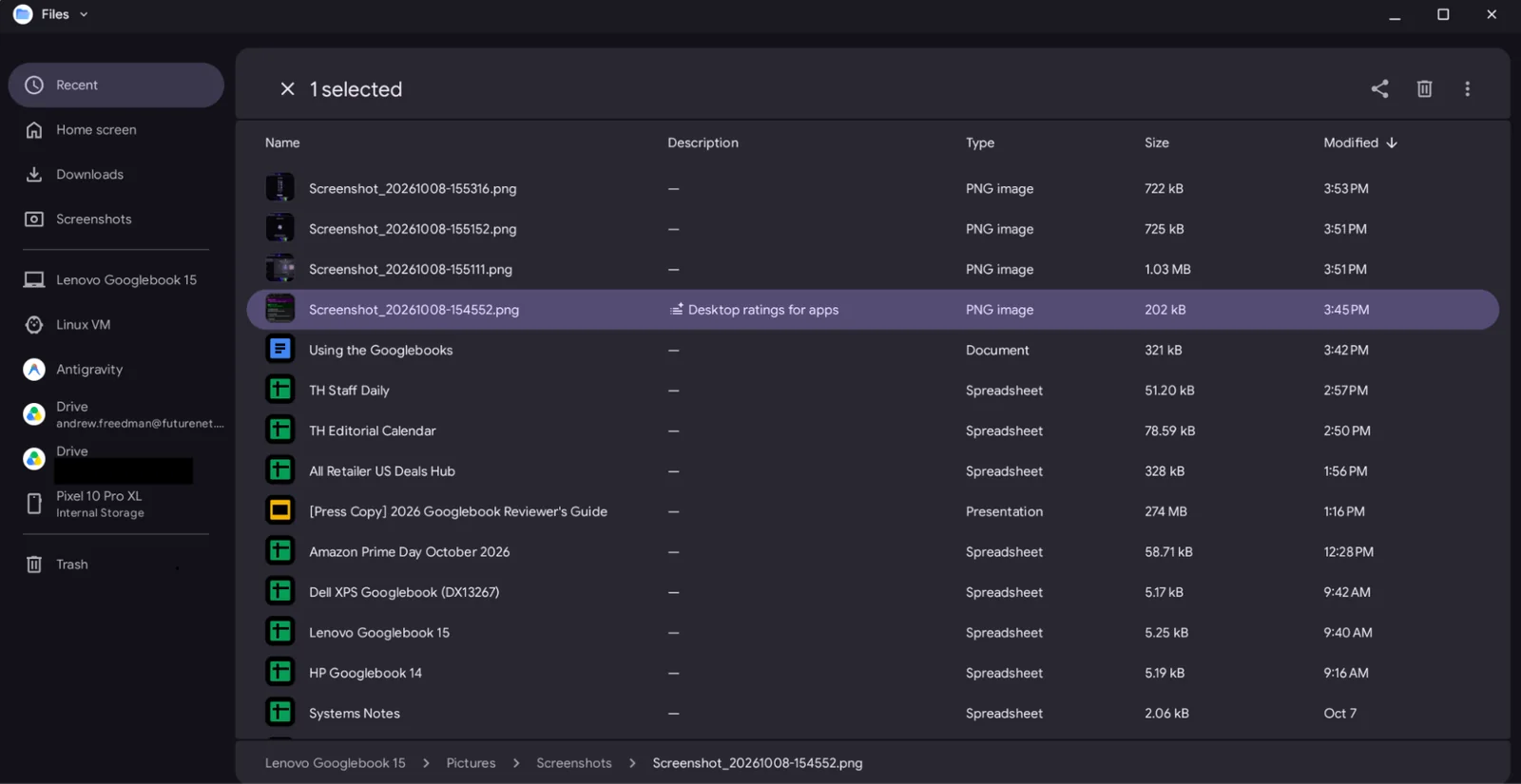
This touch-centric design extends to the Files app, which lacks features essential for a computer, such as forward and back buttons. Navigation relies on folders or the path at the bottom of the screen. Additionally, the Files app does not allow pinning or re-ordering folders in the sidebar.
Perhaps most critically, especially given ChromeOS's robust profile management, the version of Google Chrome on Googlebook OS currently does not support multiple profiles. This limitation disrupts the workflow for many users, particularly those who maintain separate accounts for work and personal use.
A well-executed desktop feature is Quick Insert. A dedicated key providing quick access to clipboard history, suggested emojis, recent browsing, and various tools is a significant time-saver, eliminating the need to navigate through multiple menus.
All the apps you want, as long as you like the Play Store
The Googlebook system is highly restricted, with the Play Store being the sole method for installing apps. Unlike Windows, macOS, and Linux, users cannot install software directly from a web browser.
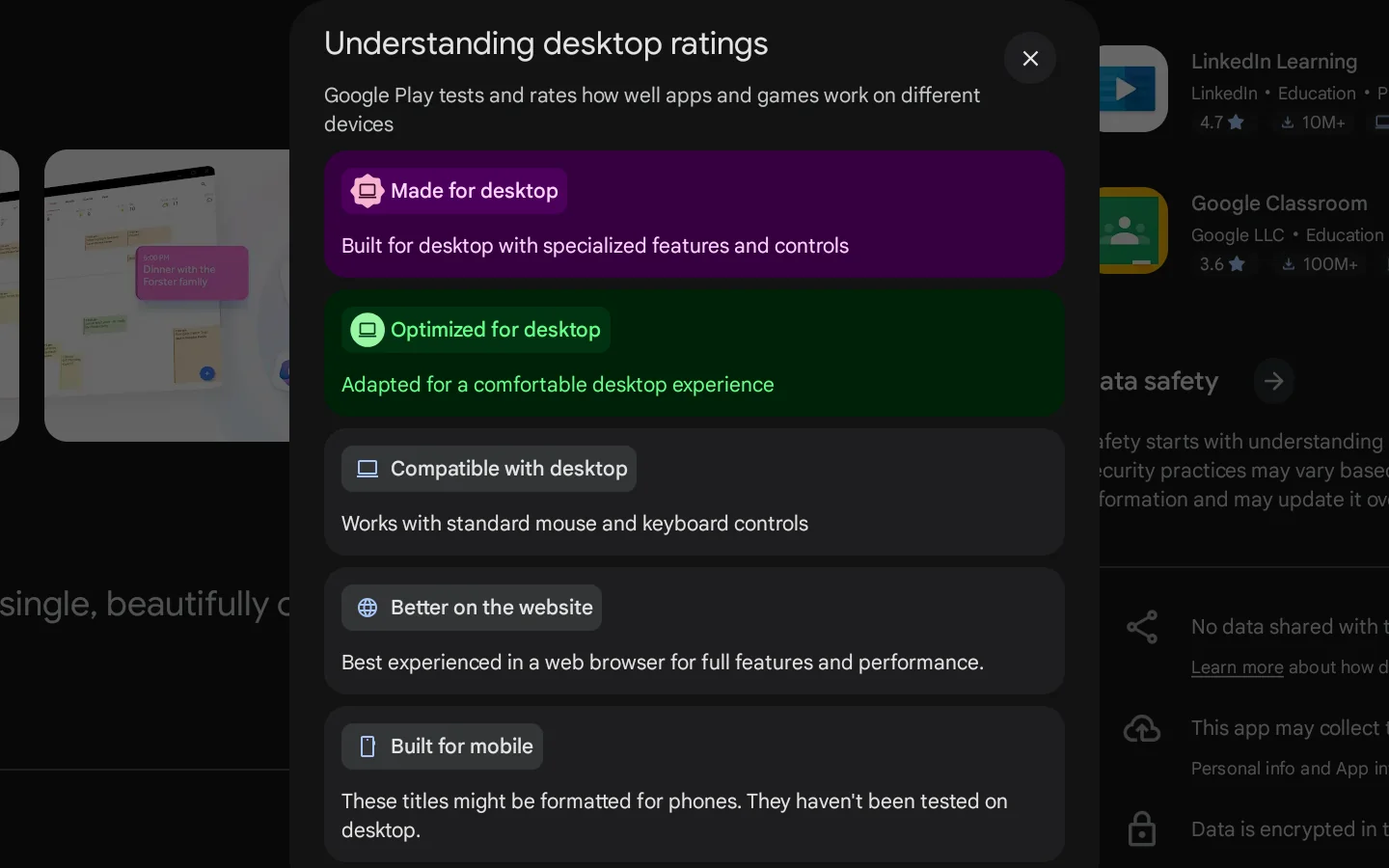
Within the Play Store, Google employs five "desktop ratings" to indicate an app's compatibility with Googlebooks. "Made for Desktop" signifies a desktop-first app optimized for mouse and keyboard. "Optimized for Desktop" is a close second, indicating an app adjusted for larger screens.
"Compatible with Desktop" means keyboard and mouse input will function. Following this are "Better on the Website" (seen with apps like Slack and Duolingo) and finally, "Built for Mobile," which means the app will be formatted for a smartphone screen.
Even "Compatible with Desktop" doesn't guarantee a great experience. My preferred mobile game, Marvel Snap, is compatible but stretches out with black bars. While it supported Google's touch-to-keyboard mapping, this isn't ideal for the game. Given a widescreen version exists on Steam, better optimization for Google Play would be expected.
"Designed for Mobile" apps should be a last resort; using my bank app confirmed that the website was a superior option.
Google's own apps present a mixed bag. Gmail and Calendar are essentially web apps in a wrapper, though Messages feels like a proper Android application.
A minor issue encountered during setup was the app transfer process. When connecting a phone, the system auto-selected some apps (like Apple Music, optimized for desktop) but omitted others. At the time, it didn't explain why, though the subsequent lack of optimization for many of those apps likely provided the answer.
This pervasive lack of optimization means Googlebooks often still feel like Chromebooks, relying heavily on web apps as a fallback. While some major applications like Photoshop, Netflix, Obsidian, Zoom, and Microsoft Office are optimized or designed for desktop, the overall selection is insufficient. Google critically needs more developers to embrace the platform.
Another option is installing apps via a Linux virtual machine, though this is not recommended (as discussed below).
Cross-device use
A key feature of Googlebooks is their ability to pair a laptop and phone more closely than ever before. This integration is impressive, allowing for shared notifications and wireless file transfers between devices within the Files app.
However, a significant hurdle is phone compatibility. Google's fine print specifies that an Android 17 phone is required for optimal cross-device features, such as app casting, Continue On, and Quick Access in the Files app. Phones without Android 17, like the Samsung Galaxy S23 used in testing, are limited to initial computer setup and app transfer, excluding the vast majority of current Android users.
Google provided a Pixel 10 Pro XL for testing these features, highlighting the importance of specific device compatibility. Even popular Samsung Android phones don't all work with Googlebooks yet. A Google staffer on Reddit indicated that support would roll out to Android 17-supported Samsung devices with One UI 9 in the coming weeks, but we still encountered connection issues with a Samsung S25 Ultra after initial setup with Dell’s XPS Googlebook.
Beyond compatibility, enabling cross-device settings often requires navigating numerous steps, as even Google's reviewer's guide outlined multiple procedures, including restarts or QR code scans, if initial setup failed. When it functions, the experience surpasses what is typically found on Windows.
The key phrase here is "when it works." Notifications were inconsistent, and some small files could not be dragged from the Googlebook to the phone, with no clear explanation.
Casting Apps was a favorite feature, particularly for applications not typically installed on a laptop. However, lag and connection hiccups, both at work and home, occasionally rendered it unusable. It is impressive, though, that an Android phone can run other apps while one is cast to the Googlebook, unlike Apple's method which mirrors the entire phone.
The "Continue On" feature is also appreciated. Similar to Apple's continuity, it allows users to seamlessly transition web browsing from phone to laptop. Its utility would be enhanced if it supported more applications, as it primarily functions with Google's work suite and Chrome.
So many ways to use Gemini
Googlebooks are heavily integrated with AI, primarily through Gemini. While not mandatory, the system initially encourages users to explore its AI capabilities. For example, early prompts introduce the Magic Cursor, which enables immediate sharing of clicked content with Gemini.
This feature is faster than traditional copy and paste, but its practical use case wasn't as frequent as anticipated. Perhaps for tasks like identifying clothing items, it might prove more useful.
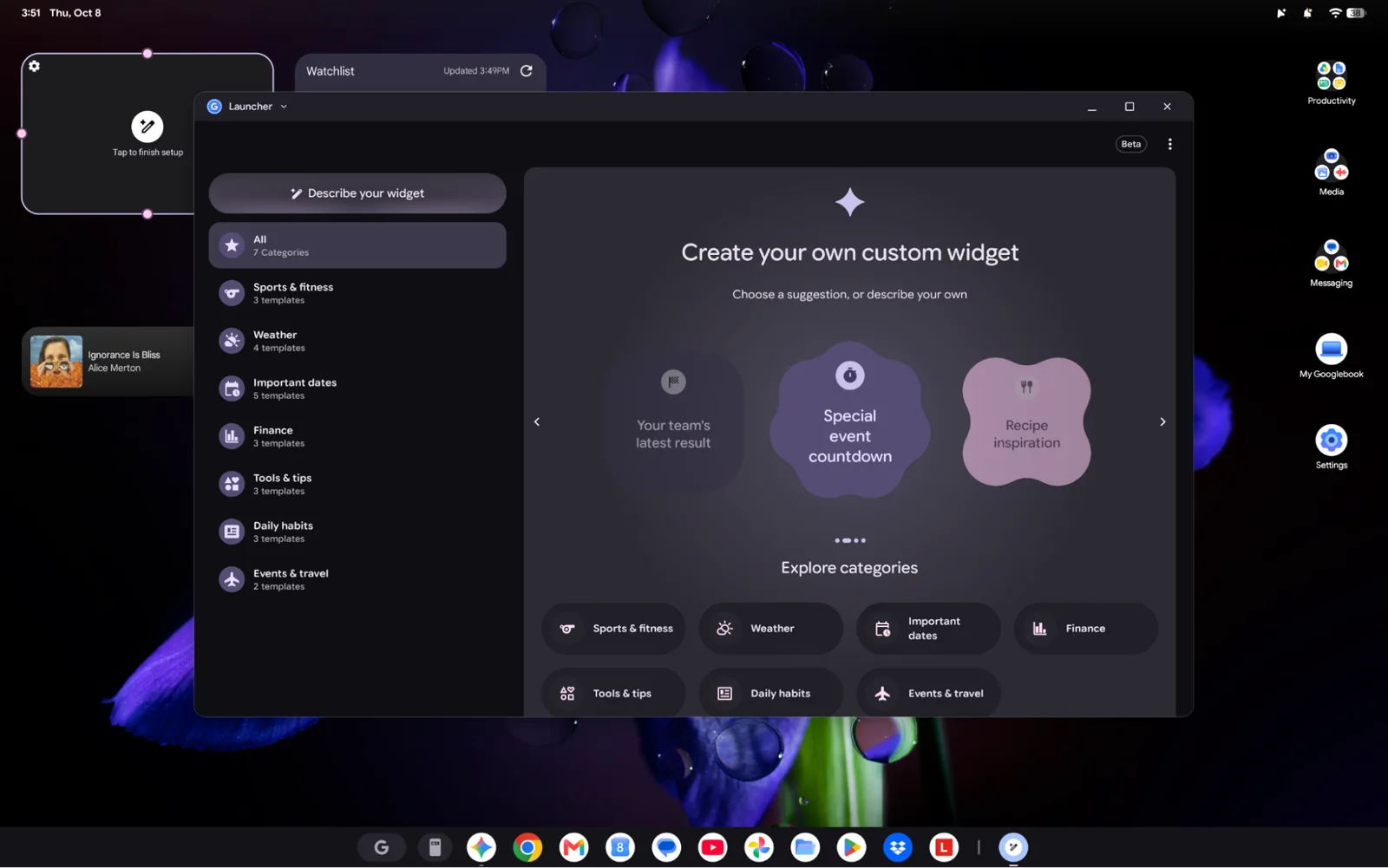
The concept of creating custom widgets is appealing, but the flexibility is limited. While countdowns and motivational quotes are possible, the AI denied a request to create a widget displaying CPU usage, explicitly stating that system telemetry was not permitted.
The most impressive AI feature, and one Google should emphasize more, is Rambler. Already present on Android phones, Rambler allows users to speak naturally, make mistakes, and still have their statements corrected to their intended meaning. For individuals who frequently use voice commands and dictation, this is a powerful tool to have on both their computer and phone.
Antigravity, preinstalled without regard for user expertise, raises concerns. While it theoretically empowers Googlebook users to create their own apps, AI models typically require human oversight. The agentic-first IDE allows prompt creation, but given that agents can execute shell commands, understanding their actions is crucial for safety. Many users may simply approve commands without full comprehension, though it does bring "vibe coding" to a wider audience.
Gemini is also integrated throughout Google's apps and can be activated with a simple "Hey Google" command. These systems are most beneficial for dedicated Gemini users, who will gain access to a multitude of features.
The Debian Linux Terminal
Each Googlebook includes a preinstalled Debian Linux terminal and virtual machine. While we successfully installed applications like the GIMP photo editor and Steam for gaming, these Linux apps are not suitable replacements for most users.
A primary limitation is that apps within the VM are confined there; they cannot be placed in the app drawer or run independently later.
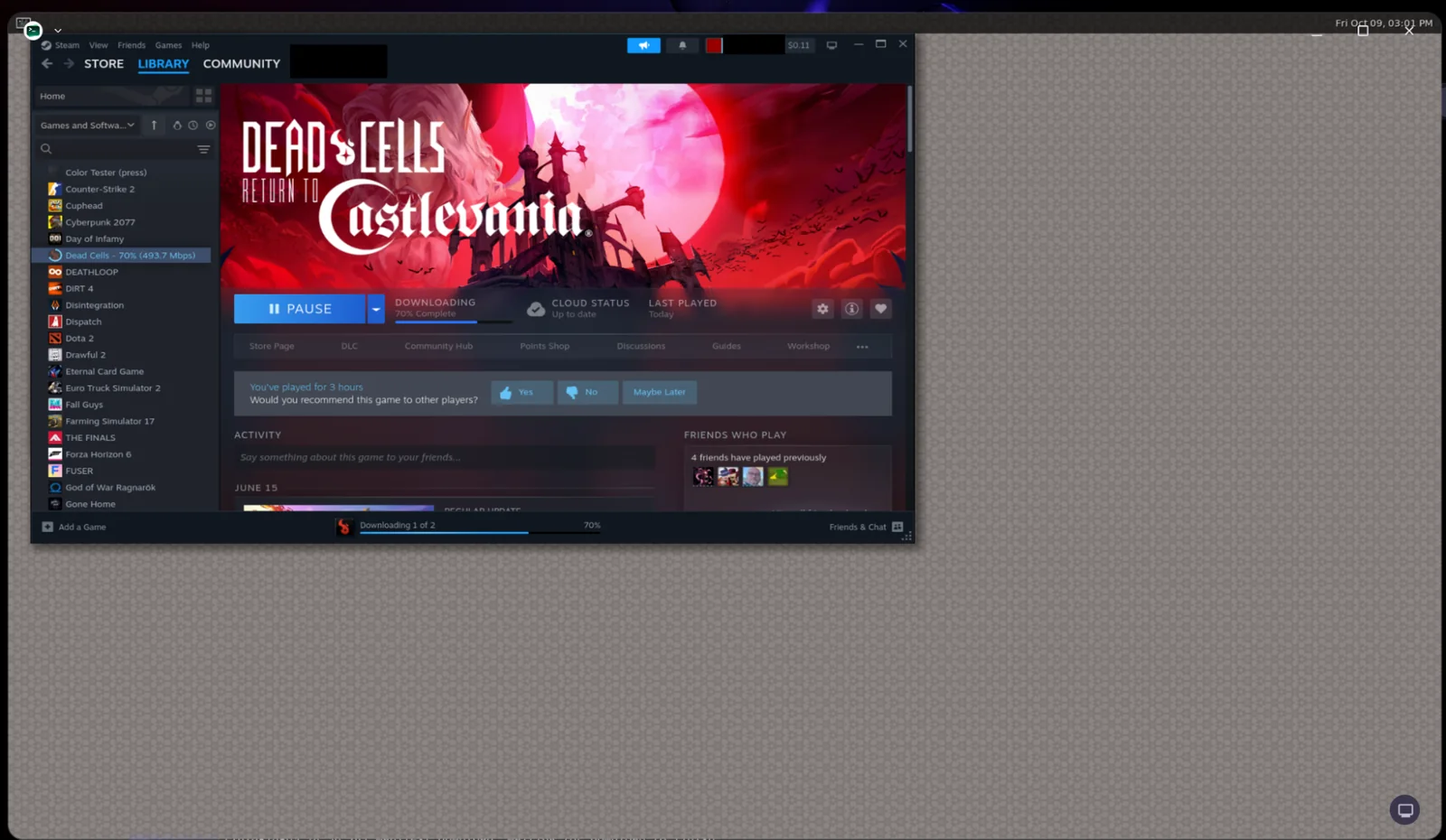
The VM also suffers from lag. Even lightweight games like Dead Cells did not always run smoothly, and we experienced audio issues with popping and groaning noises.
Resizing windows and using certain tools in GIMP also introduced lag. While this might suffice for basic development testing, for general applications, users are better served by the Play Store or web apps.
Too early to tell, but already on sale
It is premature to definitively judge the ultimate success of Googlebooks. For users who primarily rely on Android on their phones and conduct most tasks via the web or Android apps, the platform could be functional.
Google clearly has work ahead to make Googlebook OS feel truly optimized for keyboard and mouse input. A substantial effort is also needed to encourage developers to optimize their apps, ensuring they don't feel like smartphone interfaces stretched across a large screen. With sufficient developer support, the Googlebook platform could become much more user-friendly.
Currently, we advise potential buyers to observe how the Googlebook platform evolves. Purchasing now means embracing an early adopter experience. Too many aspects are not yet functioning as they should, making it difficult to recommend spending hard-earned money on these devices. The hardware is capable, but Google's software feels incomplete.
Google must ensure that users' preferred apps work seamlessly across all silicon platforms and that their phones are fully compatible with the system. Prospective buyers should definitely wait to see if Google fulfills its promises regarding app improvements from developers.