Everything You Need to Know About Googlebooks' New OS and Hardware
Despite good initial hardware, the Googlebook OS still needs a lot of work.
It's been almost two and a half years since Google announced its plan to migrate its laptop operating system from ChromeOS to Android, and the results are finally here. Google and its hardware partners officially launched Googlebooks earlier this month, promoting tight integration between Android phones and the new Android-powered laptop OS, alongside numerous AI-powered features and premium hardware.
Having extensively used and tested ChromeOS for a decade, I was curious about what would truly differentiate the Googlebook OS. Google's initial introduction in May offered limited information, but a major demo event and several weeks of testing have provided a clearer picture of the company's goals. After my time with Googlebooks, I can conclude that while there may be internal benefits for Google and third-party developers in transitioning from ChromeOS to Android, the advantages aren't fully realized for potential buyers yet, especially considering the high price of Googlebooks.
Hardware Overview
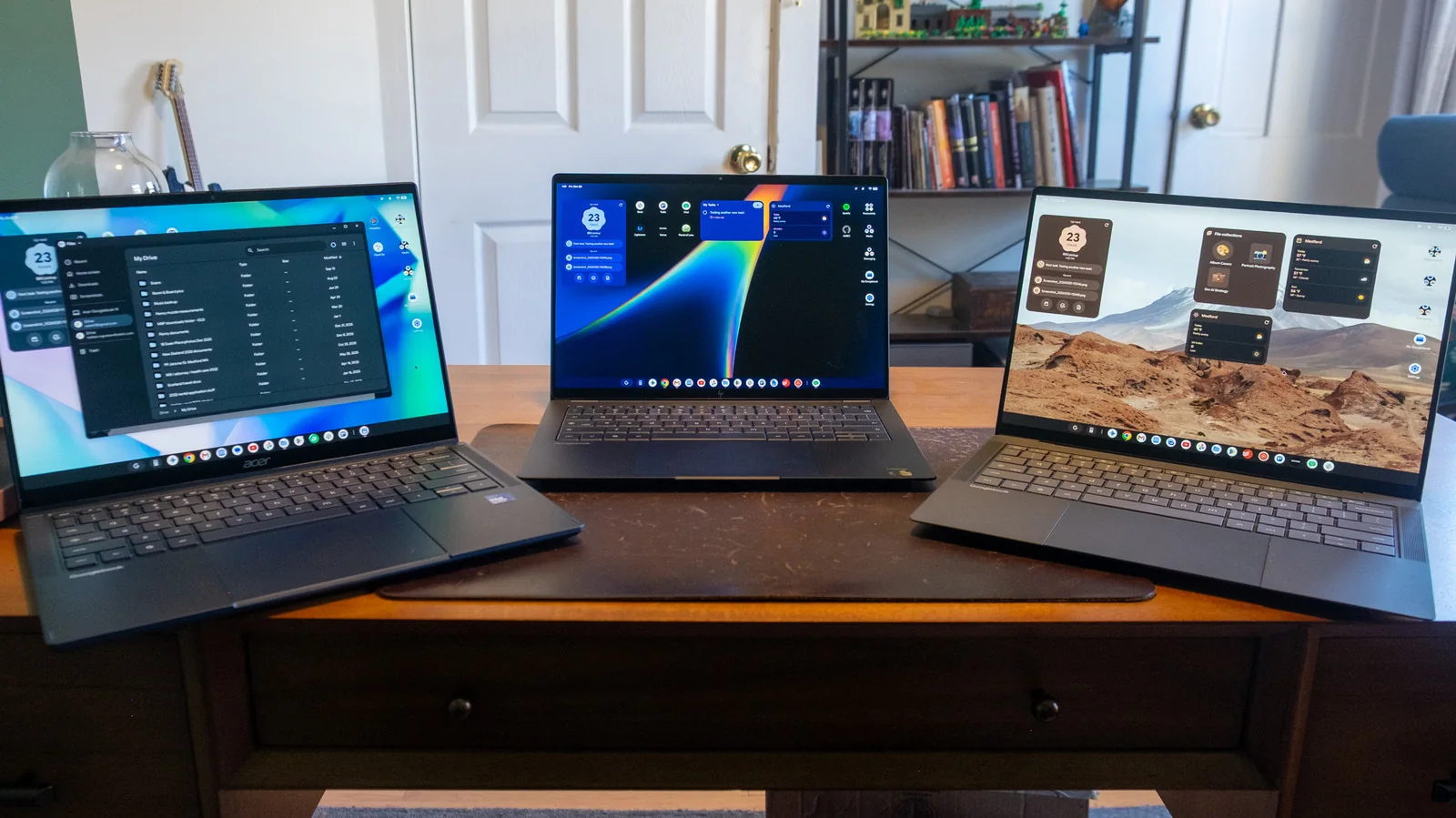
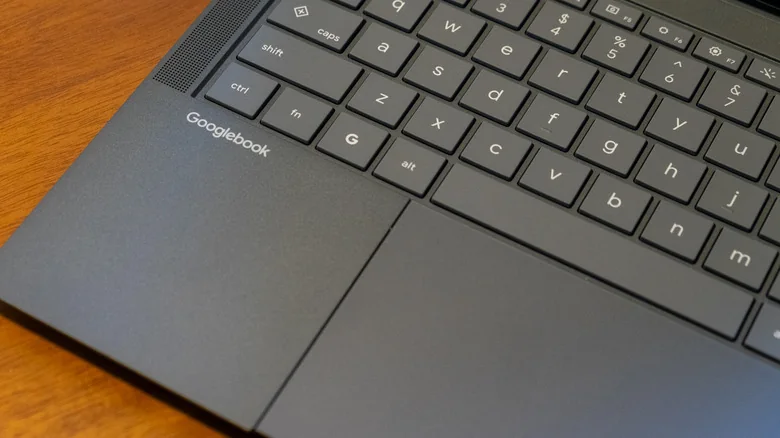
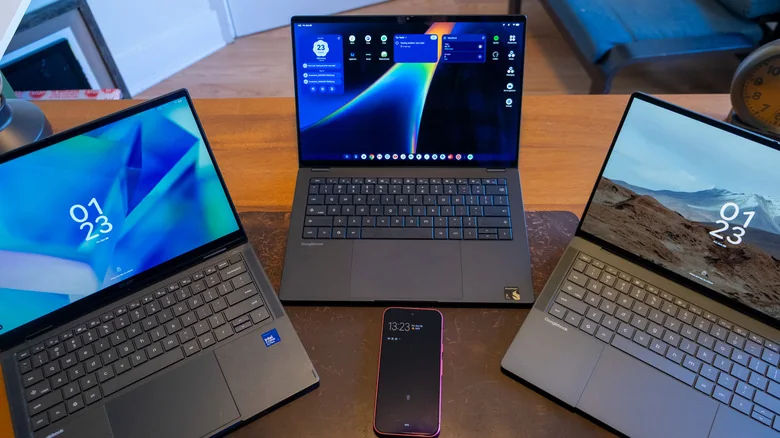
This evaluation focuses on the Googlebook operating system rather than a formal review of a single device. However, it's important to briefly discuss the accompanying hardware. Most of my testing was conducted on the $1,299 ASUS Googlebook 14, a remarkably thin and light laptop weighing just 2.2 pounds. It boasts an OLED touchscreen with Corning's Gorilla Matte glass, which significantly reduces reflections. Specifications include an Intel Core Ultra 5 chip, 16GB of RAM, and 512GB of storage. It's a well-designed laptop, as expected at its price point. I also tested the Acer Googlebook 14 and HP's Googlebook 14, the latter featuring the Snapdragon X Elite X1E-80-100 processor. Performance was consistently similar across both Intel and Qualcomm models, though I anecdotally observed better battery life and less frequent fan activation on the HP.
Google positioned these new devices as premium computers, and their pricing reflects this claim. The most affordable Googlebook, Acer's Googlebook 14, starts at $899, making it the only model under $1,000. While various manufacturers, including Google, have released expensive Chromebooks over the years, Acer's $899 Googlebook is still more costly than almost all other Chromebooks on the market.
Googlebooks are slated to eventually replace ChromeOS entirely, so future device waves are expected to include more affordable options. For now, however, Googlebooks offer a strictly premium experience with a matching price. This significantly impacts the evaluation of the OS; limitations that might be acceptable on a $400 or $500 Chromebook become much harder to overlook when devices are in the $1,000 range, where more versatile Mac or Windows PCs are available.
Initial Setup and Integration
Setting up a Chromebook is typically straightforward, usually involving a Google account login. However, Google emphasizes the connection between your Android phone and Googlebook from the very first step, prompting setup with an Android device or even an iPhone or iPad. When I chose an Android device, a notification appeared on my Pixel 11 asking if I wanted to use it for Googlebook setup, while the laptop displayed a QR code for scanning.
After scanning the code, my Googlebook connected to Wi-Fi and then asked to use the Google account from my phone. I confirmed my name and profile picture, set a login password, and added a fingerprint for unlocking. Finally, it offered to copy apps and data from my phone, a process that was quick. While not much data seemed to transfer by default, a customize option is available for specific selections. The setup concluded with a quick tour of Gemini-powered features like Magic Pointer, the Quick Insert key, and voice chat with Gemini Live.
I was also prompted to establish a connection between my phone and laptop to view notifications and files from my phone on the Googlebook. This required granting permissions on both devices but was quick and not overly complex for the average user.
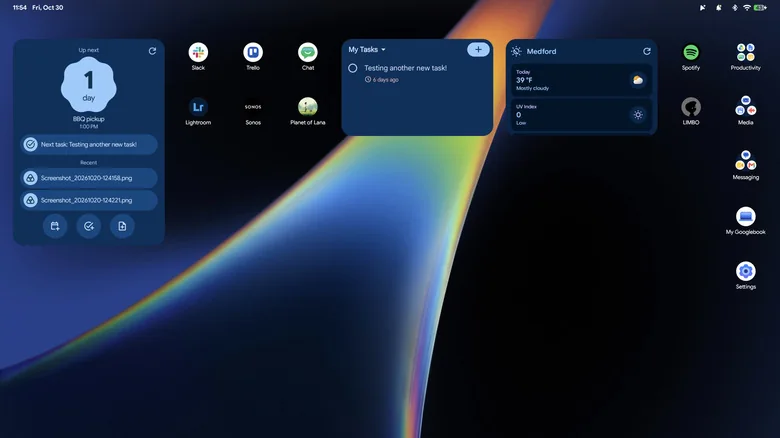
Once configured, the desktop interface was, predictably, quite similar to ChromeOS. A taskbar at the bottom provides shortcuts to apps like Chrome, Gemini, and Gmail, along with other Google services. Desktop shortcuts are organized into folders for productivity (Docs, Drive), media (voice recorder, PDF viewer, camera), and messaging (Gmail, Messages, Meet). The Googlebook also wisely launched with an in-depth tutorial covering quick settings, wallpaper changes, file management, window organization, and other essential laptop functions. I appreciated this guidance, as it provided helpful tips and tricks for navigating a new OS.
While the Googlebook UI can easily be mistaken for ChromeOS, there are subtle distinctions. The taskbar is now exclusively for apps, with the time, date, notifications, and quick access to system settings relocated to a thin strip at the top of the screen. My opinion on this change is mixed; while the ChromeOS taskbar can feel cluttered, I'm not fond of sacrificing vertical screen space for the top info bar.
Unfortunately, Google also removed several convenient features from the ChromeOS taskbar. For instance, clicking the date and time no longer brings up a calendar or Google Tasks list. ChromeOS also had a button for pinning and viewing recently opened files. Google likely expects users to replace these functionalities with desktop widgets, a feature not supported by Chrome OS.
When Chrome Isn't Quite Chrome
Google's Chrome browser, though not flawless, is the world's most popular, ensuring compatibility with virtually every website. This was a significant selling point for ChromeOS: many users conduct most of their computing in a browser, and Chromebooks offered an excellent browsing experience. Naturally, Chrome was my starting point on the Googlebook, as I intended to open my saved tab groups from my Mac and continue working.
However, those tab groups simply did not appear. Despite the ability to sync tab groups across desktop, Android, and iOS versions of Chrome, they don't show up on a Googlebook. It's difficult to overstate how problematic it is for such a fundamental, crucial feature to be absent from a brand-new product designed to replace Chromebooks. Google states it will be added in a future update, but its current absence is a disappointment.
Similarly, I initially couldn't install web apps on my Googlebook. On ChromeOS, you can take a web version of an app like Slack (which is identical to its desktop counterpart) and have it open in its own window, with a dedicated taskbar icon, rather than as a tab in a crowded Chrome window. For the first week or so, I could only save desktop shortcuts that would open apps like Slack and Trello as tabs in my main Chrome window. This issue was resolved with a subsequent Chrome update, allowing these apps to open in their own windows. Nevertheless, the combination of missing tab group syncing and the initial web app problem left me feeling that my Googlebook wasn't fully polished.
Application Ecosystem
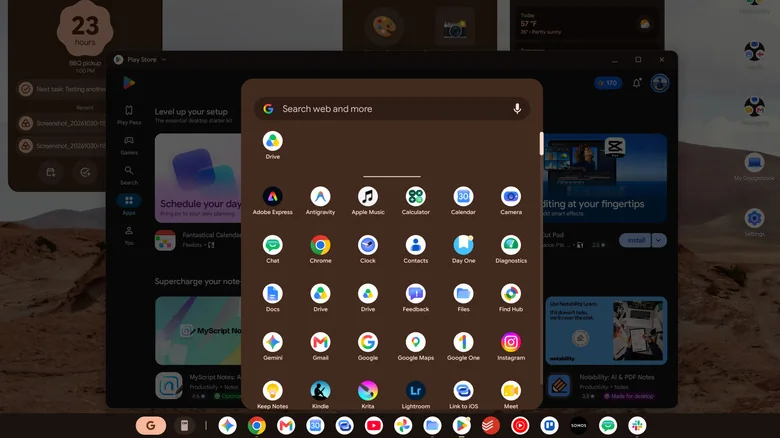
Similar to Chromebooks, Googlebooks provide two main app options: web-based tools or Android applications from the Google Play Store. Ten years after Google first integrated the Play Store into Chromebooks, a move that significantly broadened the laptop's capabilities beyond a simple browser, many of the same challenges persist on this new platform.
The most significant problem remains that Android developers have not fully embraced building apps for larger screens. While the situation has improved over the years, with many apps dynamically adjusting to bigger displays, too many simply stretch a phone-optimized view across a larger space without utilizing it effectively.
Returning to Slack, I considered using the Android app when the web app installation failed. However, while the desktop version of Slack features a multi-column view essential for managing a busy workplace, the Android app only displays one view at a time, regardless of screen size. Slack supports a much better large-screen view on the iPad, indicating that it's technically feasible here. The issue stems from Android tablets and Chromebooks historically receiving less attention from developers. As long as this trend continues, your favorite Android app might not feel entirely at home on a Googlebook.
To be clear, the situation is undoubtedly better than it was a decade ago. Google's 2023 Pixel Tablet launch prompted a revamp of its core apps for larger screens, and many of these now integrate seamlessly on a Googlebook. Android versions of Keep, Google Home, Calendar, Photos, Google TV, and numerous others function well after installation.
Google is also actively guiding users towards web apps when they are more suitable. For example, installing Google Chat from the Play Store sets up the web-based app, and the Gmail shortcut in the taskbar opens your account in its own window, retaining the familiar Gmail web interface. It has often been confusing to decide whether to install a Play Store app or use its web-based counterpart, but for Google's own apps, at least, the Play Store now intelligently recommends the best type for a Googlebook.
While many third-party apps don't fully leverage larger screens, a good number do. Todoist and Spotify are native to the Googlebook and display multiple columns of information, while Adobe Lightroom quickly loaded my library and synced edits made on the Googlebook back to my Mac without issues.
However, you will likely encounter apps used on Windows or Mac that are unavailable here. While substitutes might exist, you won't be able to install software like Adobe Premiere or Logic Pro. Although most users can accomplish many tasks through a browser or available Android apps on a Googlebook, the question remains regarding the benefits of migrating a workflow to a completely new platform that may lack essential applications.
Native gaming is also somewhat limited. While you can install games from the Play Store, such as Teenage Mutant Ninja Turtles: Shredder's Revenge and Limbo, which ran smoothly and even had pre-mapped keyboard controls for Shredder's Revenge, these are not new or cutting-edge titles.
Googlebooks include a year of GeForce Now "Fast Pass" access, a cloud gaming service that allows streaming games from platforms like Steam and Epic Games Store. This tier offers up to 50 hours of gaming monthly, without ads, and provides priority access. While not a replacement for a dedicated gaming PC, it offers a viable gaming option on a Googlebook with an internet connection.
Android Phone Integration
If a Googlebook's app support isn't significantly different from what Chromebooks have offered for years, what truly distinguishes the new platform? Google's strategy emphasizes integration with your Android phone. This approach is logical, given that Android is used by billions, and smartphones are central to most people's lives. As someone familiar with Apple's ecosystem, I recognize that the close ties between an iPhone and a Mac (or iPad, or Apple Watch) are a major selling point.
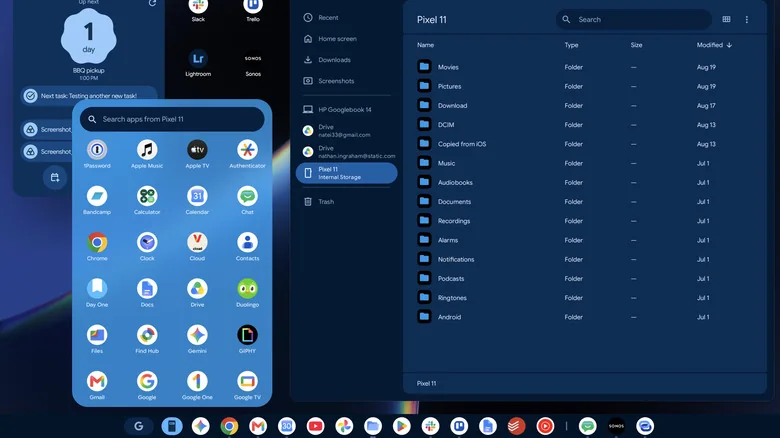
A primary feature of this integration is the ability to cast apps from your phone. The taskbar includes a smartphone-shaped icon next to the main app launcher. Clicking this displays all apps installed on your phone, and selecting one opens it in its own window on the Googlebook, functioning as if it were running natively. Unlike iPhone mirroring, casting apps operates independently of your phone's screen. This method is useful for quickly checking phone-initiated tasks, such as ride-sharing, smart speaker control, or delivery updates. Once configured, app casting proved reliable. Notably, these apps are not restricted to a phone-sized vertical window; they can be expanded and resized, with the app adjusting its layout accordingly.
Transferring an app from my phone to a Googlebook didn't feel as essential to me, but it can be useful in specific situations. If you have a tab open in Chrome or are composing an email in Gmail on your phone, a small icon will appear on the right side of the taskbar for the corresponding app. Clicking it opens your current activity directly on your Googlebook. So, if you're drafting an email on your phone and prefer to finish it on a larger screen, one click seamlessly transfers your draft.
It took some time to understand the behavior that triggers this transition. In Gmail, you must be actively composing an email, either a new message or a reply. Simply reading an email would not generate the icon in the taskbar to view it on my laptop. However, in Google Keep, merely viewing a specific note on my phone was enough to create a shortcut to that content in the Googlebook taskbar. I also encountered instances where the shortcut for an open app on my phone wouldn't appear, even if it had worked previously. This feature still feels like a work in progress, given the inconsistencies I experienced and the need for third-party developers to enable it in their apps.
The final notable connection between your phone and Googlebook is straightforward: your phone appears in the Files app as a browsable drive. This simplifies transferring anything saved on your phone to your laptop. While Google Photos already backs up phone images to the cloud, this feature is handy for those who prefer manual file management, making it easy to grab screenshots or voice recordings as if your phone were another connected drive.
While Google primarily positions Googlebooks as companions to Android phones, a pre-installed app called "Link to iOS" offers a surprising feature for iPhone users. After scanning a QR code and adjusting iPhone settings, users can receive SMS, RCS, and iMessages on their Googlebook. However, the experience has limitations: group chats are not supported, with messages appearing in individual threads. One-on-one conversations function adequately, though full message history and non-text content like images are not synced. It's less comprehensive than using Google Messages with an Android phone, but provides basic functionality.
Gemini AI Features
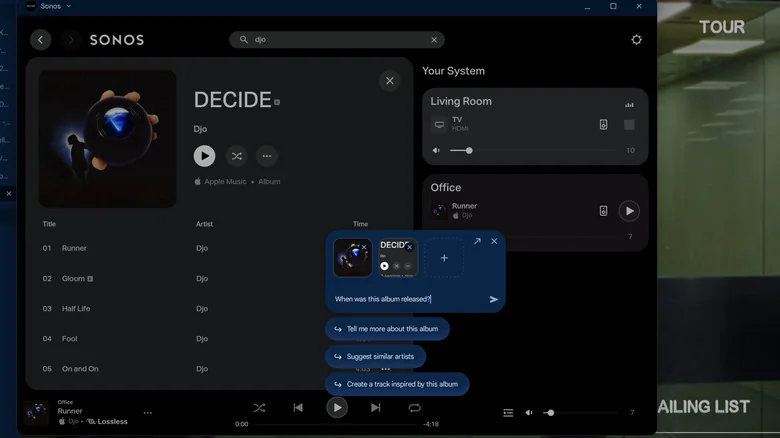
Google made Gemini features a significant part of its Chromebook Plus initiative a few years ago, so it's no surprise to see many of these tools migrate to Googlebooks. Some tools, like the Quick Insert key, which brings up a contextual menu with AI-powered suggestions, have been available for a while. However, Magic Pointer is the most notable addition to the Googlebook's AI-focused feature set.
In Google's demonstrations, wiggling the cursor transforms the standard pointer into the Magic Cursor. Google ensures users opt into AI-powered features for the first time. You begin by clicking the small pointer icon in the upper right corner of the screen, next to the notification alert. After enabling permissions, a brief tutorial on the Magic Pointer appears, and subsequently, vigorously wiggling your finger on the trackpad activates this new Gemini tool.
Essentially, Magic Pointer allows you to select a section of your screen to perform actions with Gemini. A particularly useful aspect is the ability to make multiple selections and have Gemini analyze them together. It functions as a super-charged screenshot tool, intelligently highlighting coherent sections of your screen as you hover over them. For example, moving your cursor over text might suggest clipping an entire paragraph, or hovering over an image will likely prompt you to capture the whole thing. While you can manually define a selection, I appreciate how it automatically highlights logical screen elements.
Once a section of your screen is selected, Gemini offers proactive suggestions. If it recognizes a date and location, it will ask if you want to add the event to your calendar. You can also type your own prompt or add more sections to the selection. In such a scenario, you could capture your calendar and a workout training schedule, then ask Gemini to schedule workouts during your free times.
As with most of Google's AI tools, I can grasp the use case in the company's carefully scripted demo examples, but I don't often find an easy or obvious way to integrate it into my daily workflow. It's possible I'm simply not clever enough to identify situations where this would simplify my life. I've even been training myself to use Magic Pointer for capturing actionable items instead of standard screenshots, but it hasn't become second nature yet. That said, this is an AI feature I conceptually like, and I will continue trying to use it to see if it eventually becomes intuitive.
Rambler, another key AI feature, was first introduced on the Pixel 11 series. Similar to its phone implementation, Googlebook users can dictate messages via voice, and Rambler will refine the text. It intelligently removes filler words such as "um" and adjusts for changes of mind during dictation, enhancing clarity and conciseness.
For instance, a spoken query like "what are the best coffee shops, um, never mind, I mean, what are the best bakeries in the Hartford area?" is refined to "what are the best bakeries in the Hartford area?" While I don't frequently use voice commands on laptops, Rambler is a clever addition, particularly for users accustomed to it on their phones who wish to extend that convenience to a Googlebook.
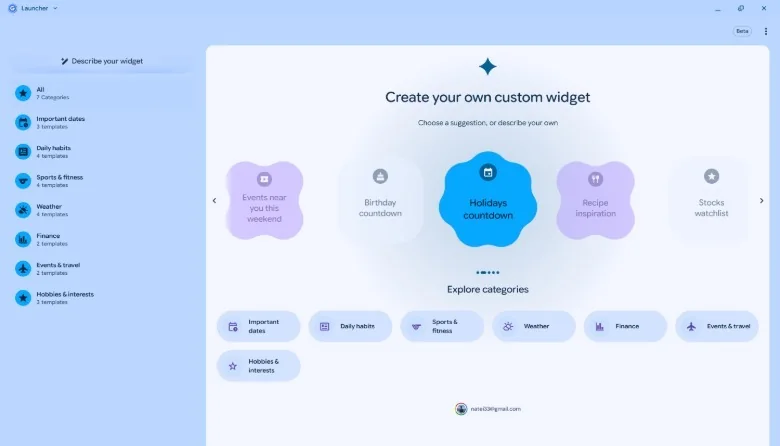
Home screen widgets, another Android feature, are also integrated into Googlebooks. Users can specifically ask a Googlebook to "create a widget." The system provides suggestions, such as a Files app widget that analyzes and groups documents for quick access. I successfully created a local weather widget, though it displayed an incorrect sunset time for my location. As with all AI-powered tools, it's advisable to verify the information provided.
Are Googlebooks Ready to Be Your Primary Computer?
At this point, it's crucial to assess the value proposition. As mentioned earlier, Googlebooks are not inexpensive computers. All five Googlebooks are well-built, featuring excellent screens, strong performance, and attractive industrial design. From a hardware perspective alone, the $899 Acer Googlebook feels appropriately priced given its build quality and specifications. Dell's $999 XPS Googlebook is also compelling due to its extremely compact size without compromising performance, while HP's $1,199 Googlebook 14 is a premium laptop that feels nearly as refined as most MacBooks.
However, at these price points, especially above $1,000, you can often spend slightly more to acquire similarly well-equipped Windows PCs or a MacBook Air, both of which run a far more comprehensive and useful software suite than a Googlebook. While the promise of enhanced connectivity between your Android phone and laptop could certainly be beneficial, I'm not convinced it's in anyone's best interest to prioritize Gemini's AI features over the much more robust and proven experience offered by a Mac or Windows computer.
That said, I anticipate the evolution of Googlebooks. While the OS may not be fully mature yet, the fact that Google now has both its desktop and phone platforms running essentially the same software should simplify development and foster even more seamless integration between device categories in the future. Just as with Chrome OS, Google is offering a platform that could cover basic needs for many users in a relatively simple, straightforward package—provided we see hardware at a wider range of prices and a more refined operating system.