How to Clean Up Bloatware on Samsung Galaxy Phones
Samsung still loads Galaxy phones with apps you might never use.
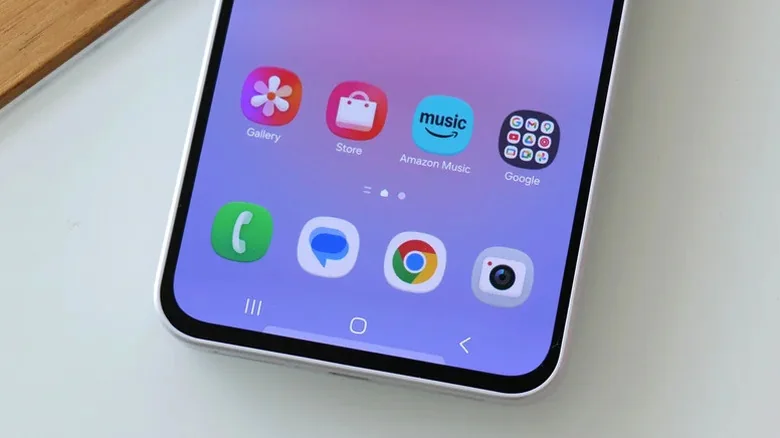
Upgrading to a new Samsung Galaxy flagship brings a noticeable difference in preloaded apps compared to stock Android devices. Even high-end models come with a long list of apps you might have no interest in opening, leaving users with a cluttered app drawer out of the box.
Those unwanted extras are bloatware: preinstalled software that you don't really want. Such apps clutter your phone, consume storage space and sometimes bother you with notifications too. The specific list of apps will differ depending on the Galaxy model, region and carrier, so your app drawer out of the box may look significantly different from someone else's. Fortunately, many of these unwanted apps can be removed or disabled in a few taps.
Understanding Bloatware
This isn't a new complaint for mobile devices. Built-in system software and bundled apps have historically taken up significant portions of usable storage. Samsung has since allowed its users to remove or disable many preinstalled apps, but the clutter remains across various device tiers.
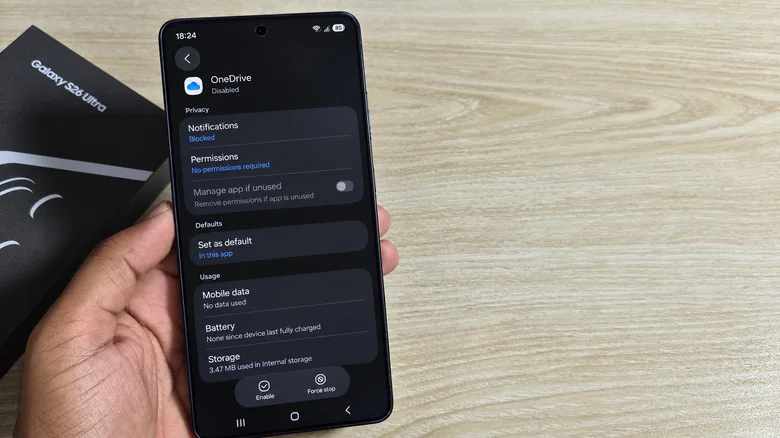
You may come across Samsung Shop, Samsung TV Plus and Samsung Global Goals, which are optional apps offered by Samsung. Depending on where you buy your Galaxy, third-party additions can include Facebook, Instagram, LinkedIn, OneDrive and Spotify. There are some that might even be worth keeping: if you already use Microsoft's cloud storage, you'd want OneDrive installed anyway. But if you keep everything you need elsewhere, another cloud app isn't adding much.
Samsung continues to add new partnerships to its devices. Manufacturers frequently enter into agreements to preinstall services like Amazon Music on certain Galaxy phones and tablets. Eligible new subscribers may encounter promotional trials that automatically renew at paid rates if left unmanaged, making it a good reminder to regularly audit active subscriptions.
Uninstalling and Disabling Apps
Swipe up from the home screen to show your app list, press and hold an app that you don't use and then select Uninstall if it's available. You can also go to Settings > Apps, select the app and uninstall it from there. This removes the app and frees up the storage it occupies.
Some preinstalled apps won't allow full uninstallation. Instead, go to the app's page in Settings > Apps and find Disable. This will prevent the app from running and hide its icon, but its files will still be on your phone. You can undo the process by going back to the same menu and tapping Enable.
Hiding Apps and Managing Notifications
If you're still stuck with an unwanted app, touch and hold an empty area of the Home screen, tap Settings and select Hide apps (or Hide apps on Home and Apps screens). Select the apps you want to hide and then hit Done. This will make their icons disappear from view, but the apps remain installed and can still send notifications.
To turn off those notifications for hidden apps, go to Settings > Notifications > App notifications, choose the hidden app and disable Allow notifications so you won't be disturbed by services you never wanted.
Keep in mind that hiding an app and turning off its notifications won't free up storage or revoke its permissions. Samsung's official instructions for disabling preinstalled apps also note that menu options may vary based on the device and software version. Avoid disabling unfamiliar system services, and note that core apps like Phone, Messages, Contacts, Gallery and My Files cannot be deleted.