How to create iPhone Shortcuts with Apple Intelligence
One of the few places where Apple Intelligence actually makes a difference in everyday device usage.
Building AI Shortcuts
Shortcuts has been around for years but has only recently been enhanced with AI. Apple Intelligence lets you create your own automated sequences through natural language prompts instead of manually chaining individual actions together.
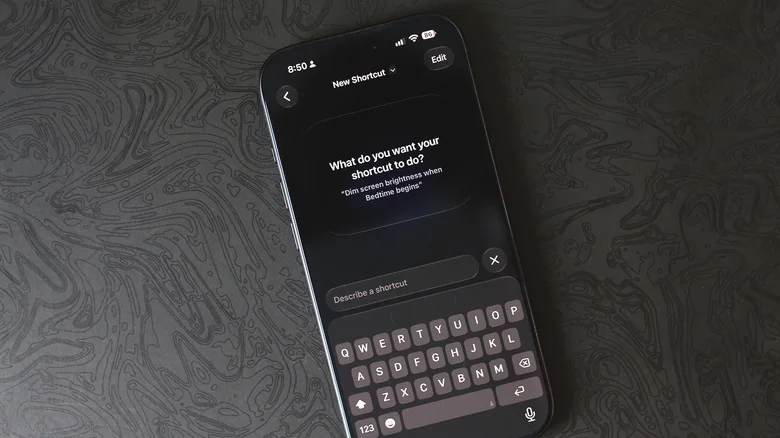
If you are running a supported iOS version on a compatible iPhone, you can simply describe a shortcut and let the AI handle the setup. Launch the Shortcuts app, tap on the plus icon at the bottom to open a text box, and describe what you want the shortcut to do in plain English. Once your shortcut is assembled, tap the play button to test it.
Reliability and Limitations
Theoretically, everything the app allows you to automate can be built using Apple Intelligence. In practice, however, this requires some trial and error or manual adjustments to get the shortcut working exactly as intended. Fortunately, AI-generated shortcuts can be edited freely.
For instance, describing a shortcut that switches the screen to grayscale whenever a particular app launches and back to color upon exit might work for the first condition while failing to disable the color filters afterward, requiring you to split the workflow into separate automations.
Testing the limits of the integration shows that the app rarely refuses to generate a shortcut altogether, even if it has to piece together a solution that does not precisely match the original request.
When given impossible prompts, the system occasionally acknowledges that the task is out of reach. Most of the time, though, it strings together actions it considers a close match. Asking it to turn off the phone when the battery drops below a specific percentage, for example, might result in simply locking the screen instead.
Advanced AI Actions
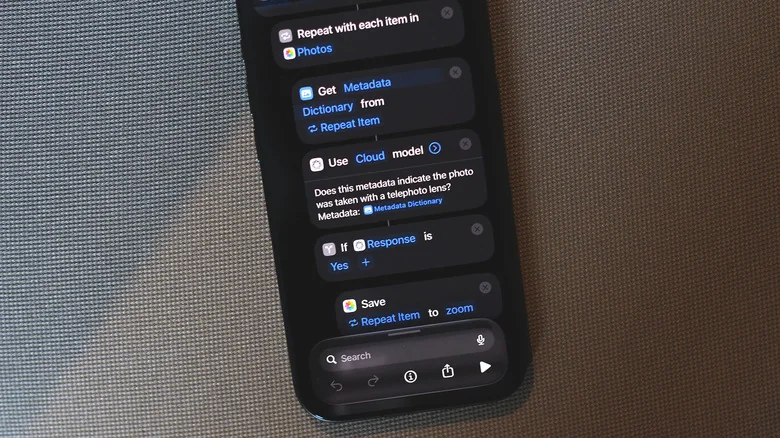
Beyond natural language creation, you can build workflows that actively leverage AI models to generate text and process data. When creating a shortcut manually, select Apple Intelligence to access the Use Model action, which routes requests to an AI model, processes them, and integrates the response into subsequent steps.
Users can pick between Cloud, Cloud Pro, and On-Device AI models, or opt for ChatGPT integration. These models handle text generation tasks well, such as fetching an article from a URL, summarizing its contents, and saving the output to the Notes app.
Results remain dependent on how accurately the model interprets your request. Simpler workflows, like automatically routing photos taken with a specific camera lens into a dedicated album, tend to yield consistent results.
When it works, the integration is a powerful addition to iOS. It is always wise to inspect the generated actions by tapping Edit before relying on an AI-built shortcut for complex tasks.