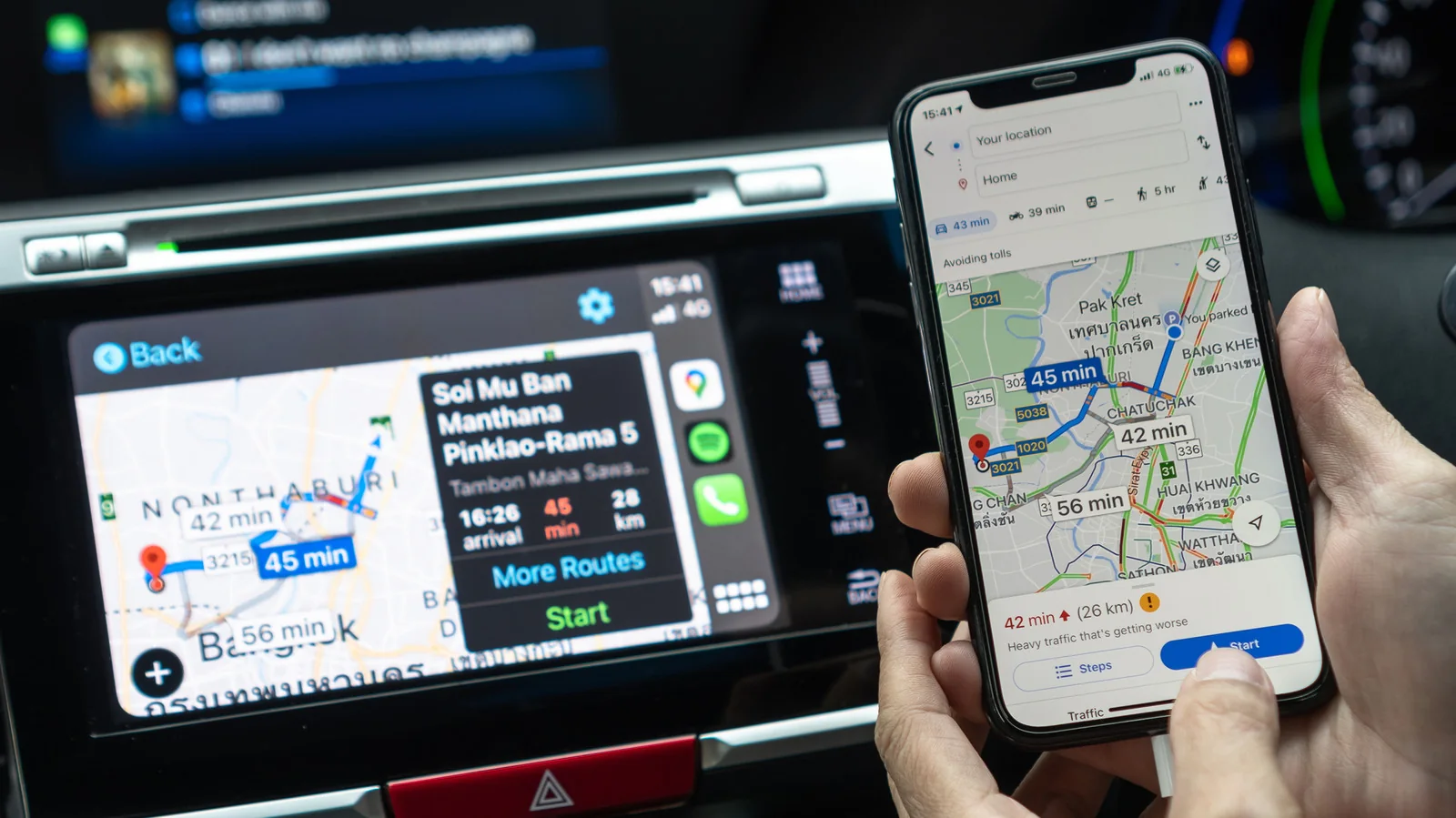
How to improve CarPlay navigation if you use Google Maps over Apple Maps
A few tricks provide a seamless Google Maps experience in your car with CarPlay.
Apple Maps has improved significantly, but many drivers still prefer Google Maps for its detailed traffic data and comprehensive business listings. You can use Google Maps in Apple CarPlay just like any other supported mapping utility.
Apple historically restricts changing default iPhone apps, but regional regulations in select areas allow users to choose their preferred navigation tool as the default. If you reside in a supported region, navigate to Settings > Apps on your iPhone, locate the Default Apps menu, and select Google Maps.
Otherwise, Apple Maps remains the default navigation app on CarPlay. A simple workaround to bypass this when using voice commands is appending "on Google Maps" to the end of Siri requests.
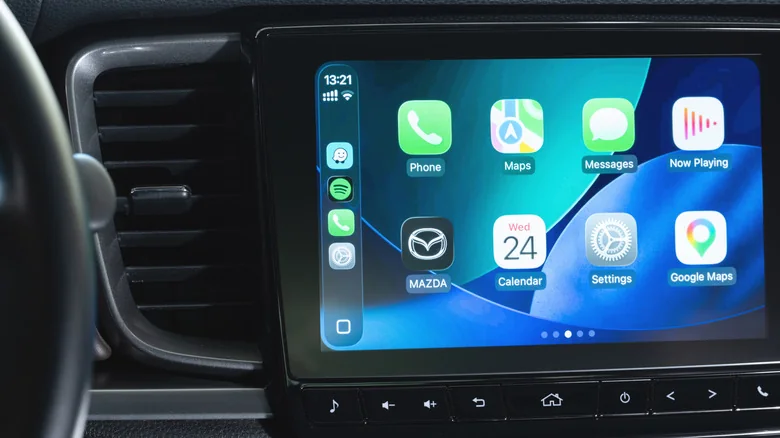
Adding Google Maps to your CarPlay Home Screen
If you are outside of regions supporting default app changes, you can still improve accessibility by placing Google Maps on the first page of your CarPlay Home Screen. Go to General > CarPlay in your iPhone settings, select your vehicle, and rearrange the app order so Google Maps appears near the top.
Ensure Google Maps is downloaded to your iPhone from the App Store first. If it does not appear on CarPlay, scroll to the bottom of the CarPlay settings menu and tap the green plus icon to include it.
Integrating Google Maps into your CarPlay dashboard offers another quick-access method. Return to CarPlay settings on your iPhone, select Widgets, and add a Google Maps widget for faster interaction.
Many vehicles feature a split-screen dashboard accessible by swiping to the leftmost panel, which typically displays a mini-map. Initiating a route in Google Maps once will allow it to take over that panel subsequently.
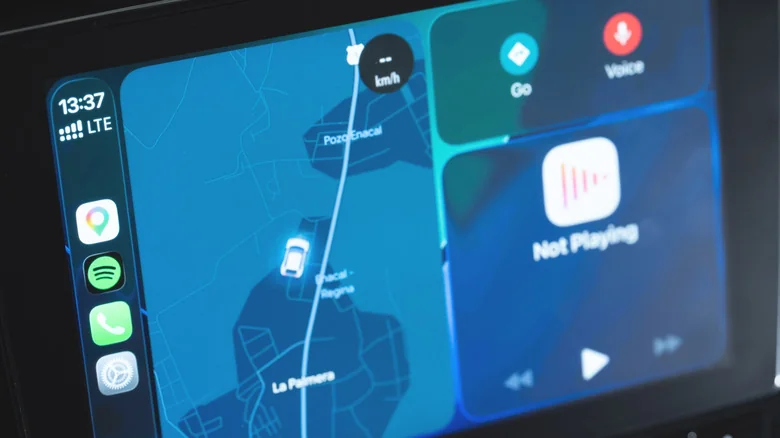
Other tricks for fast navigation
Configuring frequently visited locations directly inside the Google Maps mobile application streamlines frequent journeys.
To set home and work addresses, open Google Maps on your iPhone, tap your profile picture, and navigate to Settings > Location & privacy. Locate the address fields and adjust them as needed so they sync with CarPlay.
For long road trips, downloading offline maps prevents navigation disruptions in areas with poor cellular coverage. Access the offline maps feature through your profile menu in the mobile app and download desired regions over a Wi-Fi connection.
You can also customize the map orientation and appearance. Toggle between north-up and heading-up views using the compass button, and set day or night themes to switch automatically via the CarPlay Appearance settings.