How to use Android's Motion Assist feature to help with motion sickness
Google has rolled out its own version of motion-cues software for mobile devices.
Overview
If you are prone to getting carsick, looking at your phone while riding in a vehicle usually makes symptoms worse. However, Android's Motion Assist feature offers a way to scroll and read without discomfort. Available on devices running Android 17 or higher with updated Google Play Services, the tool provides animated visual feedback to steady your experience.
While Apple introduced a similar capability in 2024 with iOS 18, the Android implementation is available on recent Pixel models and select other phones like Samsung devices running One UI 9.
Menus and navigation paths may vary depending on the manufacturer, but searching for Motion Assist within your device settings offers a direct path to the tool.

How It Works
Motion sickness often stems from sensory conflict. When riding in a car, your inner ear detects motion and acceleration, telling your brain that you are moving. If your eyes remain fixed on a static phone screen, your brain receives conflicting signals because your vision suggests you are stationary.
This sensory mismatch causes nausea. Google's tool is designed specifically to resolve this conflict.
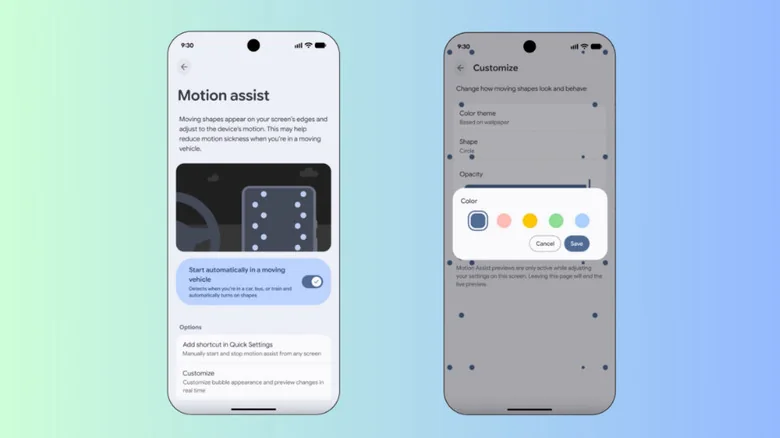
The feature uses device motion sensors to make small shapes on your screen move in response to the vehicle's maneuvers. This helps synchronize visual perception with physical movement. The shapes remain confined to the display's edges so your primary content stays unobscured. Google emphasizes that the tool is strictly intended for passengers rather than drivers.
Setup Steps
You can activate Motion Assist through your device settings. On Pixel devices, open the Settings app, tap your profile, select All services, and toggle the feature on within the Personal & device safety menu.
To automate the process, enable the setting to start automatically when the phone detects a moving vehicle. Because sensors occasionally require time to recognize travel conditions, adding Motion Assist to your Quick Settings menu ensures quick manual access.
Users can also customize the colors, opacity, and shapes displayed on screen by navigating to the Customize menu within the Motion Assist settings, or select a randomization option to vary the visual elements over time.