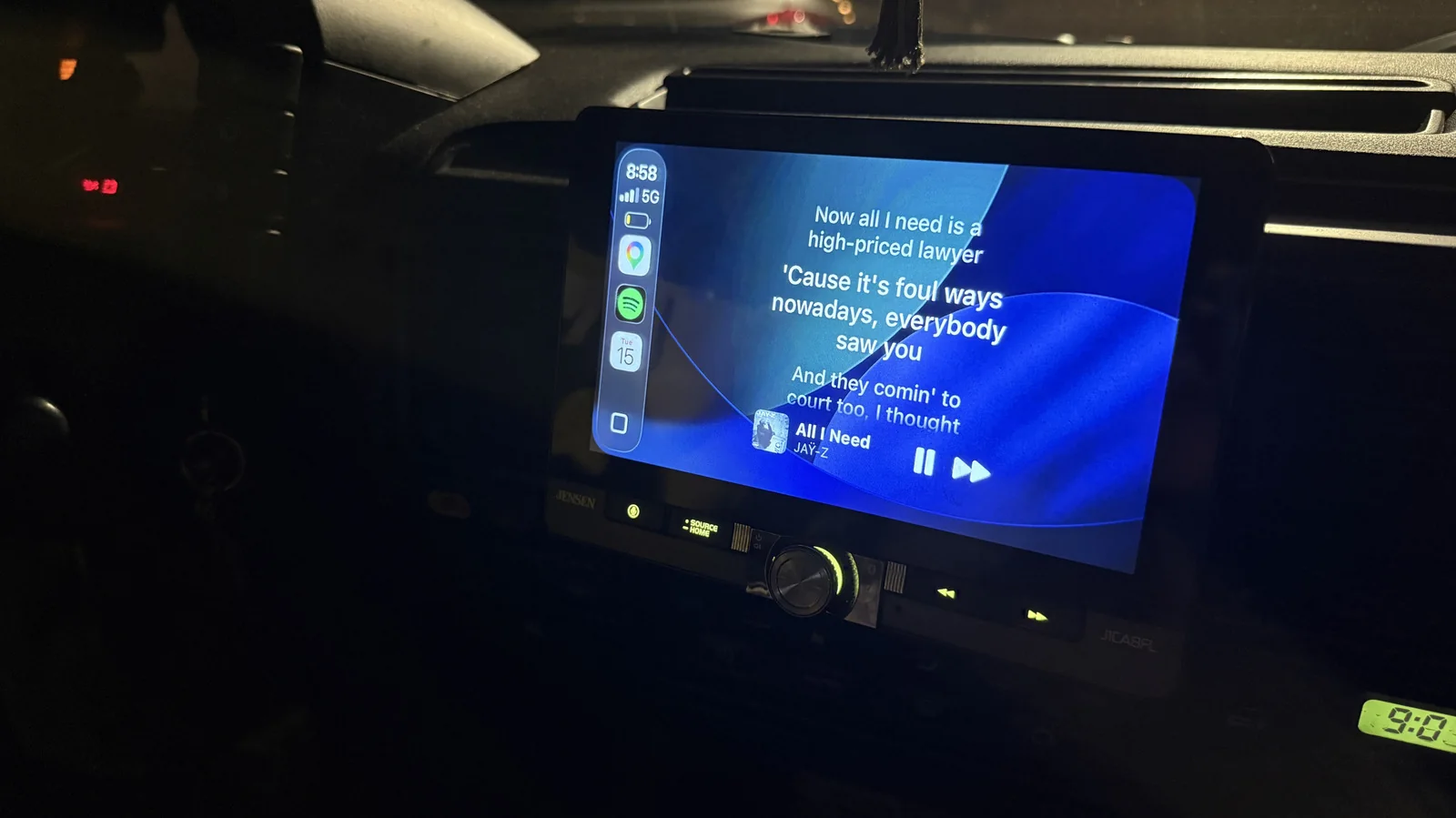
This little-known app lets you display song lyrics on Apple CarPlay
You can host your own episode of Carpool Karaoke with the Dynamic Lyrics widget.
Few things are more irritating than driving around with people who sing songs without knowing the lyrics. Thanks to Apple CarPlay that never has to be the case on long road trips or short errand runs. All you need is an up-to-date iPhone, some passengers, and, most importantly, the little-known Dynamic Lyrics app.
As one of many third-party apps that are compatible with CarPlay, this one displays time-synced lyrics on your infotainment system after you connect your preferred streaming service, making it seamless for Apple Music or Spotify users.
That said, as with any CarPlay feature, you should never take your eyes off the road to enjoy it, but it is a great choice for keeping passengers entertained for hours on end. You can get the whole car to sing along to any track or enjoy translated lyrics when listening to songs in other languages.
However, there is a catch: it costs $9.99 to enable this feature permanently. So before downloading it, make sure you are willing to pay the one-time price when you open the app, and that your device is updated to iOS 26 so you can enable it on CarPlay.
How to add the Dynamic Lyrics widget
Once you confirm your phone is updated, start by downloading the Dynamic Lyrics app in the App Store. When you open up the app, it will prompt you to connect your streaming service of choice; whether Apple Music or Spotify, simply allow access to get started.
While the process is straightforward for Apple Music and Spotify users, the latter will have to authorize the app using either a Default or Custom method. Default authorization takes a tap but may require re-authorizing frequently, while Custom authorization takes a couple of extra minutes and requires a Spotify Client ID.
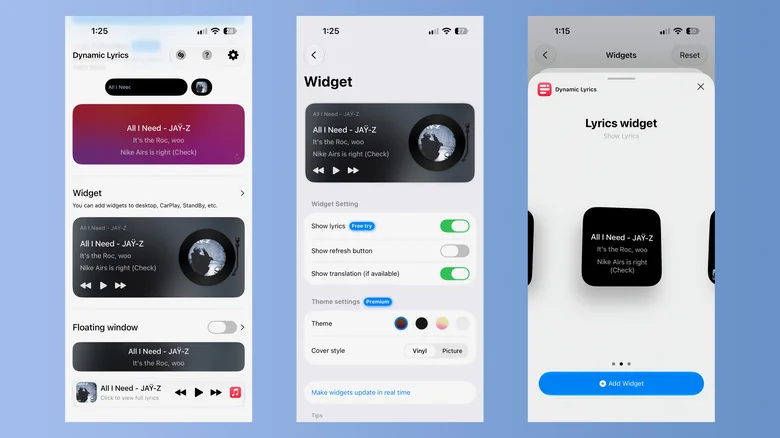
The premium version of Dynamic Lyrics lets you toggle between different themes and customize the CarPlay widget to your liking. Options include different colored backgrounds such as white, black, and a gradient that changes based on the album cover, as well as cover styles like vinyl or picture displays.
After you have made your picks in the app itself, head over to Settings, General, CarPlay, select your car and tap the Widgets menu under Customize. Once you press Add Widget, select one of the two options titled Lyrics widget to add it to your widget stack as a small square, which can be enlarged for a bigger view.