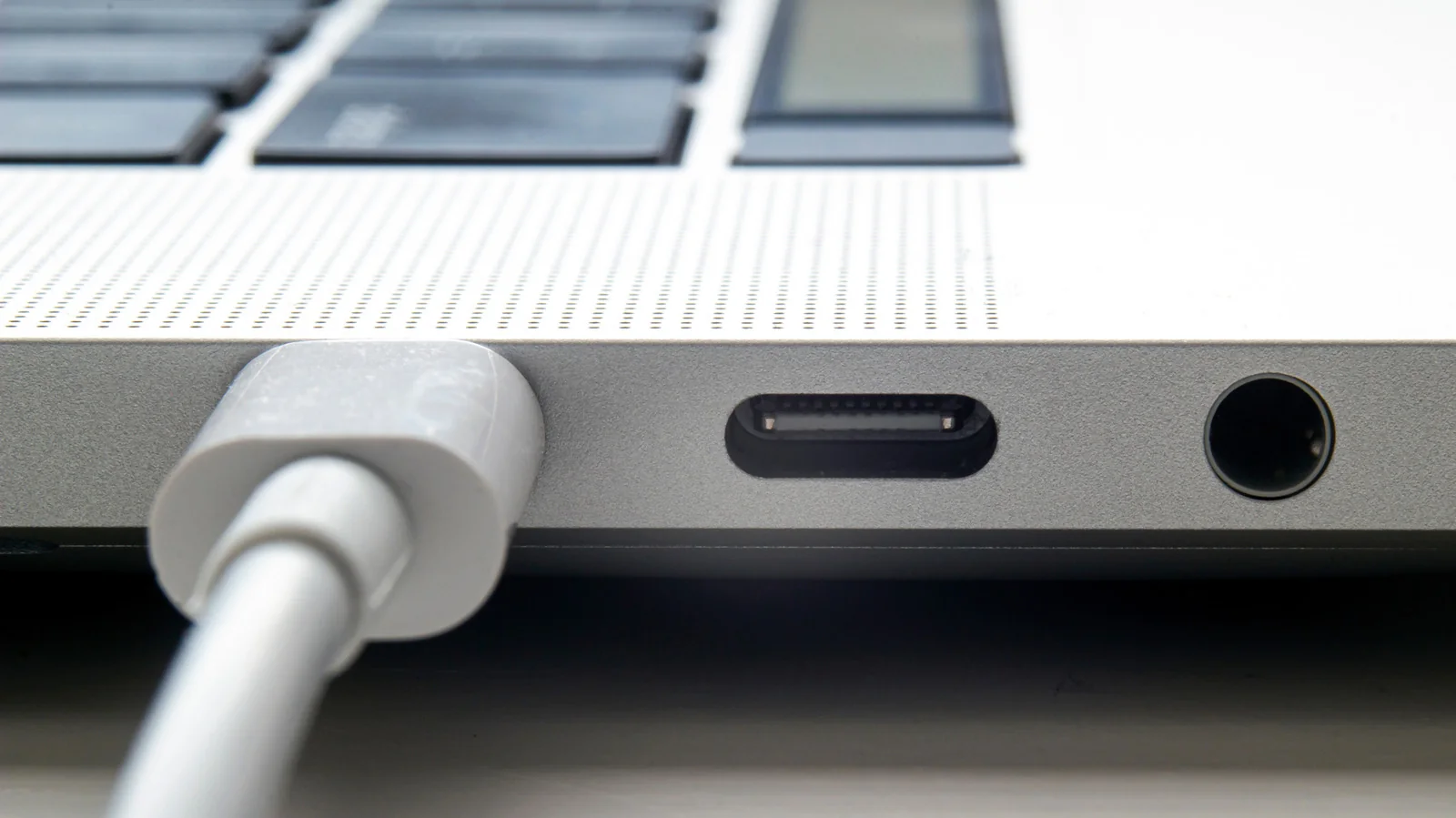
Why your USB device isn't showing up on your MacBook and how you can fix it
Fix hardware and software issues with some simple solutions.
USB wouldn't be what it is today without Apple. The format predates the original iconic iMac, but Apple's computer helped popularize it by ditching legacy connectors. Modern USB Mac accessories tend to be well-behaved, but on occasion, macOS can fail to detect them, which can be frustrating.
Modern USB Mac accessories tend to be well-behaved. On occasion, though, macOS can fail to detect them, which is understandably maddening. With USB being as widespread as it is, anything less than a seamless experience feels unacceptable.
The good news is that there are known hardware and software explanations for why this happens, like damaged cords or an accessory that requires more power. In many situations the fixes are remarkably simple, particularly on the macOS side.
How to solve missing USB devices on your Mac
The first thing to remember is that by default, macOS requires you to give permission for accessories to connect in order to prevent malware injections. If you accidentally reject a permission prompt, a legitimate accessory won't transmit data until you give approval.
Typically, you can force macOS to re-display the permission prompt by unplugging an accessory and plugging it back in again. To minimize future hassle, go to Apple menu > System Settings > Privacy & Security, then scroll down to the Accessories section to adjust your connection preferences.
If that doesn't change anything, verify that macOS sees your device by holding down the Option key and clicking Apple menu > System Information to check the Hardware listing.
A probable cause is power. Some accessories may require more than a Mac's USB port can supply, requiring a separate power cable. Alternatively, try alternate ports on your Mac or connect directly if you were using a hub or dock.
Other potential USB flaws and their fixes
Hubs and docks often require their own power supplies. Device chains can also introduce complications in transmitting power or data across multiple hops, so it is often safer to connect devices directly to the laptop.
Make sure macOS is fully up-to-date by checking Software Update in System Settings. Bugs or missing proprietary software drivers can also interfere with device functionality. External drives must use a compatible file system such as APFS, FAT, or ExFAT.
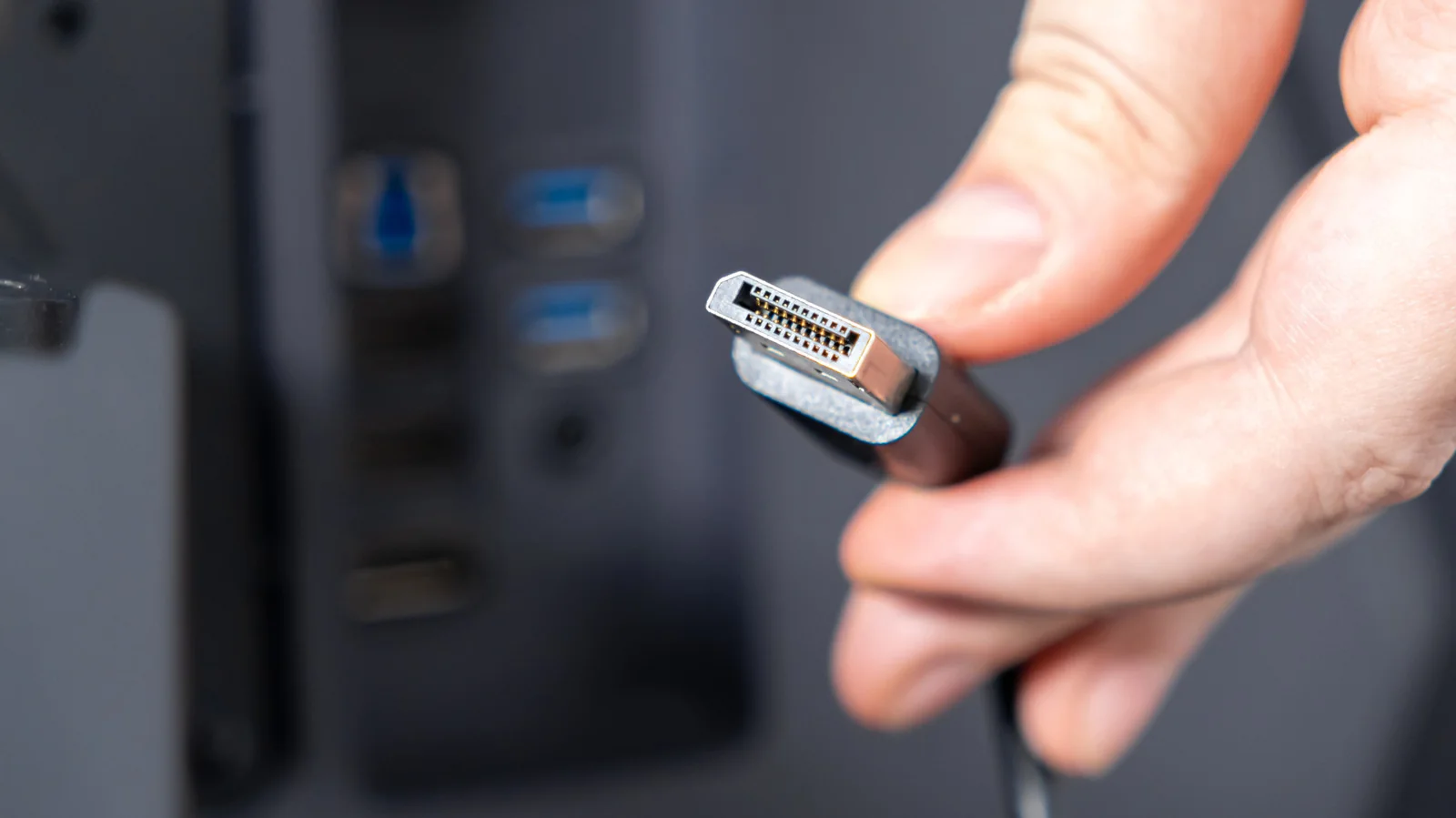
Ensure you are using the correct type of USB cable for your device's power and bandwidth requirements, and check that no damage or debris like lint is interfering with ports or connectors.