Optimizing Your iPhone Experience
Beneath the standard interface of your iPhone lies a wealth of features designed to enhance your daily life. From simplifying routine tasks to personalizing your device, these seven hacks will help you maximize your smartphone’s capabilities and improve your overall productivity.
Advanced Navigation and Tools
Your iPhone’s camera is a powerful tool for interacting with QR codes. By pressing and holding a QR code on your screen, you can instantly access options to open links in Safari, copy them to your clipboard, or share them. This functionality works with codes embedded in photos, websites, or apps, making tasks like joining Wi-Fi networks or downloading apps more intuitive.
2. Convert and Annotate Webpages in Safari
Safari allows you to turn any webpage into a PDF for easier saving and sharing. Once converted, you can use built-in markup tools to highlight text, add notes, or draw directly on the document. This feature is particularly useful for research and work projects, allowing you to save annotated documents for future reference.
Privacy and Customization
When sharing screenshots, simply drawing over text with the markup tool may not be secure, as contrast adjustments can sometimes reveal obscured data. To ensure privacy, use solid shapes like rectangles from the markup menu to cover sensitive areas completely, providing a reliable barrier against manipulation.
4. Customize Your Home Screen with Widgets
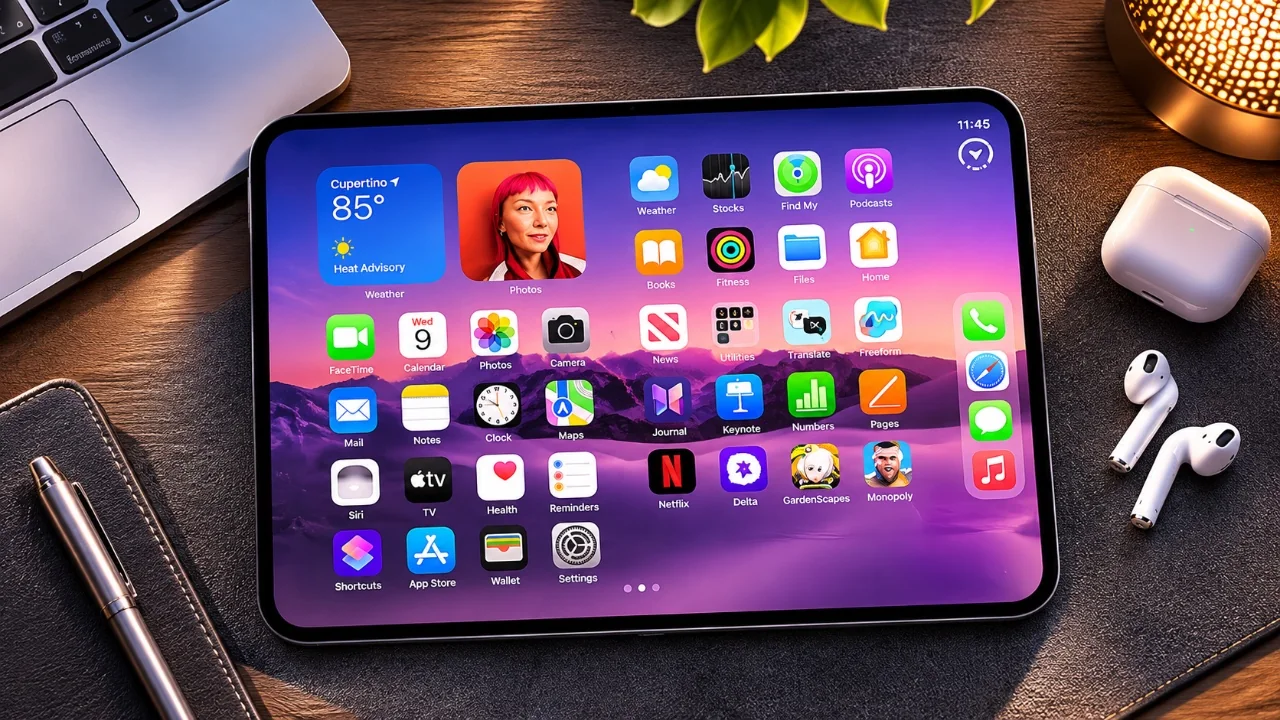
Widgets serve as practical tools for organizing your home screen. You can add full-page widgets for calendars or media players and stack multiple widgets on top of each other to swipe through them as needed. This helps declutter your interface while keeping essential information accessible.
5. Add a Personal Touch to Your Status Bar
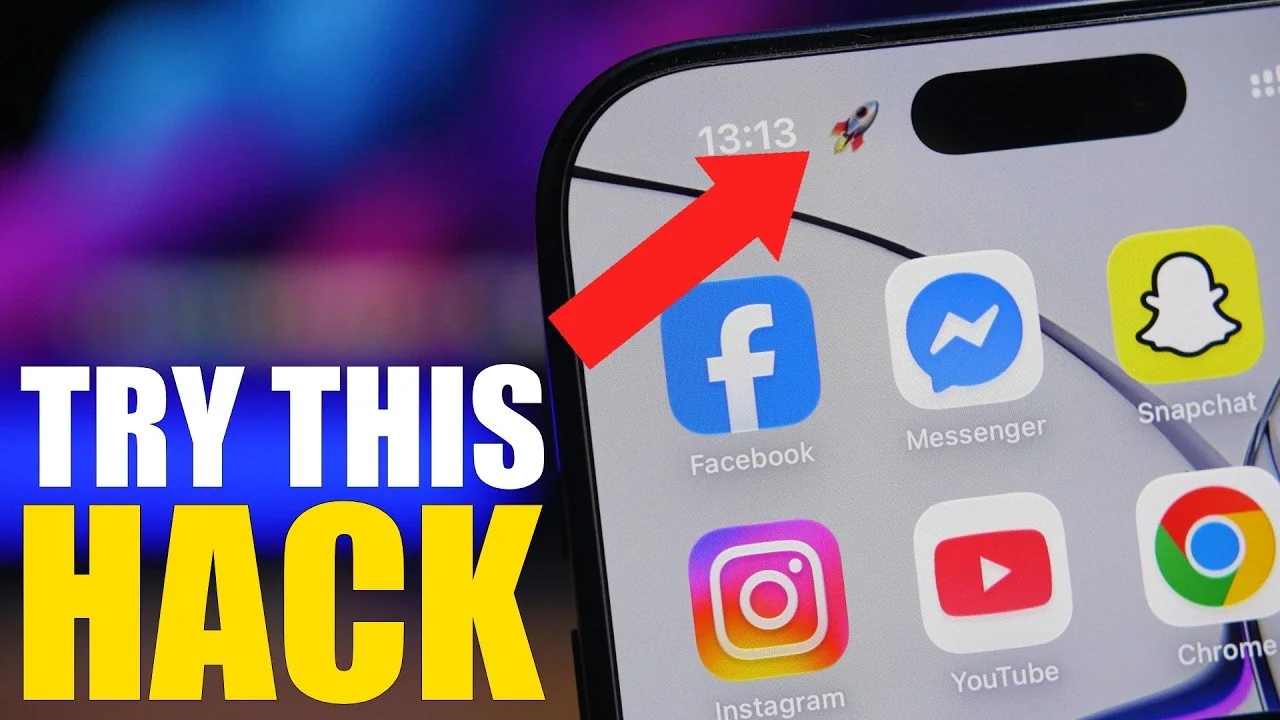
You can customize the area around your status bar by editing your wallpaper with the markup tool. By adding small emojis, text, or designs and adjusting their placement, you can create a personalized look that makes your device unique.
Efficiency and Communication
To reorganize your home screen faster, use a multitouch gesture. After activating edit mode by holding an app icon, use another finger to swipe between pages, allowing you to move multiple icons simultaneously across your home screen layout.
7. Enhance Conversations with iMessage Effects
iMessage includes built-in effects like “Loud,” “Gentle,” or “Slam” to add emphasis to your messages. Additionally, you can use reply effects such as heart or thumbs-up reactions to respond creatively, making your digital conversations more expressive.
Conclusion
These seven hacks demonstrate how small adjustments can lead to significant improvements in your user experience. By exploring these features, you can save time, enhance your privacy, and discover new ways to optimize your iPhone for your specific needs.