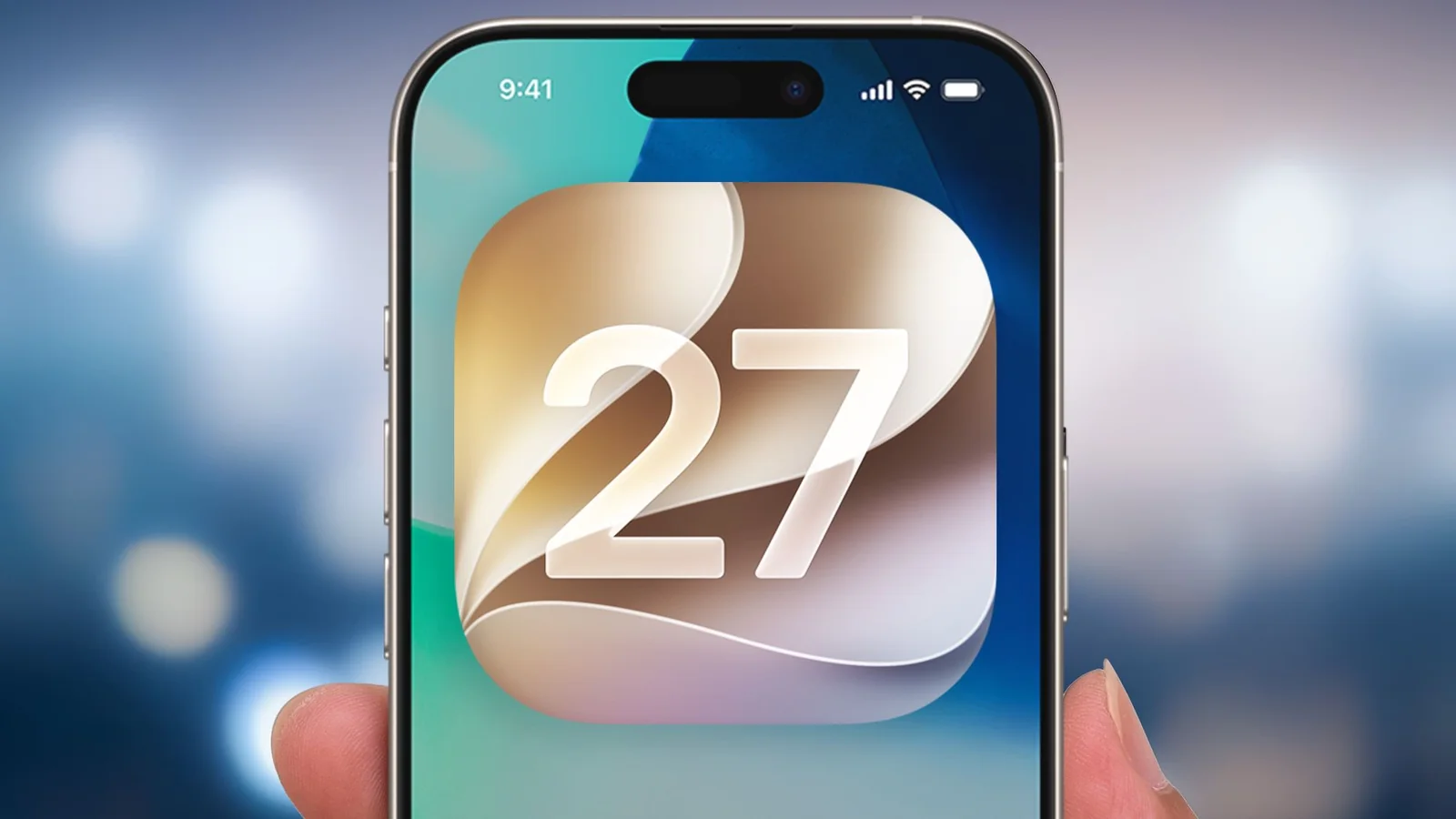
Though other iPhone software updates can boast a greater number of changes, iOS 27 still marks a significant release for Apple, as it ushers in an overhaul of Siri that adds greater intelligence to the device you likely have with you at all times.
Whereas past versions of Apple's assistant have struggled with basic queries, iOS 27's take on Siri delivers a more capable helper that can perform more tasks, find more information and prove to be every bit as indispensable as the iPhone itself.
Siri dominates any list of changes introduced by iOS 27, though it's not the only thing that the updated software brings to the table. Even if you don't have an iPhone that's capable of supporting Apple's AI features, you'll still find plenty to like about iOS 27.
Here are twenty iOS 27 features worth trying if you have the updated software installed on your iPhone.
Get the new Siri
If you've upgraded to iOS 27 and wonder why Siri doesn't look any different, there's a very simple answer — you've got to enable Siri AI.
Launch the Settings app, and select Siri. On the ensuing screen, tap Try Siri AI (Beta), followed by Continue to confirm that you want to give Siri with Apple Intelligence a try. That adds you to the waitlist, but the wait shouldn't be too long.
Once Siri AI is active, the entire look of the on-device assistant changes, featuring a bubble-style interface that pops out from the top of your iPhone display. The dedicated Siri app will also appear on your home screen.
Not every iPhone that can run iOS 27 will support Siri AI. You'll need an iPhone 15 Pro or later, including newer models.
Adjust the look of Liquid Glass
Introduced with iOS 26, Apple's Liquid Glass interface is here to stay. iOS 27 makes the interface a little bit easier to tweak to your liking.
From Settings, tap Appearance, followed by Liquid Glass. On the next screen, use the slider to adjust transparency or contrast between on-screen controls and content.
Any adjustments you make will be reflected once you leave Settings and resume using your iPhone.
Get info from Siri directly from the Camera
The Camera app in iOS 27 now offers a Siri mode alongside the standard Photo and Video toggles where you can point your camera at an object, touch a button and get information about what Siri sees.
This is essentially an update to the Visual Intelligence feature previously available on iPhones that supported Apple Intelligence.
Have Siri organize your Safari tabs
If you have an iPhone capable of supporting Safari AI, iOS 27 lets you shift some tab organization responsibilities to your on-device assistant.
Within the Safari app, tap the overlapping windows icon next to the URL/search field, and then select the filter button at the top of the screen. Select Organize Tabs, and choose the Automatically Create Topics option to group related tabs together.
Safari automatically groups related open tabs together into easy-to-manage windows for quick access.
Get better search results in Mail
Finding older emails on the iPhone has improved in iOS 27 Mail thanks to a new ranking system. Relevant results now appear at the top of your messages, and you can further refine searches to drill down to the result you need.
When typing search queries into Mail, top results include relevant emails and matching newsletter issues.
Set different alarm and alert volumes
In previous versions of Apple's iPhone software, alarms and alerts arrived at the same volume as ringtones. That has changed in iOS 27.
Head to the Sounds & Haptics screen in Settings where you will find toggles for Alarms and Volumes as well as Alerts and System Sounds to independently adjust volumes.
Changing the Alarms and Timers volume will not affect the volume of the Wake-Up Alarm if you have opted to enable that feature in the Clock app.
Pin camera controls to the top of the Camera screen
iOS 27 lets you make sure your go-to camera controls are always close at hand by picking and choosing the controls that sit above the camera frame.
In the Camera app, tap the Camera Control button next to the shutter button, click Edit, and select the tools you want at the top by tapping the plus button.
You can add specific controls like aspect ratio to easily change the size of your shots without digging into menus.
Shift the perspective of your photos
Smarter AI tools in iOS 27 bring new editing features, including Reframe, which allows you to move around the angle of a photo to produce a more striking shot.
In the Photos app, go into editing mode and tap the AI Tools Icon on the bottom of the screen to access Reframe and Clean Up.
Dragging your finger around the screen allows the built-in AI to readjust the perspective and clean up the image.
Explore changes to Shared Albums
Apple updated iCloud Shared Albums in iOS 27 to allow people without an Apple account or device to contribute, enabling Android and Windows users to join. You can also create temporary shared albums that disappear after 30 days.
Photos and videos in Shared Albums can now appear at full resolution, counting against the iCloud storage limits of the album owner.
Have Siri help you out while cooking
Siri can now recognize what is on your screen and answer questions about it, providing useful assistance when following online cooking recipes.
You can ask Siri follow-up questions about ingredients or temperatures directly from an open Safari tab without manually scrolling.
Put your Apple TV remote on your iPhone's home screen
iOS 27 moves Apple TV remote functionality out of the Control Center and places it directly onto the Home screen.
Swiping down from the Home screen and searching for Remote lets you drag the remote icon straight to your home screen for quick access.
Use Siri to create a shortcut
iOS 27 removes barriers in the Shortcuts app by letting you describe the shortcut you want, allowing Siri to build it for you.
Launch the Shortcuts app, tap the plus button, and type or dictate your idea. Siri handles the background process of assembling the automation.
Check out Siri's understanding of personal context
Siri AI understands personal context, meaning the assistant knows the content on your phone and uses that knowledge to provide relevant answers and actions.
You can ask Siri to locate specific notes or details across your device using natural phrasing.
Have Siri create Calendar entries
Siri's new smarts in iOS 27 make it easier to create events in the Calendar app by speaking naturally.
Speaking details like meeting times or durations allows Siri to populate your calendar automatically without manual entry.
Explore iOS 27's new child safety features
iOS 27 overhauls parental control tools, including a setup assistant for apps and websites. App Limits is now called Time Allowances, letting parents restrict time spent in Games, Entertainment, and Social Media apps.
Standout additions include Ask to Browse for website access requests and streamlined controls in Family settings.
Parental control updates require all connected household devices to run the latest Apple software updates.
Better transitions between Wi-Fi and cellular
iOS 27 brings under-the-hood improvements, including more seamless switching between Wi-Fi and cellular networks as you leave your home network.
The carrier network transition is significantly less jarring, preventing active web tasks from hanging.
Find My features interface tweaks and an expanded location-sharing duration setting.
Users can fine-tune location sharing by specifying custom days, hours, and minutes instead of preset durations.
Find My also adds the ability to hide your location from indefinite shares without notifying the recipient.
Use multiple iPhone cameras during a FaceTime call
iOS 27 adds dual capture capabilities to FaceTime, letting you chat using the front camera while the rear camera shows your surroundings. This feature requires an iPhone 17 or later.
Tapping your tile during a FaceTime call and hitting the Flip button starts dual camera capture.
Use Siri in the Magnifier app
Siri's camera vision extends to the Magnifier app, allowing users to ask the assistant for details on magnified objects.
The tool helps read tiny print or navigate dim environments by asking Siri questions about the magnified view.
Apple Maps introduces Local Lists, which pulls usage data to show trending locations and recommendations around you.
Local Lists can be found by searching in Maps to access curated city guides highlighting attractions and restaurants.
Maps also adds a Trending Restaurants carousel below recent searches and suggested places.