Managing iPhone Space
Running low on storage space often leads to frantic decisions like deleting important photos or useful apps. However, it is possible to claw back gigabytes of local storage without sacrificing your camera roll or paying for extra cloud tiers.
A couple of built-in device settings can reclaim space while keeping your important files intact. Here are the most effective ways to clear storage warnings permanently.
Optimizing Photos and Media
High-definition media files are primary culprits for consuming local storage. Recording video in 4K resolution can eat through nearly half a gigabyte of space for every sixty seconds of footage.
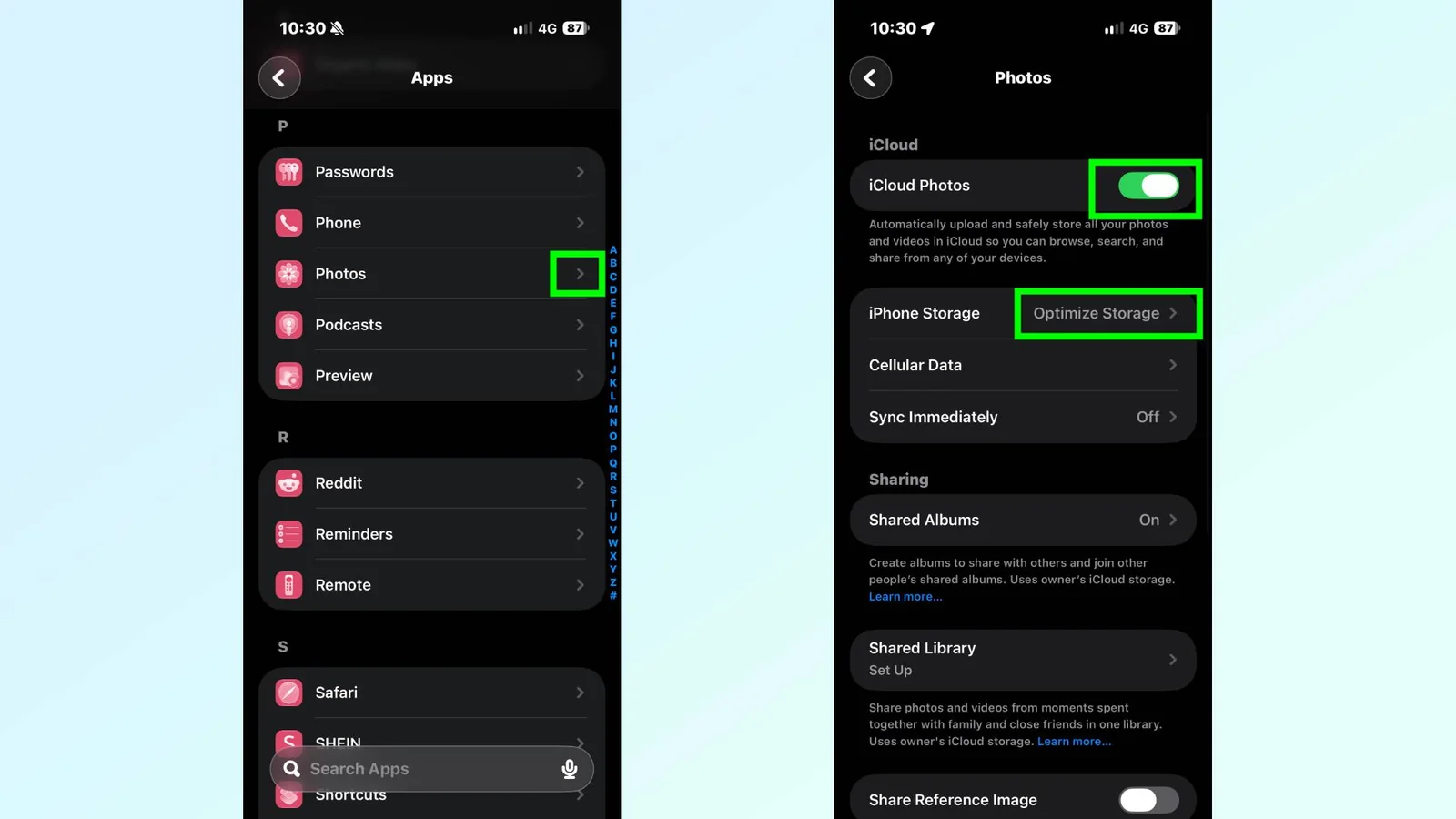
Rather than manually sorting through a media library, devices can manage files automatically. Navigating to the settings menu, selecting apps, choosing photos, enabling iCloud storage, and tapping the optimize option automates the process.
This functionality retains smaller preview files locally while moving full-resolution assets to cloud storage, downloading the original versions on demand whenever they are opened.
Offloading Unused Applications
Many devices accumulate a digital graveyard of rarely opened software, such as occasional travel passes, parking utilities, or games untouched for weeks.
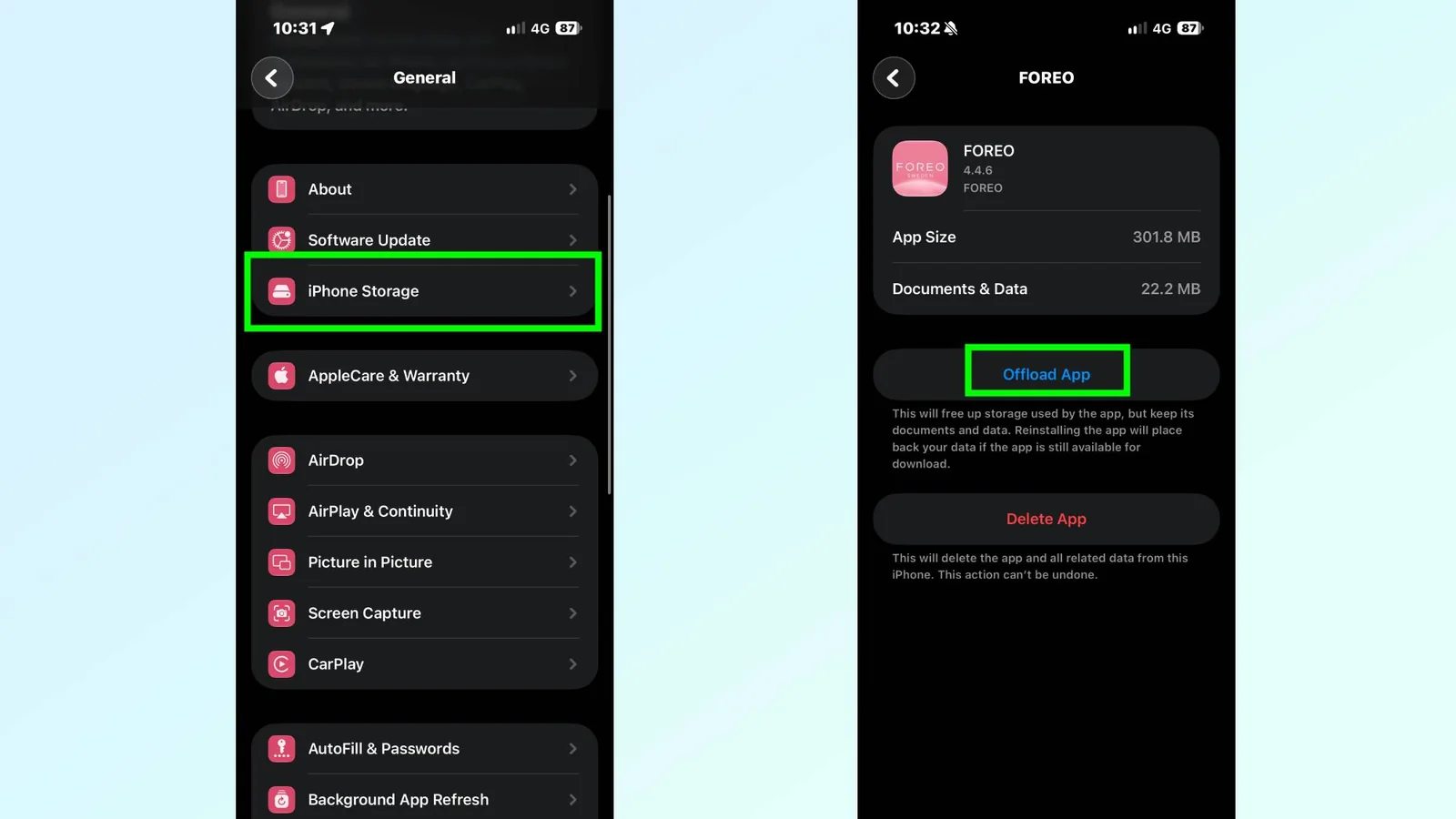
Offloading provides an effective middle ground. Accessing device storage settings displays a sorted list of applications by file size, allowing users to select unwanted utilities and choose the offload command.
This action removes the application binary to free up space while preserving personal documents, preferences, and account logins. Reinstalling the software requires simply tapping its icon when needed again.
What are your tips for freeing up storage? Let me know below.