Introduction to DroidDeck
For years, mobile platforms have tried to present themselves as legitimate AAA gaming destinations, often relying on hand-picked App Store ports of older titles.
Many players prefer not to re-purchase games they already own on Steam just to play them on a mobile device.
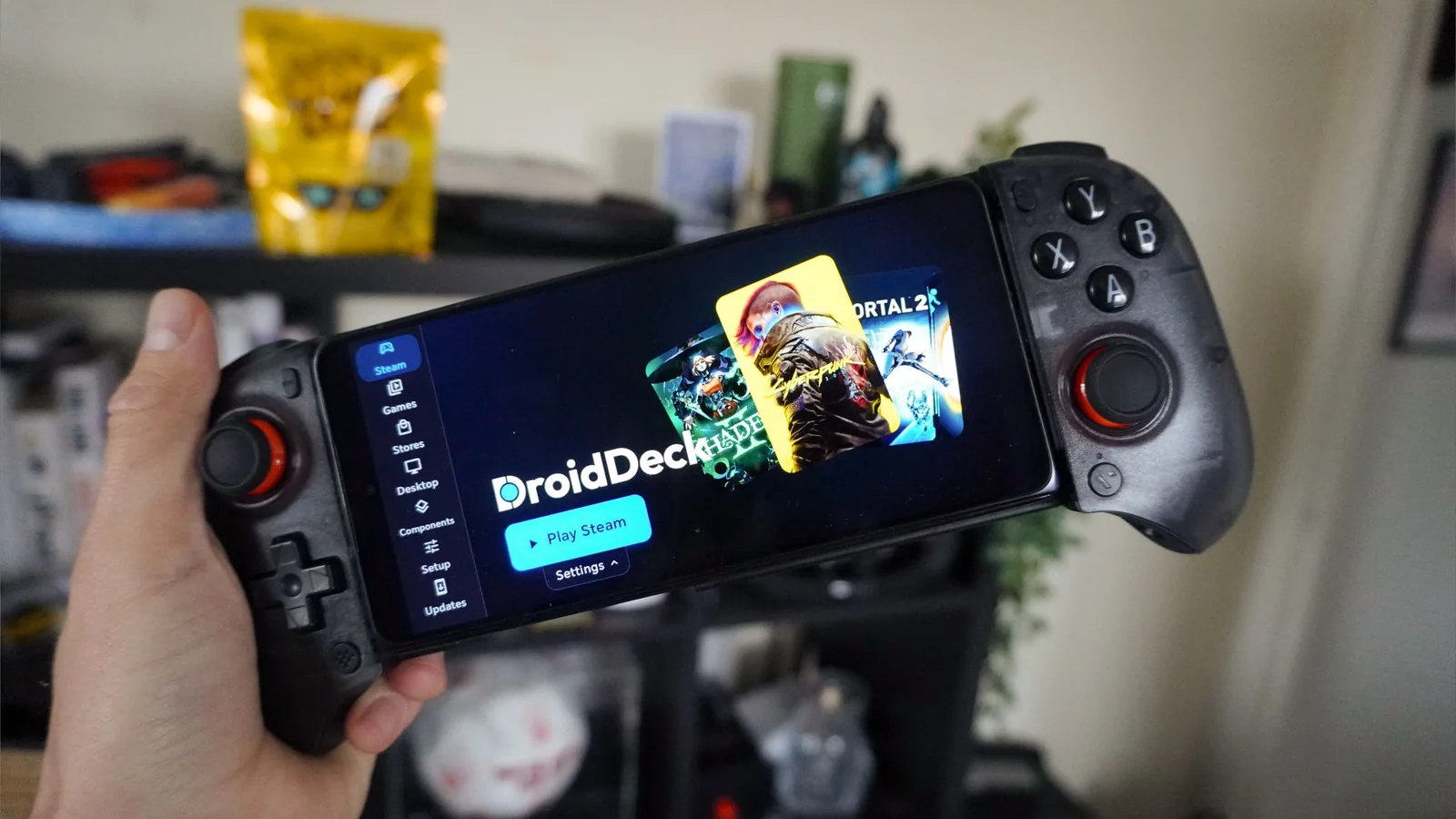
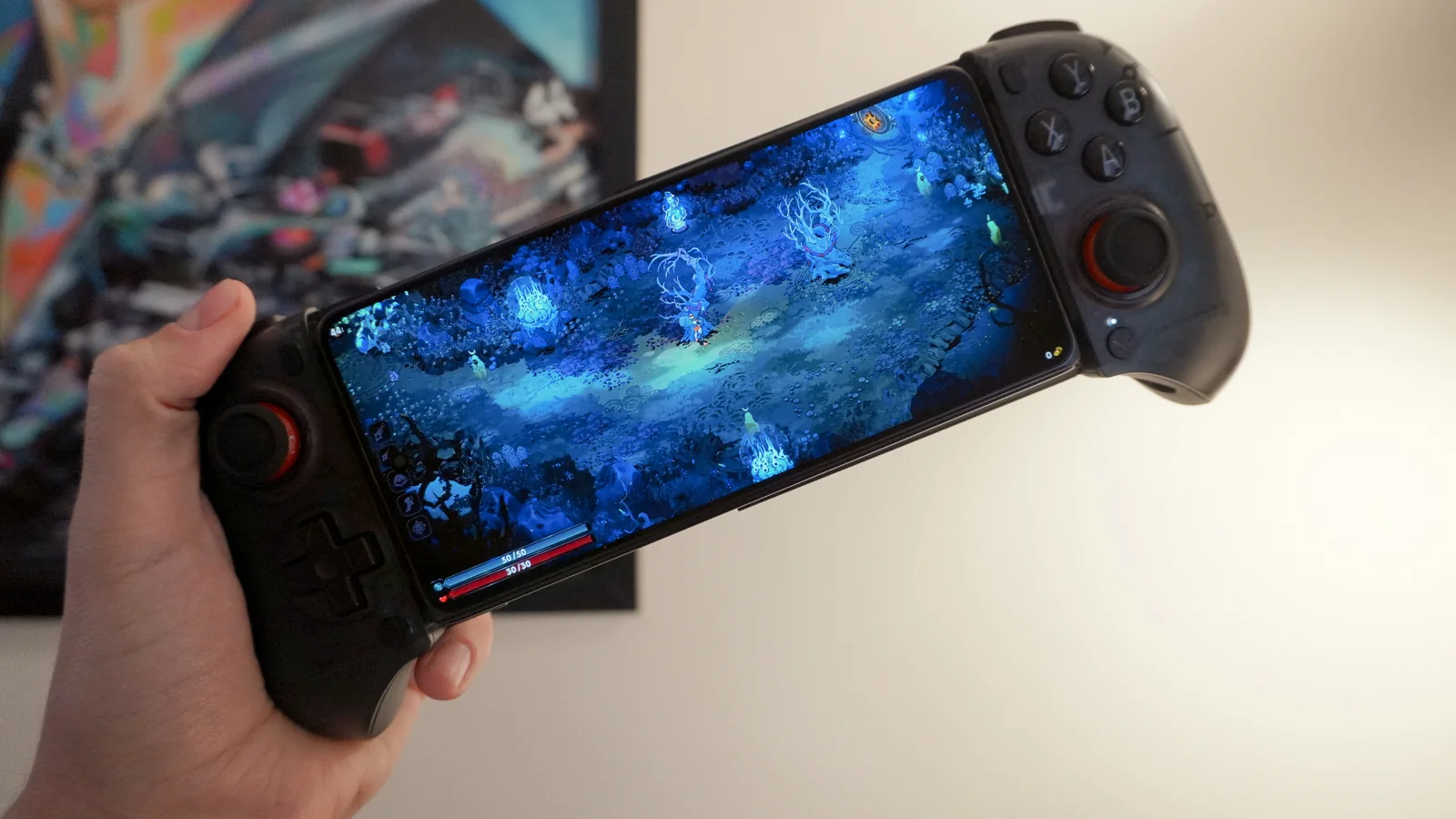
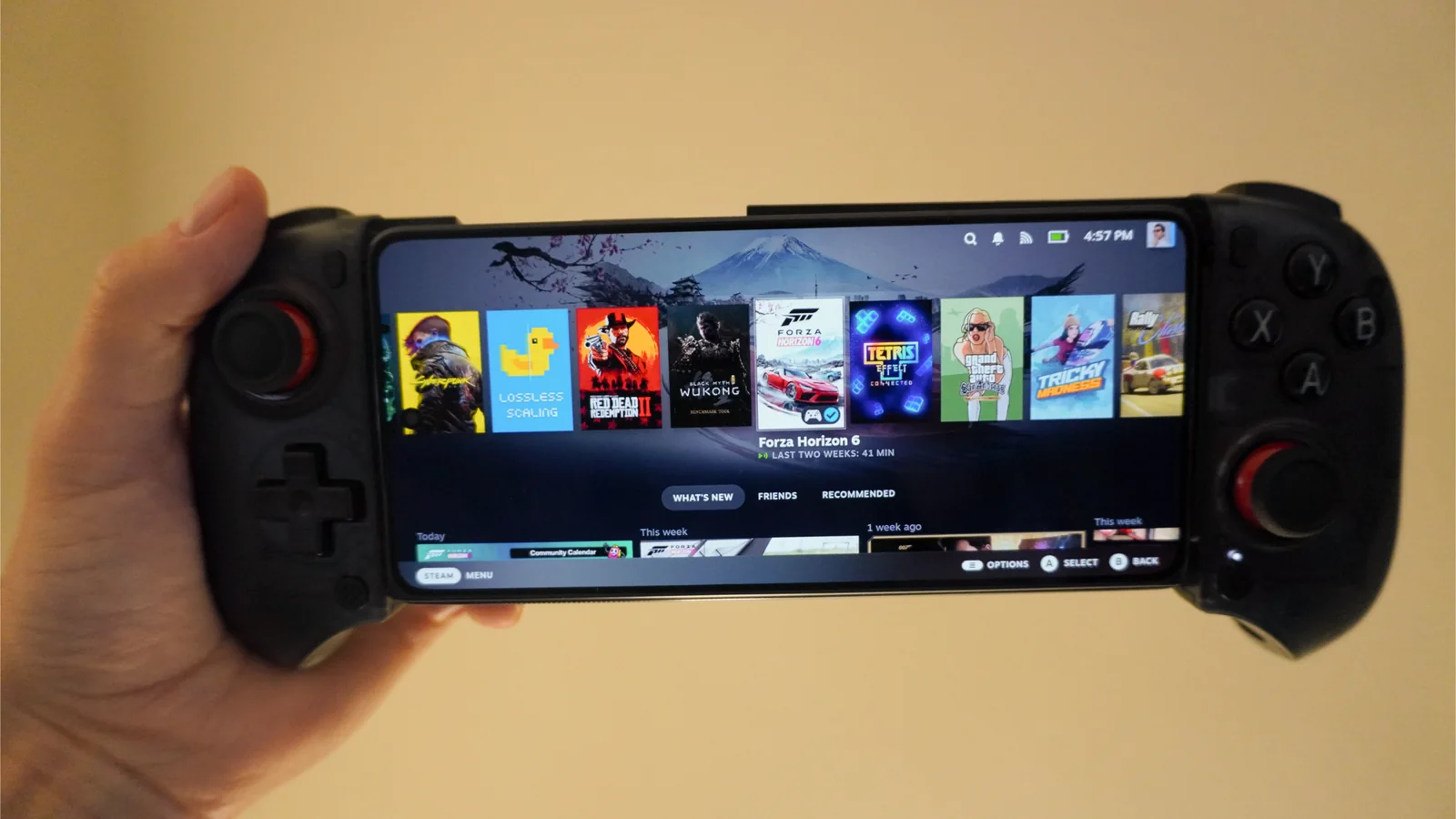
Enter DroidDeck: a free, open-source app that does not stream games from the cloud or rely on clunky virtual machines. Instead, it boots Valve’s Arm-native Steam client directly on an Android phone, made possible by recent work Valve did to get games running on Arm-based hardware.
Your existing PC Steam library can run locally on Snapdragon silicon, proving that native emulation on mobile is becoming a reality.
How DroidDeck Works
Unlike solutions that rely on emulating Windows and consuming high amounts of RAM and CPU resources, DroidDeck runs Steam natively on the phone’s Arm silicon.
The architecture benefits from Valve’s Steam Frame VR headset development, which utilizes an Arm-based Qualcomm Snapdragon chip rather than an x86 AMD processor.
Because the Steam client runs natively on Arm, background resources are minimized, and open-source Turnip Vulkan drivers communicate directly with the Snapdragon GPU.
The result includes SteamOS-level optimizations, cloud saves, performance overlays, and native support for frame generation technologies like AMD FSR and Snapdragon GSR.
Installation Steps
Getting the setup running requires downloading the latest version from the project’s GitHub releases page and adjusting security settings to allow installation.
Disable Android’s child-process restrictions
Because Android disables processes within processes by default, users must tap the build number in the about phone screen seven times to activate developer mode, then enable "Disable child-process restrictions" in Developer options.
Check you have the latest software
Users should check the Setup and Overview section in the DroidDeck app and install any missing components indicated in the Ready to Play circle.
Open SteamOS
Tapping Play Steam opens SteamOS. The initial startup takes time to install necessary dependencies before users can access their game libraries.
Performance Tuning
Settings tweaks can be accessed by swiping from the right edge of the screen to open the side menu.
Recommended options for Snapdragon-powered hardware include specific frame generation and scaling configurations.
Frame generation options like LSFG 3x require downloading Lossless Scaling from Steam.
Scaling filters can be set to Snapdragon GSR for improved visual clarity.
The FEX translation layer can be set to default for indie or older titles, or performance presets for more demanding games.
Total Store Order settings force the CPU to read and write memory in a strict sequence, though extreme options may cause instability in certain AAA titles.
Gaming Performance
While still a work in progress, early testing shows that multiple PC games are playable on mobile hardware.
Indie titles and older games perform well and display cleanly on OLED mobile screens.
AAA games can be tuned to run at playable frame rates, though achieving optimal performance requires further configuration.
Platform comparison
Tools like DroidDeck highlight differences in gaming ecosystems, particularly regarding digital library portability across desktop and mobile devices.
PC players often maintain libraries across Steam, GOG, and Epic Games, which can theoretically extend to compatible mobile hardware.
In contrast, restricted mobile operating systems can present barriers to custom drivers and low-level background processes.
Combining portable hardware solutions with accessories like AR glasses points toward new possibilities for mobile PC gaming setups.