Understanding iPhone Battery Drain
Battery drain complaints are almost guaranteed after a major iPhone update, with background indexing usually taking a few days to settle. But when battery depletion continues rapidly well past the update period, Connectivity Assist in iOS 27 can be the hidden culprit.
Many users have reported similar battery hits, pointing directly to this setting as the root cause. Designed to prevent slow loading times when a wireless signal drops, the way Connectivity Assist operates under the hood can place significant strain on power reserves.
Understanding why the feature drains power quickly helps clarify why turning it off can extend daily battery performance.
How Connectivity Assist Works
In previous iOS versions, Wi-Fi Assist automatically supplemented a poor Wi-Fi network by routing traffic over cellular data in the background. Connectivity Assist in iOS 27 takes a significantly more aggressive approach, actively utilizing cellular data in addition to Wi-Fi to blend connection speeds.
Keeping both wireless radios actively working simultaneously can prevent stuttering, but running both receivers concurrently consumes noticeably more power and leads to faster battery drain.
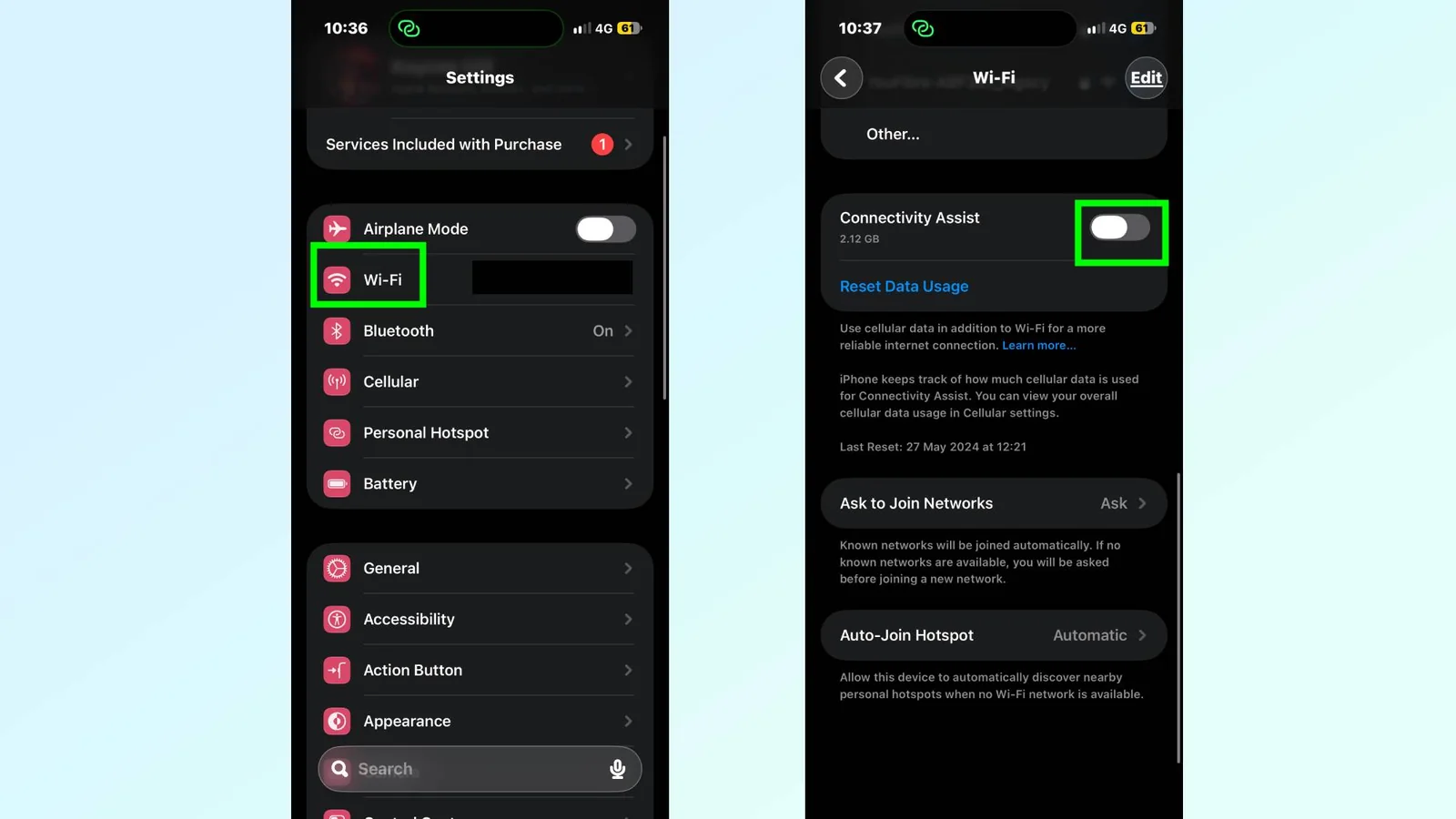
How to Disable Connectivity Assist
To save battery life across all locations, the feature can be turned off entirely in a few taps. Open the Settings app, select Wi-Fi, and scroll down to the bottom of the page. Toggle off Connectivity Assist. Right above the switch, users can also view how much cellular data the feature has used to date.
For those who prefer to keep the feature active while in public but want to save battery at home or work, it can be managed on a per-network basis. Head to Settings, select Wi-Fi, tap the info icon next to the connected network name, scroll down, and switch off Use Connectivity Assist.
Disabling this setting provides a straightforward method for preserving battery life on supported iPhones.