How to boost your GPU performance without buying a new one
Your old GPU might not be able to compete with a new card, but it can run better with some tweaks.
In this increasingly anti-consumer tech world that seems fixed on abandoning all else in favor of data centers, there's rarely been a worse time to buy a new GPU. While many panic-bought PCs to avoid supply crunches, there's an even bigger crowd of PC gamers who have been unable to pick up a new graphics card for years.
Just because you're unable to afford a shiny new GPU doesn't mean you can't squeeze more performance out of your current card, though. Some graphics tweaks, supersampling advice and general GPU maintenance will help boost FPS performance in your favorite games.
Use supersampling and frame generation to boost FPS
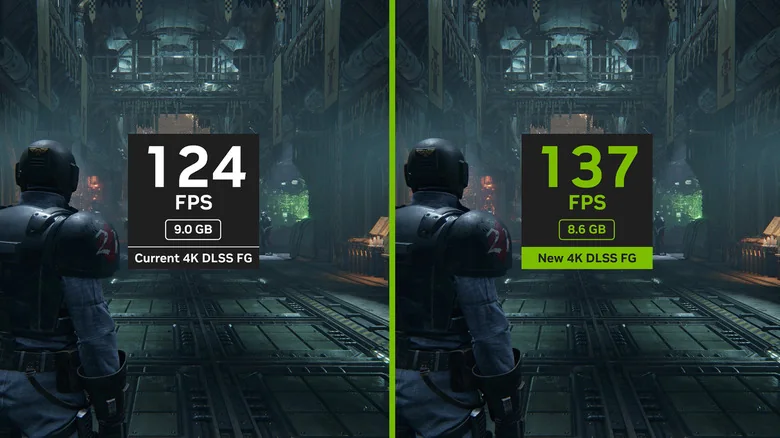
In an era where graphical advancements are outpacing hardware evolution, it's becoming vital to get the most out of your current GPU through any means necessary. Embracing AI-driven tools can significantly help boost frame rates.
Whether you're interested in advanced ray tracing features or not, it's clear that graphically demanding games now rely on various forms of supersampling to lock down buttery, console-beating frame rates. Be it AMD FSR, NVIDIA DLSS or Intel XeSS, making the most out of AI-driven, FPS-boosting tech can be crucial for maintaining stable performance at high resolutions.
Both NVIDIA DLSS and AMD FSR produce image quality that's close to playing games at native resolution while drastically boosting performance. These technologies work by rendering a game at a lower internal resolution before using deep learning techniques to upscale the final image to a far higher pixel count.
Frame generation technologies can produce extremely high frame counts, but they often add input latency in supported games. Earlier incarnations and moderate multipliers perform nicely on supported titles, with the added benefit of producing fewer distracting visual artifacts like shimmering around in-game text.
Supersampling is generally recommended without hesitation for performance gains, while the pros and cons of frame generation warrant personal experimentation.

Lower settings and turn off ray tracing
If your GPU is dropping frames in demanding games, it's best to lower graphical settings right away. Only the fastest graphics cards can cope with a modern AAA title's Ultra preset, so unless you're rocking a top-tier card, it's wise to drop your settings to Balanced or Performance.
Unless you've got an ultra-obsessive eye, it's unlikely you're going to miss features like ambient occlusion or screen space reflections. Tinker with in-game sliders to see what you like the look of and whether you can stomach the resulting performance cost.
In fast-paced shooters or racing games, fancy rendering techniques are often wasted. Disable any setting that doesn't visibly enhance your experience to improve your chances of boosting fps.
Those on budget GPUs should generally avoid enabling ray tracing. This ultra-advanced lighting technique uses multi-bounce illumination to create realistic shadows and reflections, but it is hugely punishing on performance and can lower frame rates significantly.
Remember the basics, clean your GPU and consider overclocking
Though software methods help pump up frame rates, there's a physical element to performance as well. You must know how to clean and organize your PC properly to get the most out of it.
Thermal throttling is a major issue for both your GPU and CPU. If you don't regularly maintain your machine, dust can quickly build up, preventing proper airflow. Dust gathering around the fans of a GPU leads to decreased performance as your card hits its temperature limit more quickly and reduces core clock speeds.
To safely clean your graphics card, switch off and unplug your PC. Use a can of compressed air with short spurts directed at the fans to disperse debris, then give the card a gentle wipe with a soft microfiber cloth.
Keep your GPU driver updated for the best performance, and close background apps so your system doesn't waste resources. If you want to get advanced, overclocking your GPU can wring out more performance by going beyond manufacturer settings using tools like MSI Afterburner.