How to fix your phone screen when it's unresponsive to touch
Most stuck screens have a simple fix.
Basic Troubleshooting
There are a number of reasons that can make your phone's screen unresponsive to your touch. Sometimes it's a simple thing, like an app freezing. Other times, it's something more serious, like your phone falling when you tried to take it out of your pocket. Regardless of the cause, most times, a simple fix can get your device ready for use again.
How you fix the issue depends on why it happened in the first place. For example, if an app crashing is the cause, then a restart can do the trick. An app freezing or crashing can make your screen unresponsive because your touch input has to pass through the processor to reach the app.
A crash can jam the chains of that operation, halting the process. Not every unresponsive screen is a software issue; some need a professional repair.
Start with the basics
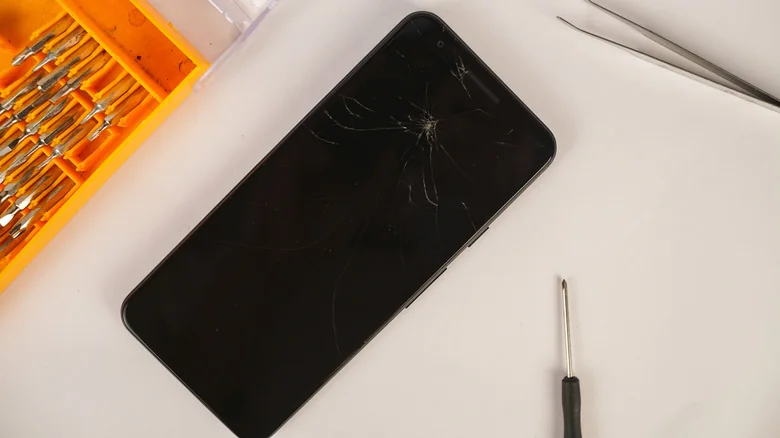
If your phone's screen suddenly becomes unresponsive to touch, start by examining it for cracks or other damage. If you see any, you're likely dealing with a hardware issue, not software. Next, take off the screen protector, since it can hide damage and could also be the cause of your screen's unresponsiveness. If you're wearing gloves, take them off.
Check what's around your screen too. Remove the case, disconnect any accessories, and peel off any stickers covering the screen or sensors. Use a slightly damp microfiber cloth to properly clean your screen of dirt or liquid, and make sure to avoid getting moisture in your phone's openings.
If none of that works, the next step is to restart your phone. A good restart can clear any software glitch and set your phone straight. Since a standard restart is likely out of the question due to the screen not responding, you need to force restart your device. On an iPhone with Face ID, press and quickly release the volume up button, then do the same with the volume down button. Next, press and hold the side button until the Apple logo appears.
The process is different for older iPhone models. On an iPhone 7 and 7 Plus, press and hold the side and volume down buttons together. On an iPhone 6s and earlier, hold the Home button plus the side or top button.
On Android, the process can differ depending on the manufacturer, but the standard process is to hold the power button for 30 seconds until it restarts.
Advanced Fixes
If none of the earlier fixes get your screen working again, you're likely facing a deeper hardware or software issue. On Android, you can use safe mode to check whether a third-party app is behind your screen's unresponsiveness, because it loads only the software your device shipped with. If your screen responds in safe mode, a third-party app is the culprit.
To enter safe mode, force restart the device. When the manufacturer's logo appears, press and hold the volume down button until the phone starts up. If successful, Safe mode will appear in the bottom-left corner.
Before concluding it's a hardware fault, try resetting your settings and turning off developer options on your Android if enabled. To reset your iPhone's settings, open Settings, select General, go to Transfer or Reset iPhone, choose Reset, and tap Reset All Settings. Note that Android steps vary by device.
For Samsung users, open Settings, go to General management, select Reset, and choose Reset all settings. If this doesn't work either, a factory reset is the last resort.
Performing a factory reset wipes all data on your phone, so ensure you have a backup before proceeding. Alternatively, take your device to an authorized service center or a credible independent repairer to check for hardware faults.
Some of these steps require a screen that responds at least a little. If that is not the case, you may need to mirror your device.
Screen Mirroring
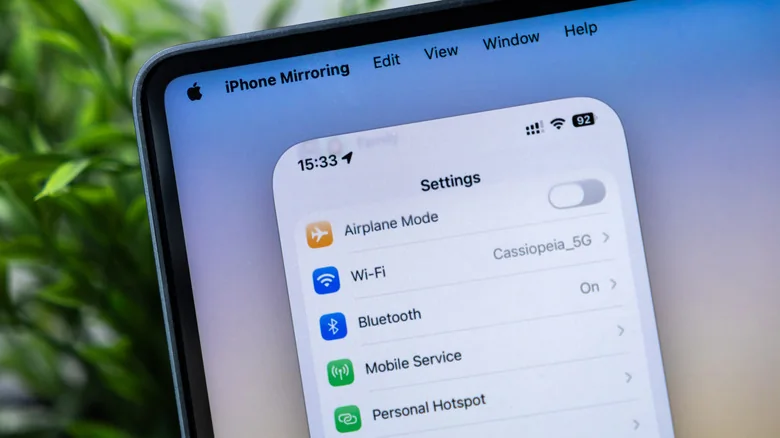
Screen mirroring is an effective way to navigate an unresponsive screen, especially if it is physically damaged. However, this method generally requires prior setup while the screen was still functional.
For an iPhone and Mac combination, mirroring is straightforward. Your iPhone must be unlocked and nearby, and your Mac requires macOS Sequoia or later with Apple silicon or an Apple T2 security chip. Both devices need Bluetooth and Wi-Fi enabled before clicking iPhone Mirroring in the Mac Dock.
For iPhone users on Windows, there is no official mirroring tool that allows full control, as most third-party solutions are limited to viewing only.
For Android and Windows users, the Phone Link app is the best choice. Open the app on your PC and click to open the phone screen, ensuring both devices share the same Wi-Fi network.
Android users working with a Mac can utilize third-party tools like Scrcpy, a free, open-source utility that mirrors Android devices over USB or Wi-Fi, allowing control via keyboard and mouse after enabling USB debugging.
Scrcpy also includes an OTG mode for controlling your phone with a computer keyboard and mouse without USB debugging. Alternatively, a USB OTG adapter allows you to connect a wired mouse directly to the phone.