Siri can index more of your personal data — here's how to limit it
If you are concerned about Apple’s digital assistant, here’s how you can restrict its access to your data.
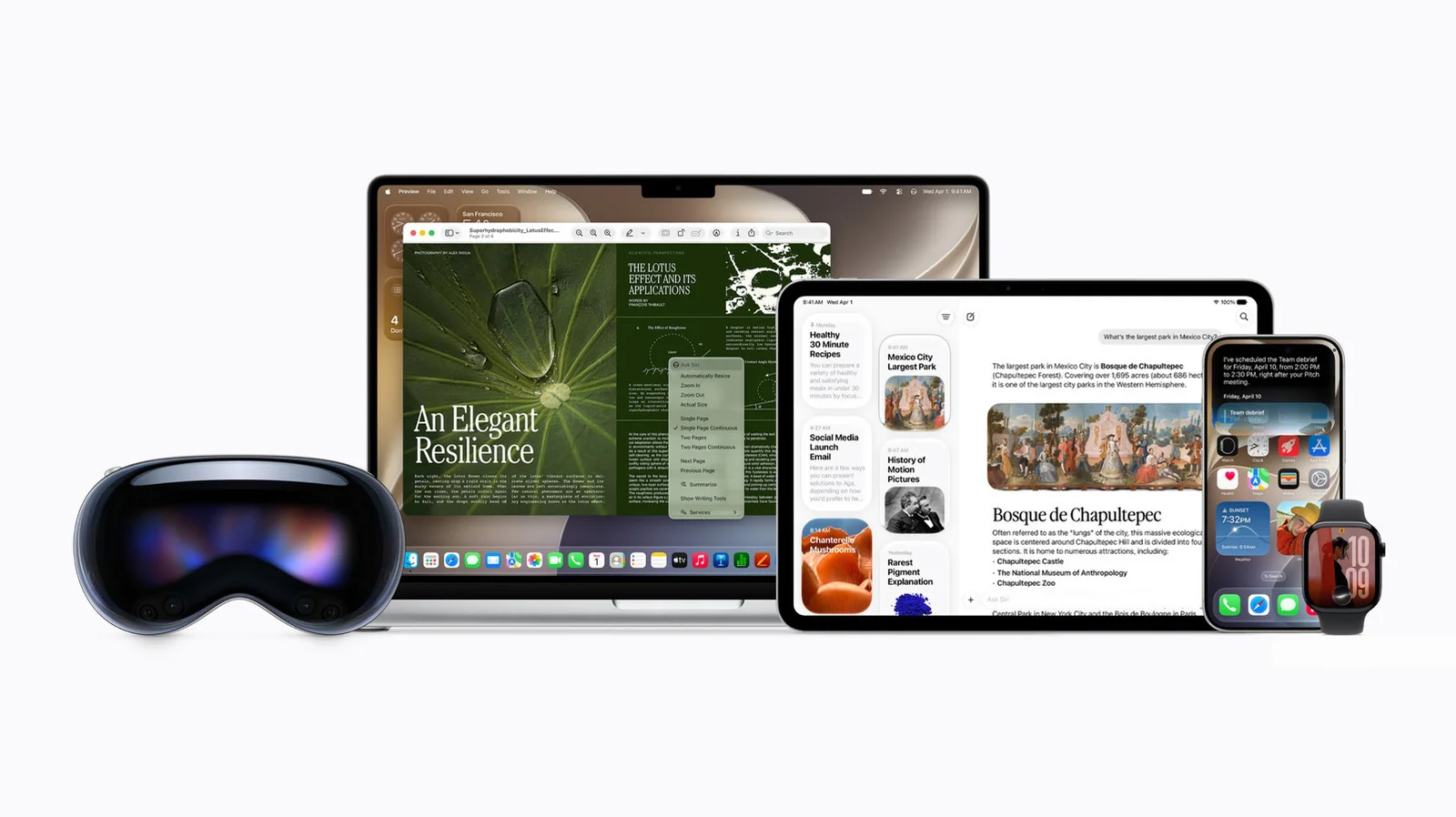
Apple's redesigned Siri brings smarter, more personalized responses. However, the new assistant requires a significant amount of data to operate effectively.
Apple partnered with third-party developers to train large language models that power Siri AI features. Because the system relies heavily on personal data from your phone, you may want to manage what it can access.
How does Siri AI access data from your apps?
A framework called App Intents allows Apple Intelligence tools to access data from compatible apps. When enabled, Spotlight and Siri share a single interface, searching through apps like Notes and Messages to pull relevant information.
Siri AI uses a combination of on-device models and Private Cloud Compute infrastructure, sometimes offloading data to remote servers for processing. Apple states that data sent to these servers is not stored and remains inaccessible to the company, but you can still control what Siri indexes.
Restrict Siri AI's access to content inside your apps
App developers decide whether Siri AI can access data generated inside their apps. If they allow Spotlight indexing, Siri can surface that information. You can restrict this access by following specific device settings.
Open the Settings app.
Scroll down and tap Apps.
Select the app you want to restrict Siri from accessing.
Tap Search.
Toggle off Show Content in Search.
Once disabled, Siri will not pull information from that specific app, even when instructed directly.
Other settings grouped under Apple Intelligence & Siri primarily control app suggestions and usage tracking for interface organization rather than external data sharing.
On-screen awareness
A feature called on-screen awareness permits Siri to read contents from screenshots and images for summaries or accessibility purposes. Note that interpreted screenshots may be sent to remote servers.
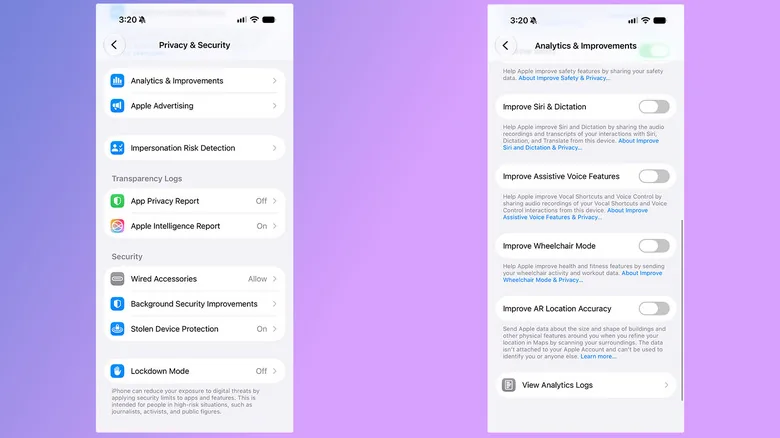
Ensure you're not sharing Siri recordings with Apple
By default, Apple does not use interaction data to train future assistant versions, but setup prompts may have opted you into sharing recordings and transcripts.
Open the Settings app.
Tap Privacy & Security.
Scroll down and select Analytics & Improvements.
Disable Improve Siri & Dictation if turned on.
Disable Siri AI altogether
You can revert to an older version of Siri to limit privacy exposure while maintaining basic voice functions.
Open the Settings app.
Tap Screen Time, followed by Content & Privacy Restrictions.
Enable Content & Privacy Restrictions.
Tap Siri.
Under Allowed Siri Version, select Siri Classic.
Alternatively, you can disable Siri entirely using device settings.
Open the Settings app.
Tap Siri.
Scroll down and select Turn off Siri.
Additional restrictions for the Apple Intelligence suite can be managed through official support resources.