The Problem with Linked Volumes
For years, iPhone users have lived with a high-stakes daily anxiety: turning down your ringer volume before bed meant accidentally silencing your morning alarm.
In iOS 27, Apple makes it easier than ever to keep your alarm volume completely independent from your overall ringer. The setting isn't enabled by default, and it's tucked away inside a menu most people scroll right past.
Here is how to set up your alarm volume independently so you can keep your ringer quiet overnight without missing your wake-up call.
Setting Independent Alarm Volume
Open Settings on your iPhone, tap Sounds & Haptics, and scroll down to the Alarms & Timers section.
From there, toggle Match Ringtone Volume to off. This step permanently unlinks your alarm slider from your physical side volume buttons.
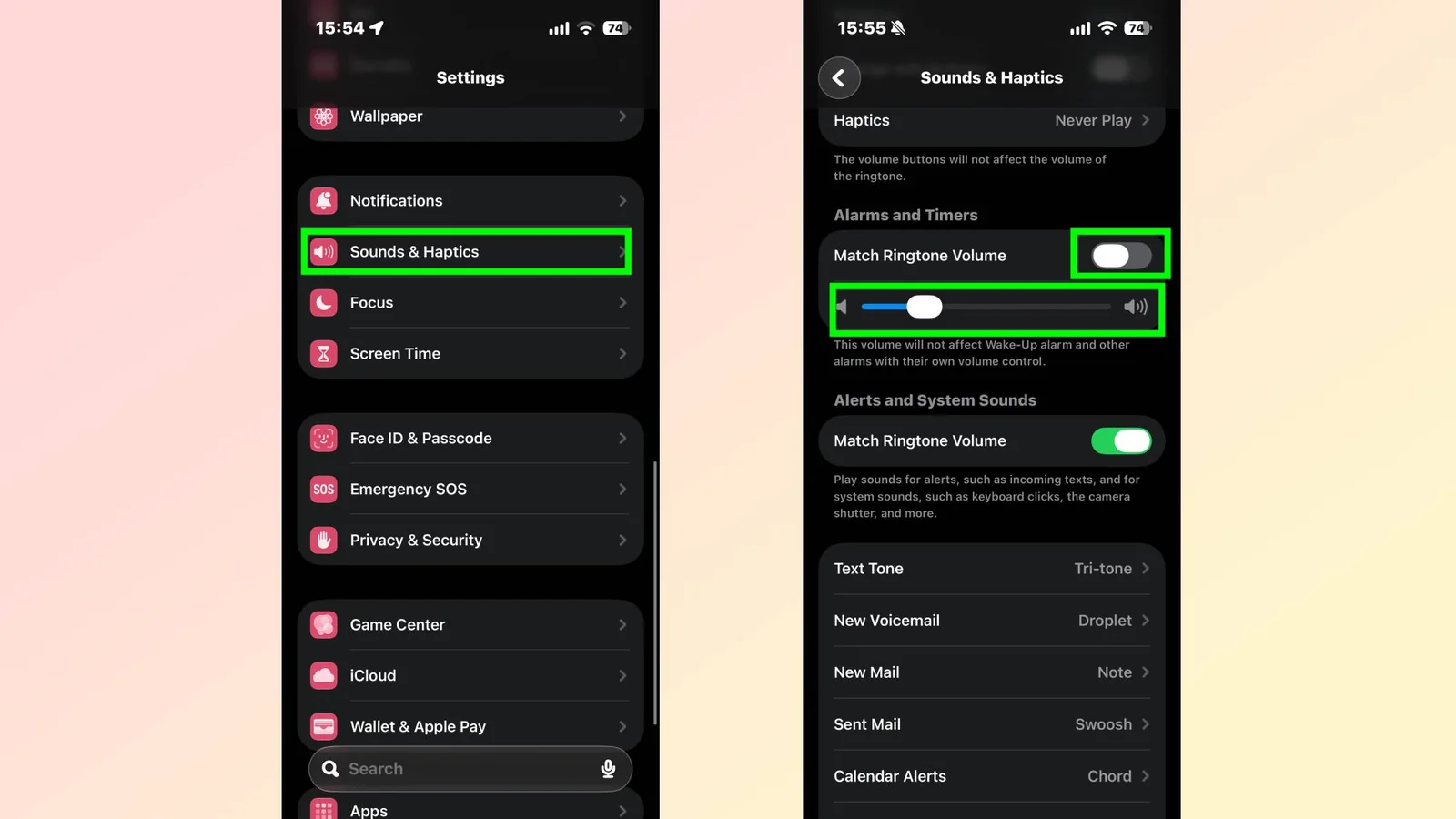
Then drag the new Alarm & Timer Volume slider to your preferred level.
Once Match Ringtone Volume is turned off, pressing your iPhone's physical side buttons during the day will only change your media and ringer volume. Your morning alarm will stay locked at the exact volume level you set on this slider.
Understanding Sleep Focus
No. If you use a Wake-Up Alarm configured inside the Health app or a Sleep Focus schedule, iOS continues to manage that volume dynamically based on your sleep goals.
However, for any standard alarms set in the Clock app or quick voice timers set via Siri, this new slider acts as your master volume control.