5 things you didn't know Steam's overlay could do
You might think you know Steam's overlay, but there's a lot more hiding behind that Shift + Tab shortcut.
Valve updated Steam to release a redesigned overlay you can access while playing your favorite games. While nearly every publisher and storefront now offers some form of overlay in their games and launchers, Steam has them all beat with its breadth of options. If you're a Steam user and don't use the built-in overlay frequently or at all, you might be surprised by all the things it can do.
If you're new to Steam, you can open the overlay in-game by pressing Shift and Tab on your keyboard at the same time. If you want to change the shortcut, you can do so from Steam's options menu, which you can access by clicking Steam at the top left of the interface, followed by Settings and then In-Game. You'll also find other handy settings here, such as the option to disable the overlay altogether. This is also a good place to mention that Steam will remember how you've configured your overlay for each individual game, so there's no need to activate, arrange and resize parts of the interface every time you go play your favorite titles.
The Steam overlay is great for single-player games
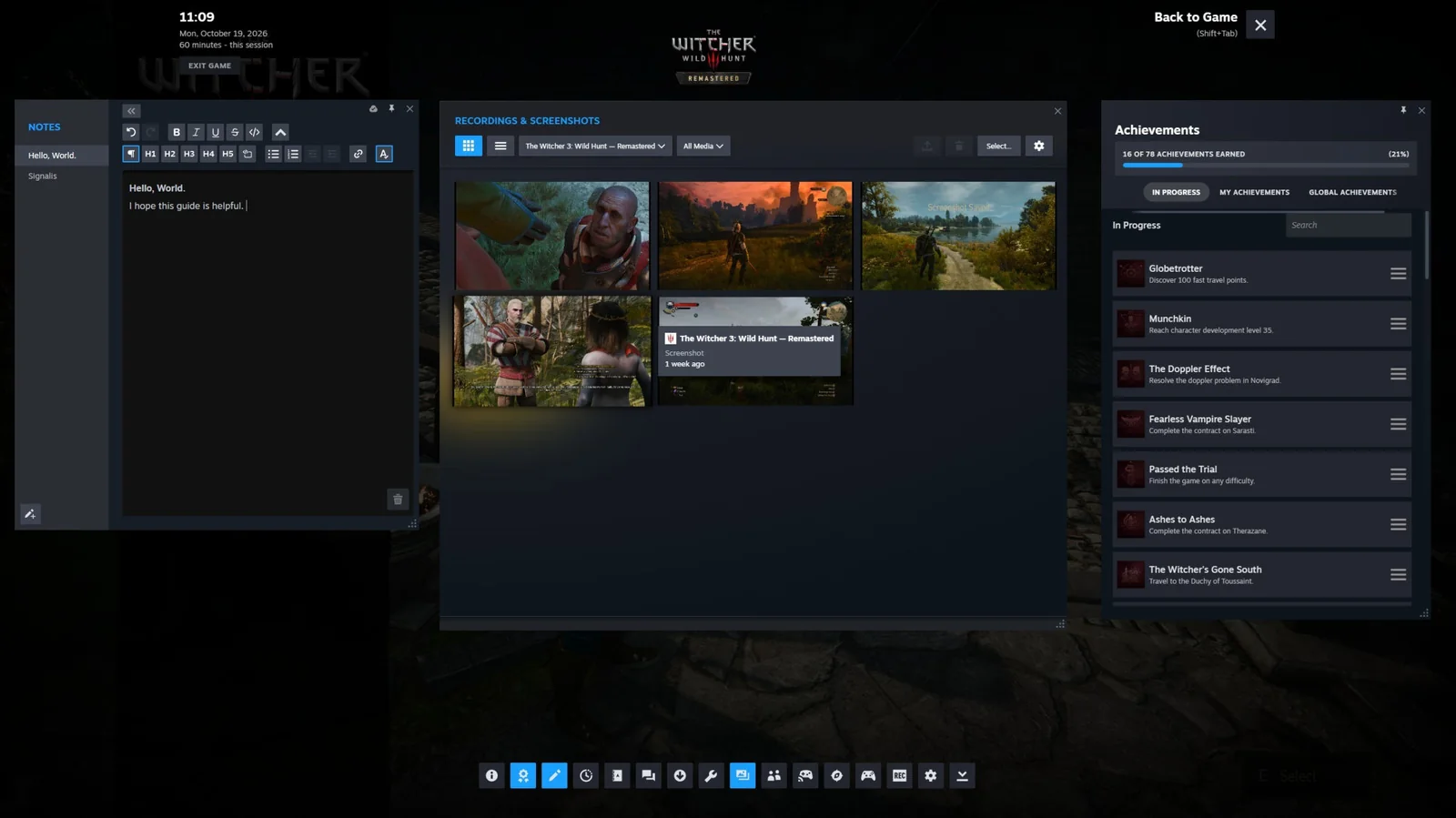
When you bring up the overlay, you'll find shortcuts for all the features I mention below along the bottom of the interface. Simply press one of them to bring up the feature you want to use.
Surf the web without leaving your game
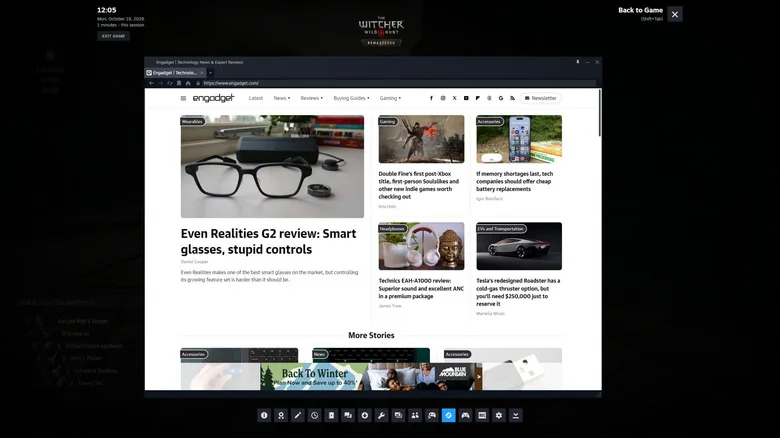
Switching to Steam's built-in browser is a lot smoother since it's integrated directly into Valve's client. It's a great way to check something, such as how to tackle a quest you're having trouble with, without taking yourself out of a game completely. You can also access Steam's community guides directly from the overlay, making them easy to reference, especially if you favorite one.
Write a note
If you're playing a puzzle game, being able to jot down notes as you try to piece together clues can make things so much easier. Steam's built-in text editor is fairly robust, allowing you to format text and write code blocks.
Set yourself a timer
Gaming time can often be limited, meaning you might only have a strict window before needing to step away. For that reason, using the overlay to keep track of time and set timers is genuinely helpful.
You could use your smartphone to do that, but the beauty of doing things this way is you don't need to look at your phone. Bonus tip: you can pin any element of the overlay so that it appears in-game. This is particularly handy to do with the timer, and if you do pin something, it won't appear in any screenshots you take directly through Steam.
It's also great when playing with friends
Since Steam is not just a platform for playing games on your own, the overlay has a couple of features that are great for sharing your favorite games and moments with your friends.
Browse and share your screenshots
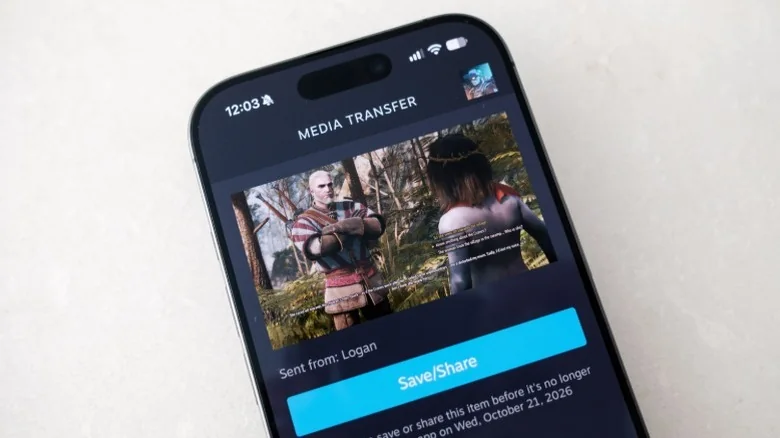
You can view any images or recordings you've made through the overlay, even ones you've captured in other games. If you click on a screenshot and select Share, you can save it to a folder on your computer or send it to one of your Steam friends over chat. You can even send your screenshots and recordings directly to your phone via the Steam Mobile app.
Start a co-op session with a friend
Remote Play Together is a Valve protocol that allows you to play local co-operative games with your friends for free over the internet. With most connections, up to four people can join in the fun. As long as a game supports the protocol, your friend doesn't need to own the game. You can share control of your keyboard in case your friend doesn't have a controller of their own, and they cannot access any other part of your PC while Remote Play is active. Just click the Remote Play button in the overlay and invite your friends.