One annoying problem with the iPhone Messages app has an easy fix
Apple's iMessage can be customized to fit your needs however you like
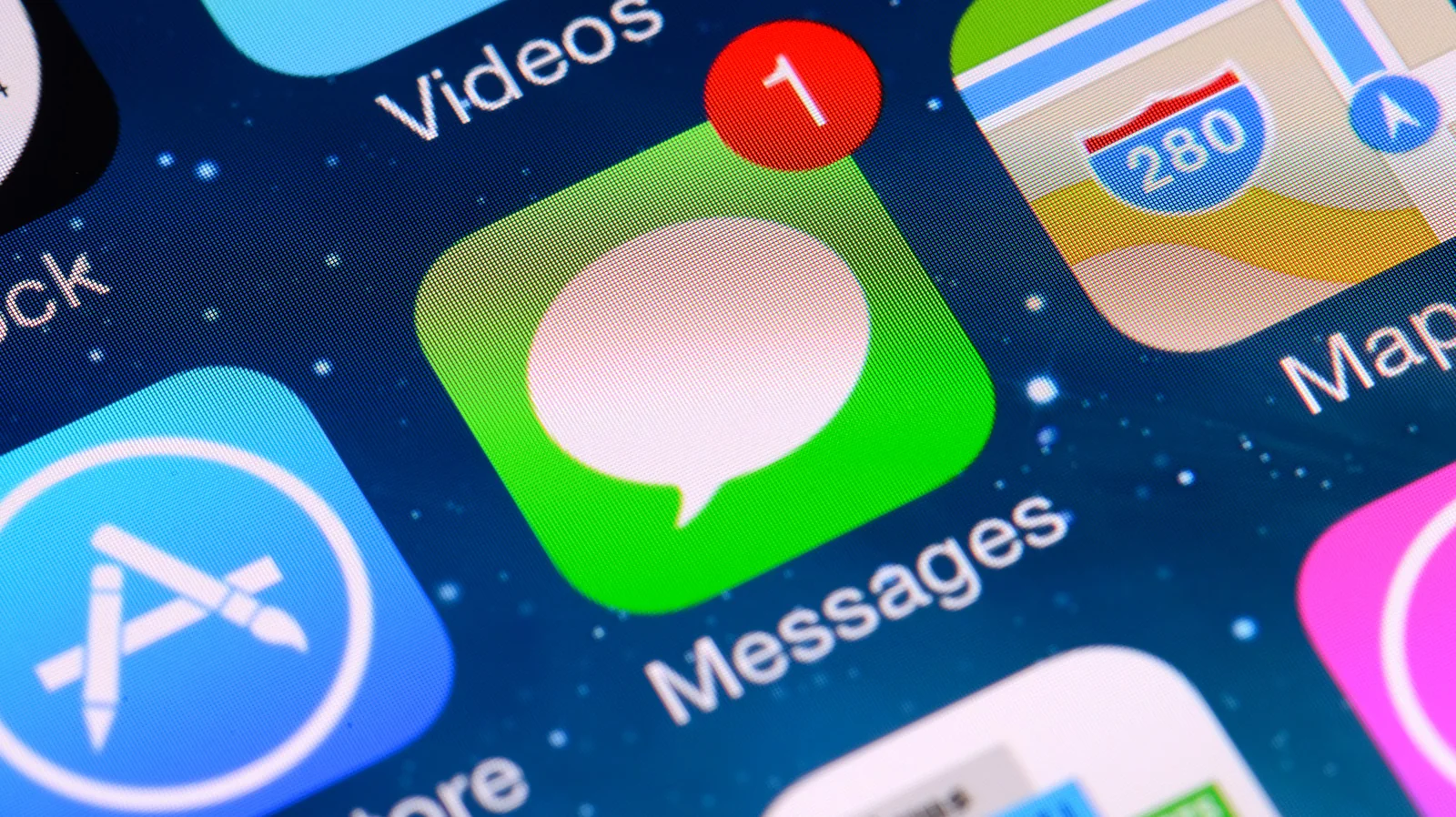
Apple's iMessage has evolved a lot over the years. In recent updates, the Cupertino company has added everything from satellite messaging that can reach out to your emergency contact while in a remote location to aesthetic changes like customizable backgrounds. Keeping abreast of these changes can be difficult, especially when Apple releases a new iOS update every year.
The iMessage App Arrangement Problem
Despite these updates, users often lament the inconvenience of their iMessage app arrangement. Why, for example, are applications you've never used at the top of the dropdown menu, while your most used apps remain buried at the bottom? The answer is that you likely haven't taken the time to customize the menu's layout.
Some of the most impactful changes have come through the introduction of iMessage apps. Since the introduction of iOS 18, several applications have been installed in the messaging app by default. As of the latest update, iOS 27, 14 apps are included by default. These popular applications bring features like sending your location, voice recordings, stickers, GIFs, music, photos and polls. Other applications, like ESPN and Venmo, further expand the functionalities of your messaging app. Luckily, you can keep them all ordered how you want.
Accessing the iMessage App Menu
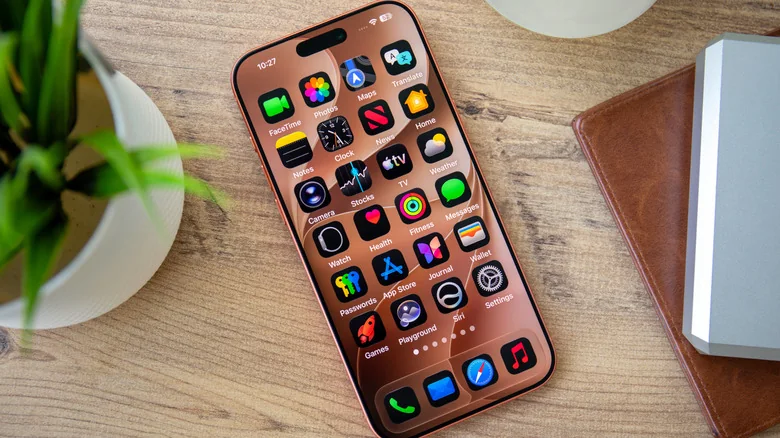
Before customizing your app layout, let's quickly review how to pull up your iMessage dropdown menu. First, make sure that you have downloaded the latest iOS. Once updated, open your Messages and either tap a conversation or hit the compose button, which resembles a pencil touching a white square located at the bottom of righthand corner of your screen.
How to Reorder Apps
Once a conversation is pulled up, tap the Plus (+) button beside your messages. Here, you will find a full list of your available iMessage apps . Next, hold down the app you want to move until the icon shrinks, drag it to its desired place on the dropdown menu and let go.
Adding New iMessage Apps
You can also add more apps to your iMessages. Open your phone's App Store for iMessage. Go to Messages, open a conversation, tap the Plus (+) symbol and touch the circular blue App Store icon. Once you open the App Store, you can peruse Apple's list of popular applications or search for something specific. To download a new app, simply tap the Get button next to the app's name. If the app requires purchasing it, you will see the app's price rather than a Get button. To exit the app store, swipe down or tap Close (X).
Privacy, Security, and Parental Controls
You may want to be cautious about which apps you add. In August 2026, for instance, OpenAI caused a stir when it added iMessage integration to its ChatGPT app for Mac. While some found the app useful, others raised privacy and security concerns. Moreover, some free apps require in-app purchases, which can easily ratchet up your monthly phone expenditures. If you are part of a Family Sharing plan, however, you can take advantage of iOS 27's enhanced parental control features by managing your family's in-app purchasing options. One helpful setting is the Ask To Buy feature, in which you can require the children on your plan to get confirmation before making an in-app purchase.
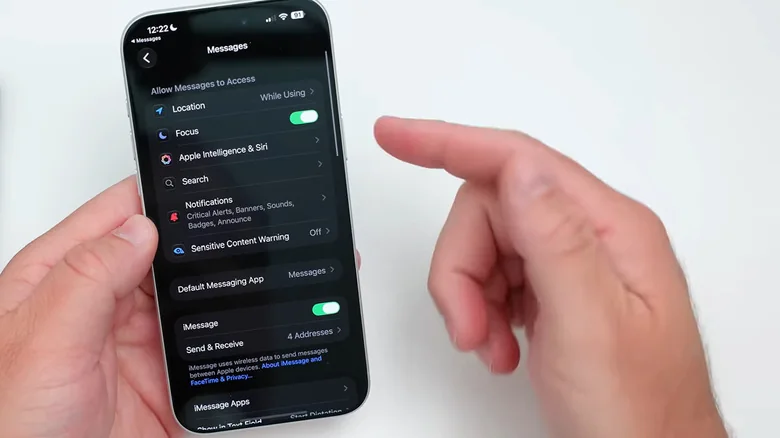
To delete individual apps you've added, or to manage the iMessage functionalities of your downloaded apps, visit your Settings app. From there, tap Apps > Messages > iMessage Apps. Here you can decide whether you want to toggle the application on or off. You can also delete the app altogether on your device's homepage by tapping and holding down on the icon until a dropdown menu appears. Then, tap the red Remove App option at the bottom of the menu.
Apple even lets you customize some of your iMessage app's functionalities, too. For instance, you can adjust how your iPhone's audio recording app functions within iMessage, cycling between voice note and dictation functions.