Understanding Frame Rate Caps
Seeing fewer frames per second sounds counter-intuitive, but there are good reasons to cap your fps.
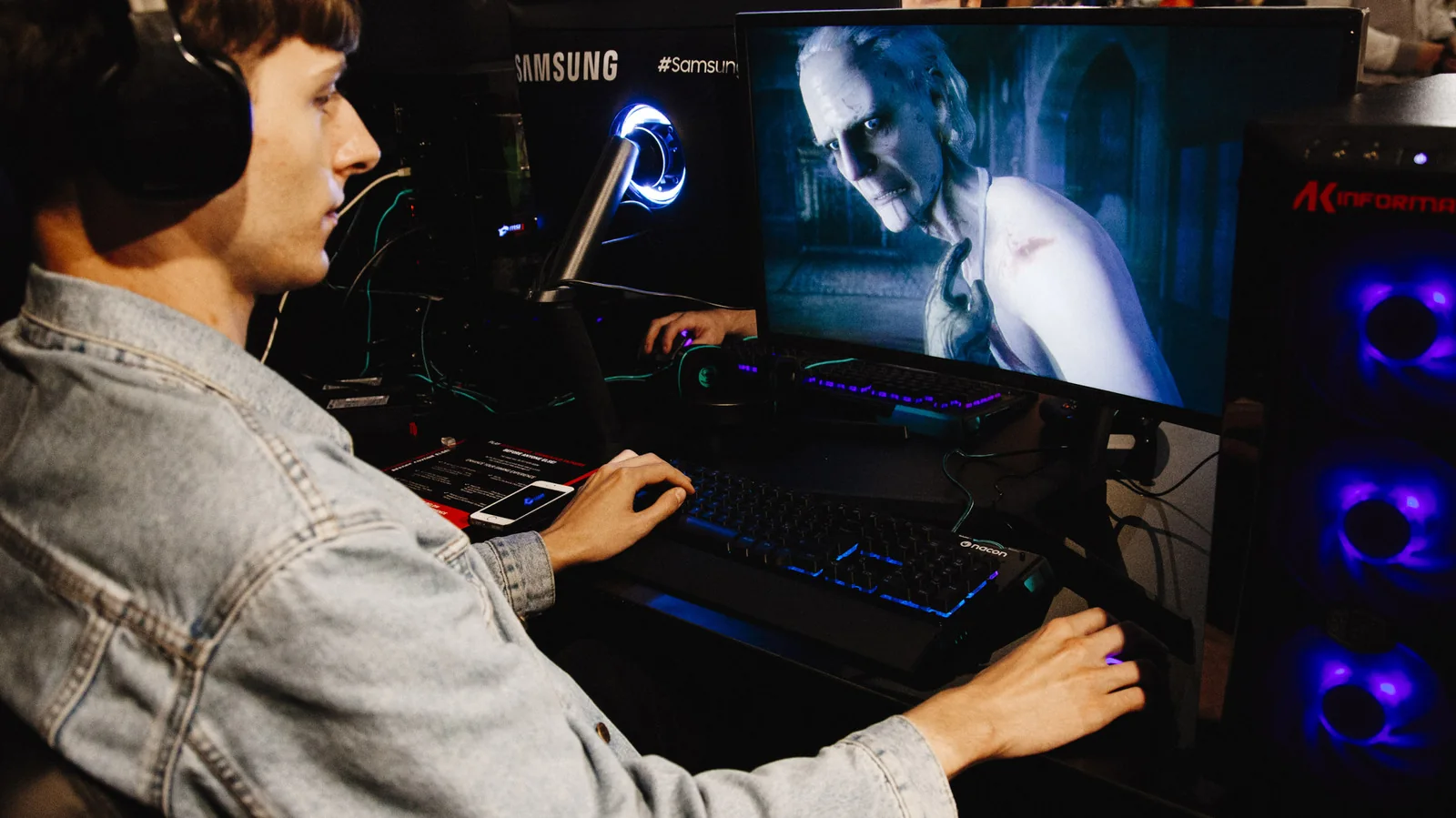
If you're into PC gaming, there's a good chance you care deeply about frame rates. But even if you own a high-end gaming rig, you should still give serious thought to capping in-game fps. For those looking to boost GPU performance without buying a new one, a system-wide frame rate cap can be a great option. Not only can this help stop screen tearing when combined with V-Sync (vertical synchronization), but a cap can also decrease GPU load.
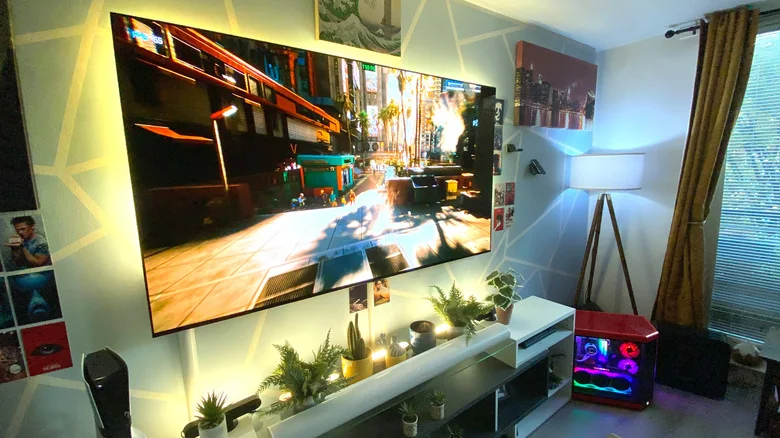
Benefits of Capping FPS
In the majority of games, you should consider capping your frame rate. Setting an fps cap can help you hit and maintain stable performance — provided your hardware is up to the task — while lowering the chance of screen tearing. Capping frame rates can also put less stress on your GPU, leading to reduced fan noise and lower power output in general.
Setting an fps limit makes the most sense if you're using a VRR (Variable Refresh Rate) monitor. That's because a cap helps your favorite games stay inside the effective VRR range, which is generally agreed to start at 48 fps and top out at your display's max refresh rate. By setting a frame rate cap on a VRR screen, you're ensuring the in-game action doesn't hit the refresh rate ceiling, which in turn slightly lowers latency. Paired with V-Sync, limiting fps should ensure you never see screen tearing.
If you're wondering what causes screen tearing, this annoying screen issue occurs when your GPU sends a new frame to your monitor/TV while it's still displaying the previous one. This results in different parts of the two frames simultaneously appearing on-screen, which presents as flickering horizontal lines in motion. This looks ugly and can be distracting; it's a game-breaking defect.
Capping frame rates helps achieve smooth, visually consistent gameplay sessions on compatible monitors. Hardware-agnostic adaptive sync solutions match a display's refresh rate to a GPU's frame output. When action dips slightly, fluctuations often remain imperceptible to the human eye.
Methods for Limiting FPS
The easiest way to cap a game's frame rate is to use an fps limiter. Many titles have this feature baked into their graphics settings, though they're not always reliable. A safer bet is to cap your frame rate using your GPU's software.
Those with NVIDIA cards should use either the NVIDIA app or the NVIDIA Control Panel. With the latter, go to Manage 3D Settings > Global Settings > Max Frame Rate, then set your desired fps target. If you have an AMD GPU, you can cap frame rates on a system-wide level with AMD Adrenalin. Simply navigate to Gaming > Radeon Chill, then set your minimum and max fps to the same rate. Another viable option is to use third-party programs, such as Guru3D RTSS RivaTuner.
The rate you should set your output at depends on your display's maximum refresh rate. In most cases, using a combination of V-Sync and a cap of three or four frames below your screen's max refresh rate will stop screen tearing. So if you're on a 60Hz panel, aim for 57 fps. On a 120Hz display, go for 117 fps; 240Hz should be 237 fps and so on.
On VRR displays, capping your frame rate slightly below the max refresh rate can help reduce lag, though not to a significant degree. And if you're concerned about losing a few frames, don't be. You're almost certainly not going to notice the difference between 57 and 60 fps, let alone 237 next to 240. Provided your GPU is powerful enough that it won't dip below the frame rate value you've set, you should get smooth, tear-free gaming experiences on your rig.
Understanding V-Sync Trade-offs
If you're wondering what V-Sync does to your PC's frames per second, the short answer is that it caps FPS to a number that won't exceed the maximum refresh rate of your display. That means for someone who plays on a 120Hz monitor, your in-game performance can't exceed 120 fps when V-Sync is enabled.
V-Sync synchronizes a game's frame rate to match the refresh rate of a monitor or TV. Before your GPU can push a new frame, V-Sync forces the card to wait until a display's refresh cycle is complete. With 60Hz panels, that introduces a 16.7ms delay. For 120Hz screens, it's 8.33ms, and in the case of ultra-fast 240Hz displays, just 4.17ms.
The obvious plus with V-Sync is that it all but eliminates the chance of screen tearing. That's great, since screen tearing is an absolute immersion-breaker. Yet there's a fairly sizable downside to enabling V-Sync. By forcing the GPU to wait until individual refresh rate cycles are complete before it can generate fresh frames, unavoidable input lag is added.
The amount of latency V-Sync adds often varies by game. A rule of thumb is to expect one additional refresh cycle of lag. So with a 120Hz monitor, that's once again 8.33ms. Of course, if your GPU can't render frames fast enough, queued frames will build up, increasing latency even further.
Alternative options include specialized settings found in manufacturer control panels, which aim to reduce standard V-Sync lag while also providing a lower-tear experience.
Fast V-Sync lets the GPU keep rendering frames rather than make it wait for a refresh cycle to complete, so it doesn't cap FPS like garden variety V-Sync. This approach delivers solid results in games where frame rates normally sit well over the monitor's refresh rate, serving as another option to eliminate tearing.