The reason your phone keeps dimming even with auto-brightness off
There are multiple possible causes.
Whether you're texting, scrolling through your socials or playing a game, a phone screen that keeps dimming can be a major annoyance. Why does this keep happening when your auto-brightness feature is turned off?
Understanding Screen Dimming
There are a few possible reasons your phone screen is dimming, and there are also a few ways you can try to fix the dimming problem yourself.
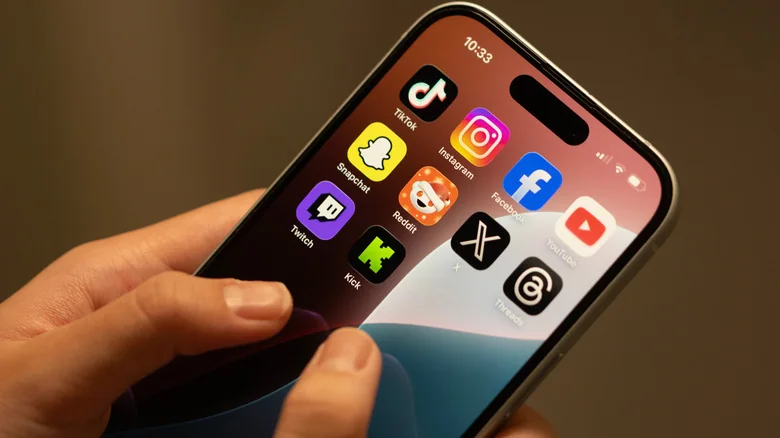
Troubleshooting screen dimming on your iPhone
One of the most straightforward explanations is that your iPhone is overheating, either externally or internally. When the phone gets hot, it's designed to cut back on energy and performance to maintain a stable internal temperature. Considering that the touchscreen is one of the most power-hungry features of a phone, screen brightness is scaled back as a precaution when the phone gets too hot. But phones can also overheat when you're running apps that require extra power, like gaming, using the camera, streaming HD video, updating software or wirelessly charging your phone.
Whether the heat is from internal or external sources, get your iPhone into a more comfortable environment so it has the chance to cool off. If your iPhone is in a protective case, take it off so more heat can escape. And be sure to close down any power-hungry apps or tasks you're running on the phone to let it stabilize.
Another reason that your phone's screen is dimming may be that your phone's power-saving settings are enabled. This feature certainly helps your iPhone maintain its battery power between charges, but it can also cause the screen to dim as a default way to save power. Also, make sure to check your phone's screen timeout setting. If it's set to anything less than one minute, the screen will continue to dim quickly.
iPhone Troubleshooting Steps
You may not know that when you're not looking at your iPhone screen, it dims if the Attention Aware Features setting is enabled. This can be easily remedied by going to Settings > Accessibility > Face ID & Attention, then turning off the Attention Aware Features. The iPhone's proximity sensor could also cause the screen to dim or go black if the sensor is dirty or gets set off by movement near the top of the phone. Cleaning the top of your iPhone with a microfiber cloth and keeping it free of dust and oil can help.
If you have an iPhone 14 Pro or later, check out the Always-On Display feature. This setting keeps your screen on by dimming the Lock Screen so it's always visible regardless of whether the iPhone is locked. According to Apple, the display shuts off if your iPhone is placed face down, CarPlay is initiated, it's far from a paired Apple Watch, you're using Continuity Camera, Sleep Focus is enabled or Low Power Mode is in use.
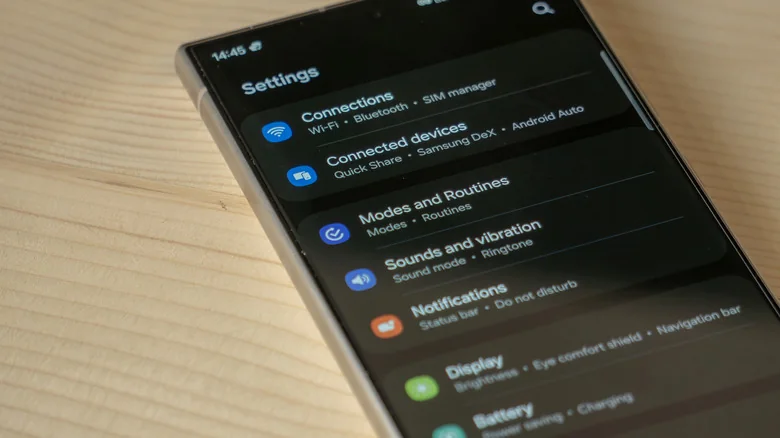
Fixing screen dimming on Android phones
Android phone screens dim for the same reasons iPhone screens do. The only differences come in how to troubleshoot the screen dimming through Android settings. Similar to the iPhone, you'll want to keep your Android phone cool and make sure the proximity sensor is not blocked by a screen protector.
Samsung Galaxy phones use a feature called Keep screen on while viewing, which does exactly that, no matter what your screen timeout is set to. It does so by using the front camera to detect your face when you're looking at your phone. To enable this feature, go to Settings > Display > Screen timeout, then toggle the switch to activate.
Android Adjustments
Android phones also offer a variety of power-saving features that you can enable or disable to keep your screen from dimming. Samsung Galaxy phones include Always On Display, limiting CPU speed and decreasing brightness. These can all be found in Settings > Battery and device care > Battery > Power saving.
Some of these fixes are similar on Google Pixel phones, but Pixel offers a few extra features to check on as well. Newer Pixels have Extra dim as part of the brightness adjustment in Quick Settings. For Pixel 9 and earlier, go into Settings > Accessibility > Extra dim to make sure this feature is disabled.
How to know if too much dimming may require further troubleshooting
If you've tried everything here but your phone's screen is still dimming excessively, it's probably time to have it diagnosed and repaired by a professional. Especially if you notice some warning signs like abnormal flickering, light surges, a dark screen when starting up, bright or shadowy spots, ghosting or permanent dimming.
When to Seek Professional Help
Those examples are generally a sign of internal component damage that no setting changes can fix. That can be a costly problem if the solution is a new screen, especially for phones that use OLED or AMOLED screens like newer-model iPhones, Samsung Galaxy S-series phones and Google Pixels.