Is your Roku TV talking to you? Here's why and how to turn it off
Relax, that voice you're hearing is pretty easy to turn off.
There are few things more terrifying than watching one of your favorite shows on Roku at night and suddenly hearing a disembodied voice coming from your screen. This robotic-sounding entity seems to know your every move, almost as if they're narrating your life.
No, you're not losing your mind: The voice coming from the Roku TV is just the screen reader, a text-to-speech accessibility feature that makes the interface easier to navigate for people who are visually impaired. That's why the voice is constantly narrating all the on-screen text.
How to turn off the screen reader
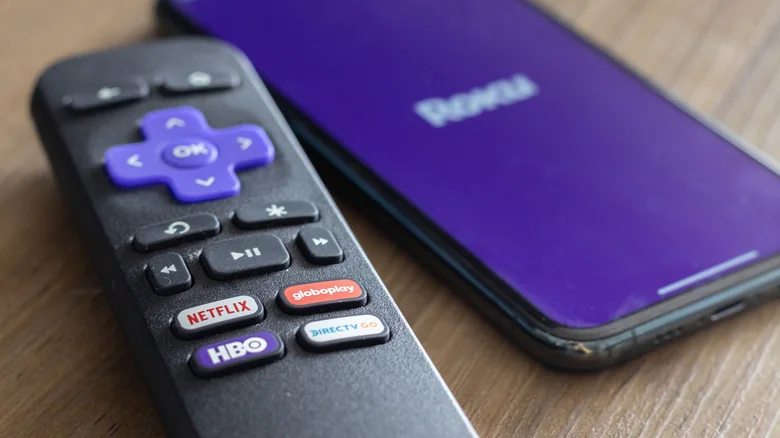
If you're not someone who normally benefits from having a screen reader, you most likely triggered it by accident with the Roku remote. By default, the remote has a screen reader shortcut that turns on when you press the Options button (the one with the little star) four times in a row.
It's the kind of shortcut that can be easily activated if the remote slips between the couch cushions or if any pets manage to step on it. Fortunately, it's pretty simple to turn off the screen reader as well: just press Options four more times.
You can also turn the feature off using Roku's menu screen by following these steps.
1. Press the Home button on the remote.
2. Open Settings.
3. Open Accessibility.
4. Scroll down to Screen Reader, then select Off.
How to disable the shortcut
You can also get rid of the remote's shortcut entirely to prevent future mishaps with the screen reader. Go back to the Screen Reader section under the Accessibility menu, find the Shortcut option and turn it off.
If you're having other problems with your Roku TV, such as a lagging Wi-Fi connection, you might be able to find answers by diving into Roku's system settings for more information.